Install and verify Aurora Lite
Prepare an authorised Windows endpoint, install Aurora Lite with its local dashboard, and verify that the service and rules are ready before testing detections.
Before you begin
You need an administrator account, a restorable Windows VM, the Aurora package and licence, and access to the vendor's update servers while preparing the agent. Aurora runs on Windows; consult the current vendor documentation before substituting a different release or operating system.
Use a narrow security exclusion
The original PoC records that Windows Defender was temporarily disabled during download. Prefer a vendor-approved, file-specific exclusion for the verified Aurora executable. Do not disable endpoint protection broadly or leave an exclusion in place after the lab without approval.
Download the package
The complete guide preserves the original registration, confirmation, licence, and download sequence:
-
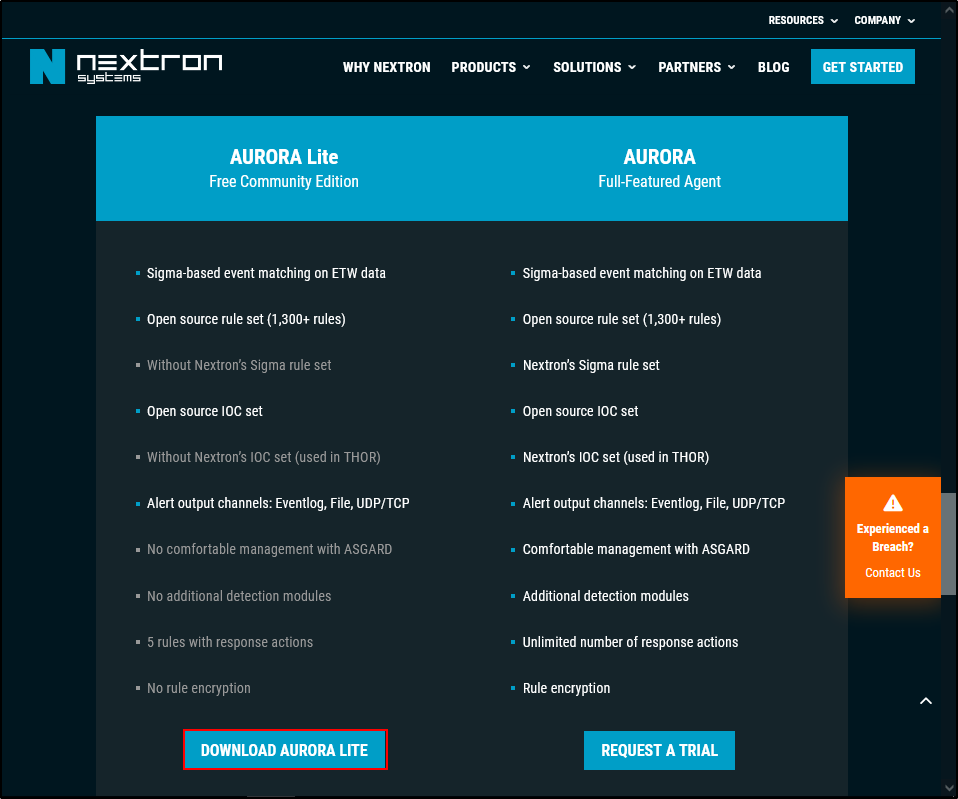
Open the Aurora product page and select Aurora Lite.
-
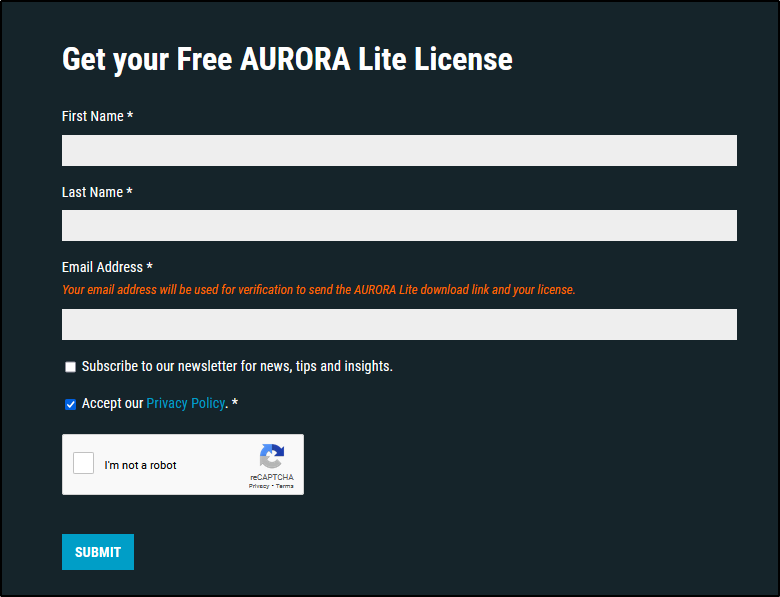
Submit the registration form.
-
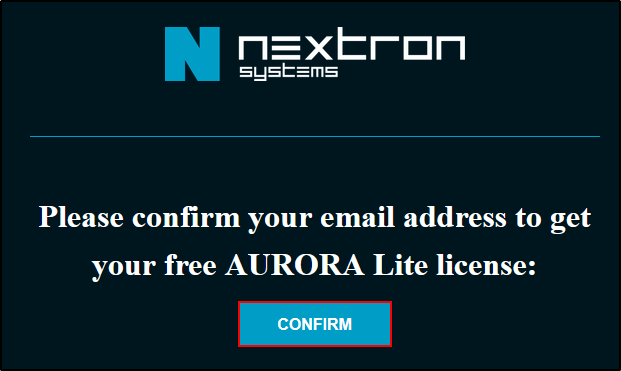
Confirm the email address.
-
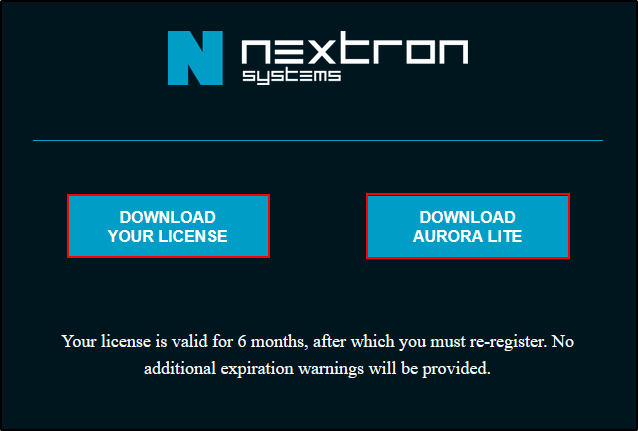
Download the licence and agent package.
Read the complete original download procedure.
Install with the dashboard
- Extract the package to a temporary folder such as
C:\aurora. - Place the
.licfile in that folder. - Open Command Prompt as Administrator.
- Change to the extracted folder.
- Install Aurora with its local dashboard:
- Confirm the agent files are installed under
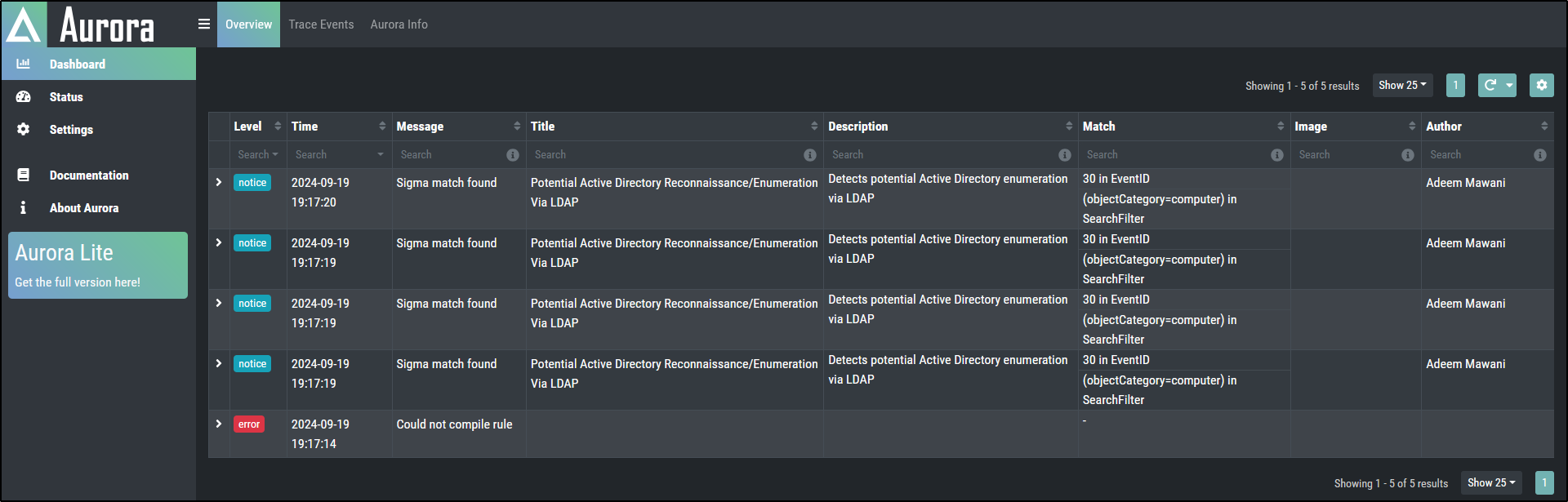
C:\Program Files\Aurora-Agent\and open the local dashboard.
Verify the baseline
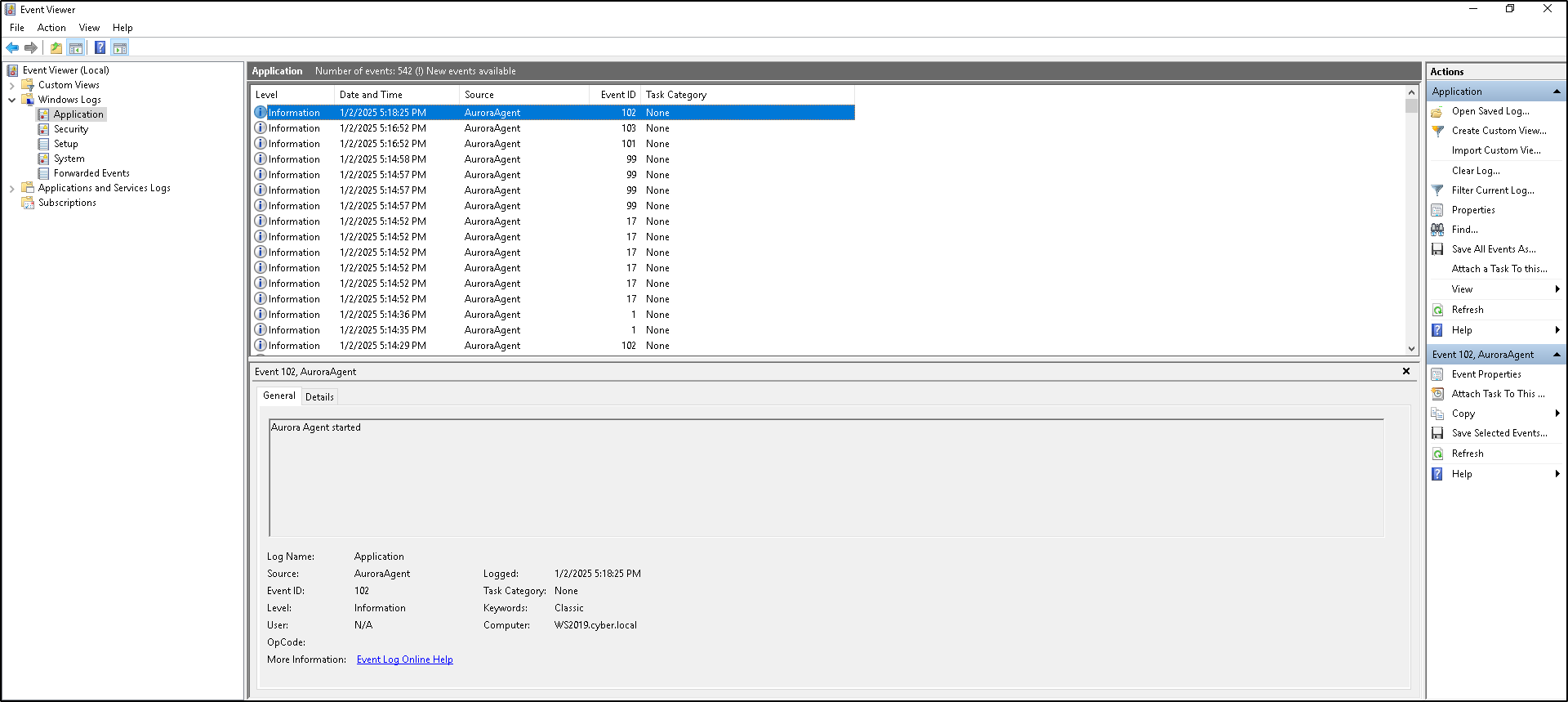
Before generating a test event, record the service status, selected configuration preset, successful rule loading, dashboard access, and baseline timestamp.
Checkpoint
Continue only when the service is running, signatures load without an unresolved error, and the dashboard opens locally at http://localhost:17494/ui/dashboard/overview.
Troubleshooting shortcuts
| Problem | Check first |
|---|---|
| Package is blocked | Verify the source and hash, then use the narrow approved exclusion described above. |
| Licence is not detected | Confirm the .lic file is beside the executable before installation. |
| Dashboard does not open | Confirm installation used --dashboard, then check service status and port 17494. |
| Rules do not load | Review Status and the Windows Application event log before changing configuration. |