Configure Endpoint Agents
Enrol Windows and Ubuntu endpoints, verify connectivity, and add useful Windows telemetry with Sysmon.
Before you begin
Record <WAZUH_SERVER_IP>, the intended agent names, and the required communication ports. Confirm endpoint time, DNS, routing, and host firewall policy before installing an agent.
Detailed endpoint procedure
The complete Windows, troubleshooting, Sysmon, and Ubuntu agent procedures are retained below.
Configure the firewall on Windows
For Wazuh agent to communicate with the Wazuh manager services, the following ports needs to be allowed for outbound connection:
- 1514/TCP for agent communication.
- 1515/TCP for enrollment via automatic agent request.
- 55000/TCP for enrollment via manager API.
Open Windows Defender Firewall with Advanced Security. Right-click Outbound Rules and create new rule. Select Port.
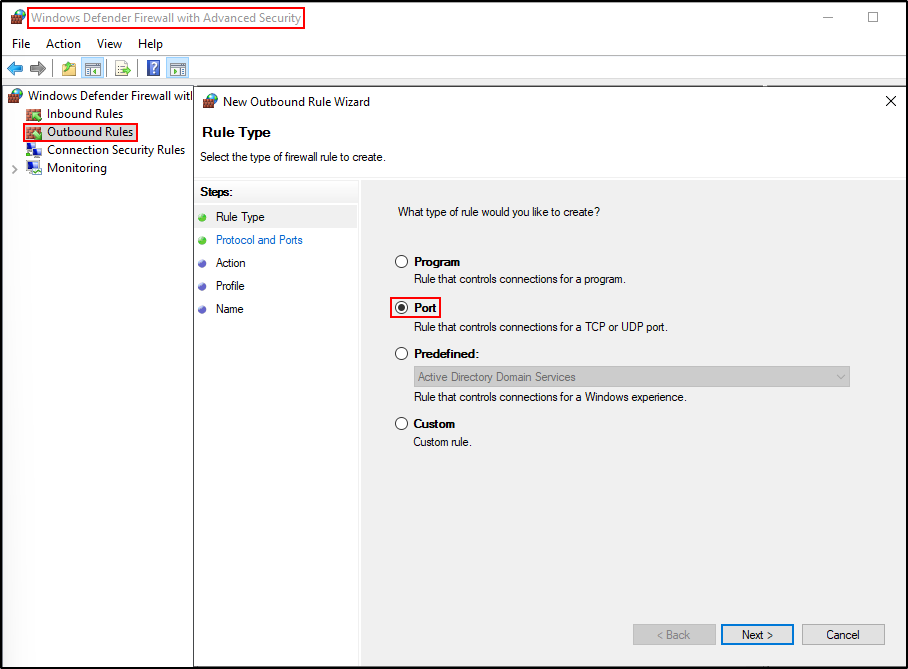
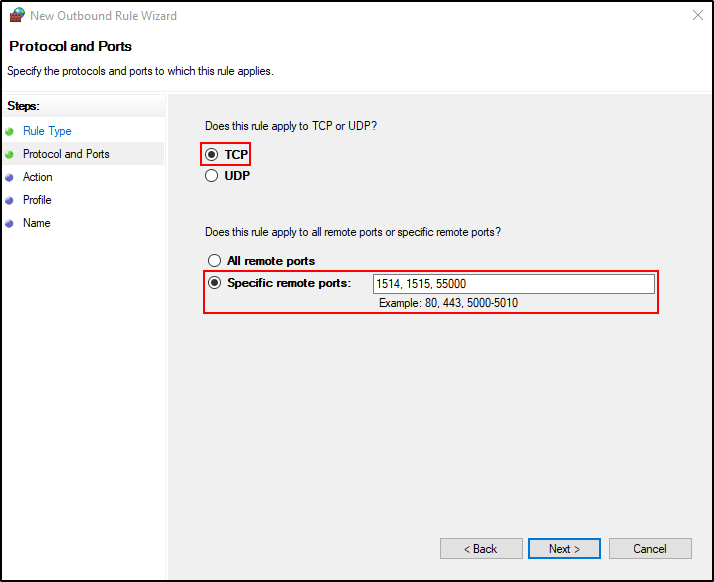
Select TCP and Specific remote ports. Put 1514, 1515, 55000. Click Next.
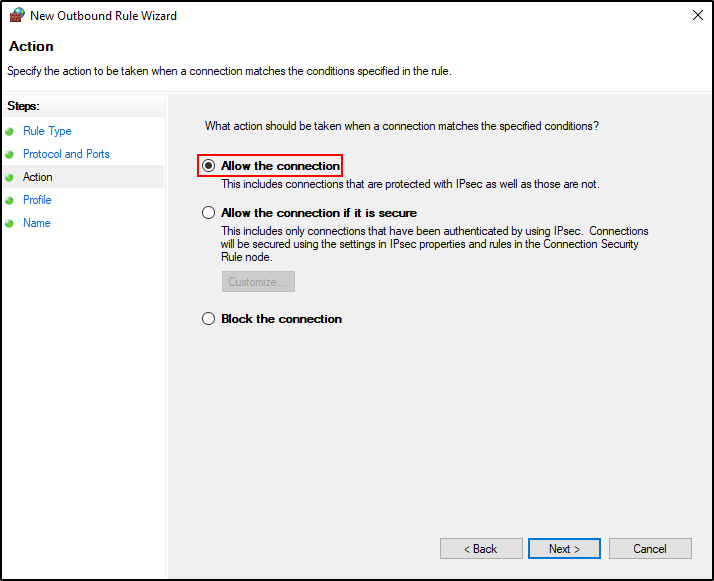
Select Allow the connection.
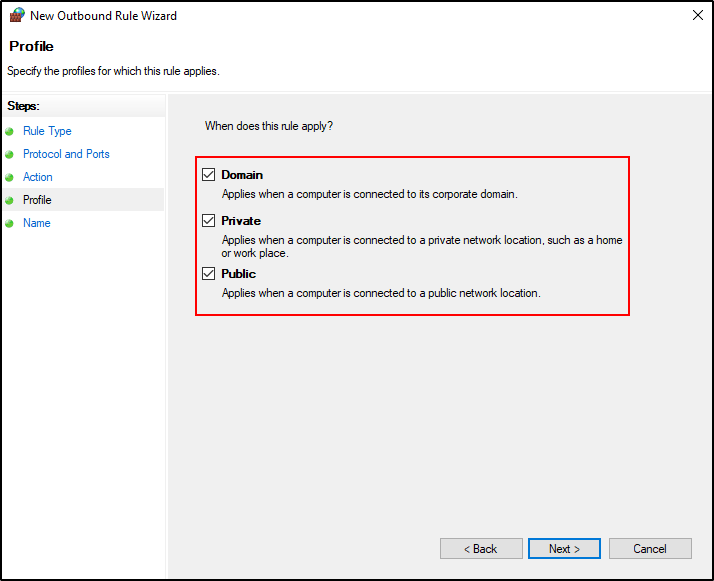
Select only the network profiles used by the managed endpoint. Avoid enabling a broad Public-profile rule unless the endpoint design explicitly requires it.
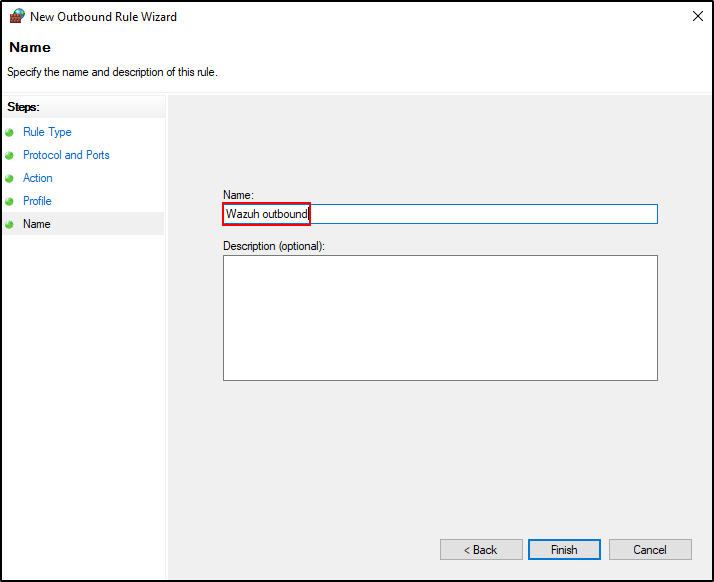
Name the New Outbound Rule as Wazuh outbound and click Finish.
Install the Wazuh agent on Windows
The agent runs on the endpoint you want to monitor and communicates with the Wazuh server, sending data in near real-time through an encrypted and authenticated channel.
Administrator access required
Run the installation from an elevated PowerShell session.
Download the Windows agent version recorded in the tested-version table. Keep the manager at the same or a newer version than its agents and verify the MSI checksum against the Wazuh packages list before installation.
Open PowerShell as Administrator and change directory to where Windows installer is located. Run the following command:
The installation process is now complete, and the Wazuh agent is successfully installed and configured. You can start the Wazuh agent from the GUI or by running:
Once started, the Wazuh agent will start the enrollment process and register with the manager.
Troubleshoot the Windows Wazuh agent
If Wazuh agent on Windows is unable to connect to Wazuh server, open Wazuh Agent Manager
If Authentication key show as
Click Save then Refresh
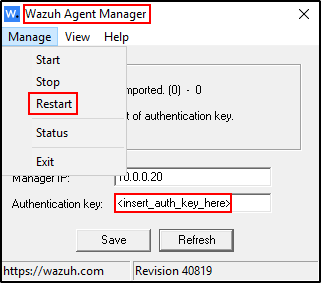
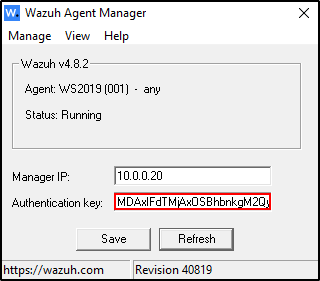
You should be able to see Authentication key. The Authentication key is used to encrypt the traffic from the agent to the Wazuh server.
If issues still persist, refer to the log file located at C:\Program Files (x86)\ossec-agent\ossec.log
Alternatively, refer to the Troubleshooting guide.
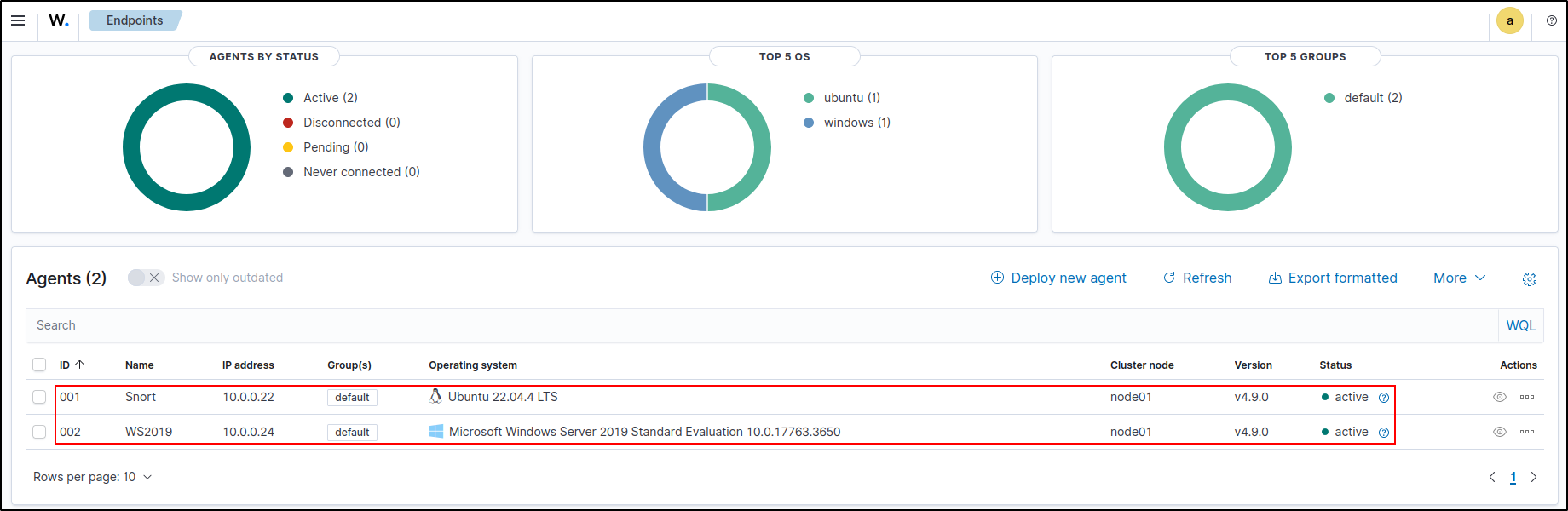
On Wazuh web UI, go to Server management, then Endpoints Summary.
Verify that the Windows agent is active.
Integrate Sysmon
Perform the steps below to install and configure Sysmon on the Windows endpoint.
Download Sysmon from the Microsoft Sysinternals page.
Download the Sysmon configuration file: sysmonconfig.xml. Note this is a modified version of sysmonconfig.xml recommended for integration with Wazuh.
Install Sysmon with the downloaded configuration file using PowerShell as an administrator:
Open notepad as Administrator and open ossec.conf.
Add the following configuration within the <ossec_config> block to the Wazuh agent C:\Program Files (x86)\ossec-agent\ossec.conf file to specify the location to collect Sysmon logs:
<localfile>
  <location>Microsoft-Windows-Sysmon/Operational</location>
  <log_format>eventchannel</log_format>
</localfile>
Restart the Wazuh agent to apply the changes by running the following PowerShell command as an administrator:
Checkpoint: confirm endpoint visibility
In the dashboard, confirm each expected agent is Active. Search for a current event from each endpoint and verify that the event identifies the correct agent.name, agent.id, and source host.
If an agent is missing, check service status, manager address, enrollment logs, network ports, certificates or credentials, and clock skew—in that order.