Build Workflow Two
Extend the response workflow and verify the expected VirusTotal, Wazuh, network-response, and notification results in the isolated lab.
Workflow Two · enrich and contain temporarily
- Goal
- Respond to a controlled network alert with a temporary, verifiable block.
- Input
- A lab request that triggers Wazuh rule 100100.
- Output
- IP context, a 60-second active response, and notification.
- Checkpoint
- The exact source is blocked, recorded, and reachable after timeout.
Extend and validate the response workflow
Configure Shuffle
Create a Workflow
Repeat the steps covered in Introduction to Shuffle.
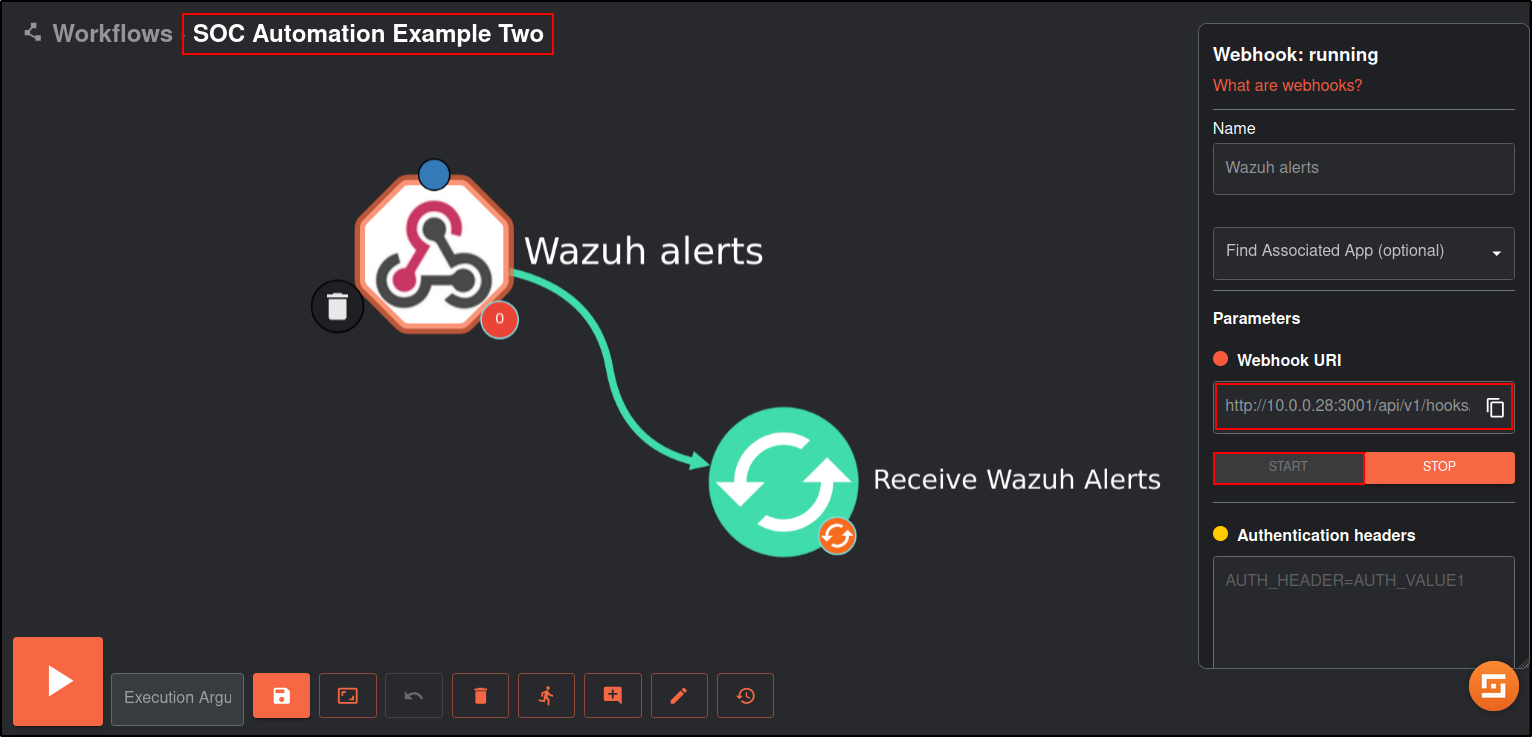
Create a new workflow called SOC Automation Example Two.
Click on the Triggers tab in the bottom left and drag the Webhook to the workspace.
Click on the webhook and rename it to Wazuh alerts. Copy and save the webhook URI and start the webhook. The webhook URI looks like the following:
http://10.0.0.28:3001/api/v1/hooks/WORKFLOW_TWO_WEBHOOK_ID
Configure Wazuh server
Download the custom integration script custom-shuffle and custom-shuffle.py. Save it as custom-shuffle and custom-shuffle.py in /var/ossec/integrations directory. The script must contain execution permissions and belong to the root user of the wazuh group:
chmod 750 /var/ossec/integrations/custom-shuffle*
chown root:wazuh /var/ossec/integrations/custom-shuffle*
Copy and paste the following into /var/ossec/etc/ossec.conf
The rule id 100100 has been configured to use Wazuh’s active response to block malicious IP address. Refer to Blocking a known malicious actor (testing custom active response) from Introduction to Wazh.
 <integration>
      <name>custom-shuffle</name>
      <rule_id>100100</rule_id>
      <hook_url>http://10.0.0.28:3001/api/v1/hooks/WORKFLOW_TWO_WEBHOOK_ID</hook_url>
      <alert_format>json</alert_format>
  </integration>
Restart the Wazuh manager service to apply changes:
Verify that there are no errors in the ossec and integrations logs
Configure Shuffle
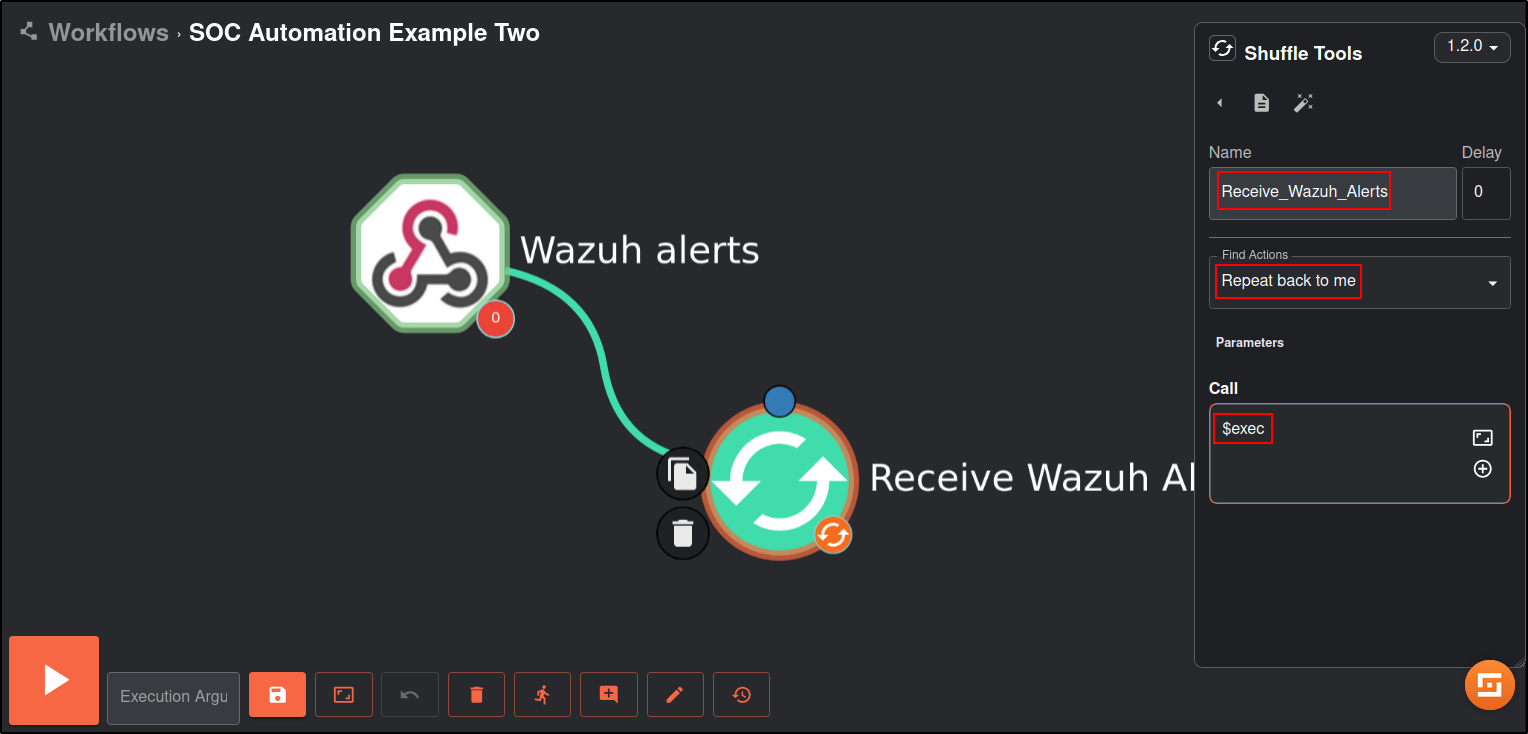
Click on the Shuffle Tools app named “Change me” and rename it to Receive_Wazuh_alerts. Set the call option to “$exec”, and save the workflow. This Shuffle app now repeats the events that are received by the Wazuh alerts webhook. This allows us to test that Shuffle can receive Wazuh alerts.
Save the workflow.
On kali machine, run curl command to access http://10.0.0.26
On Wazuh manager, verify that this has triggered an alert by checking integrations log
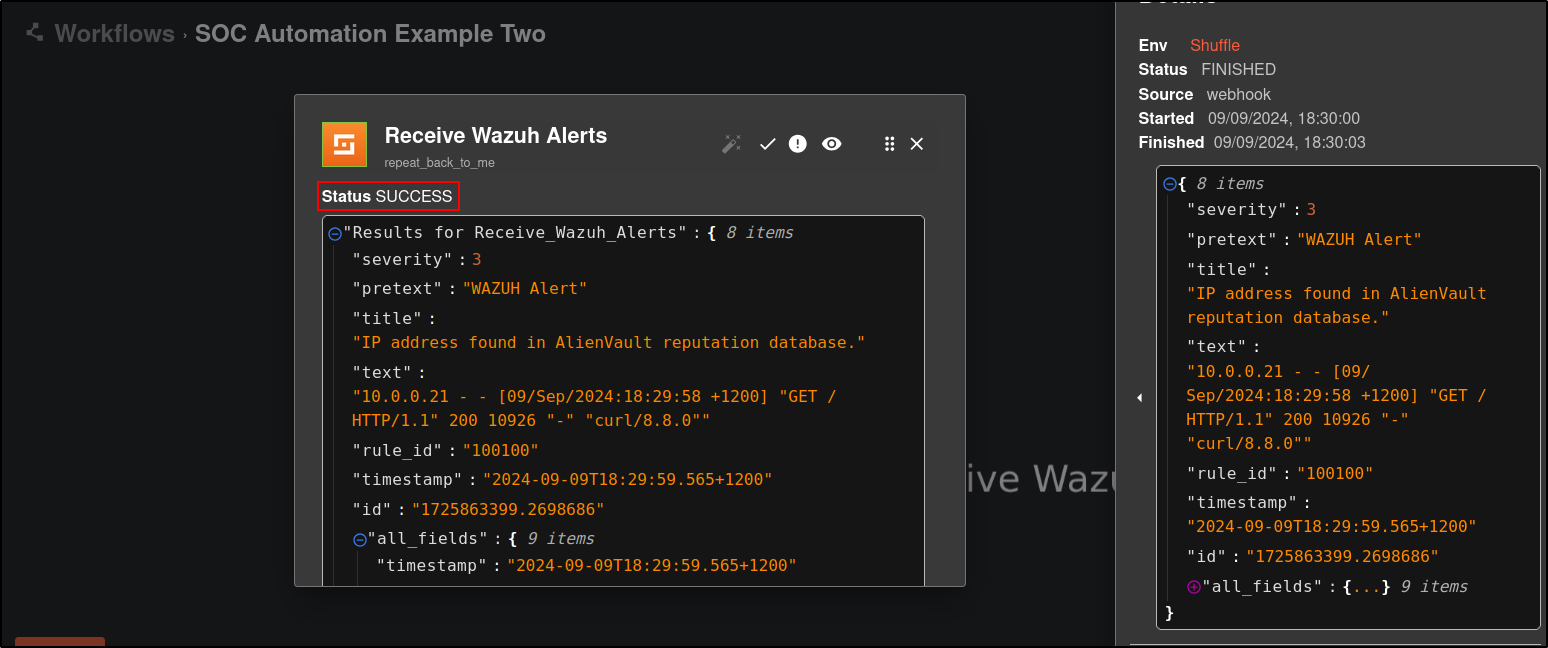
On Shuffle, click Show Executions and verify that there is a successful result.
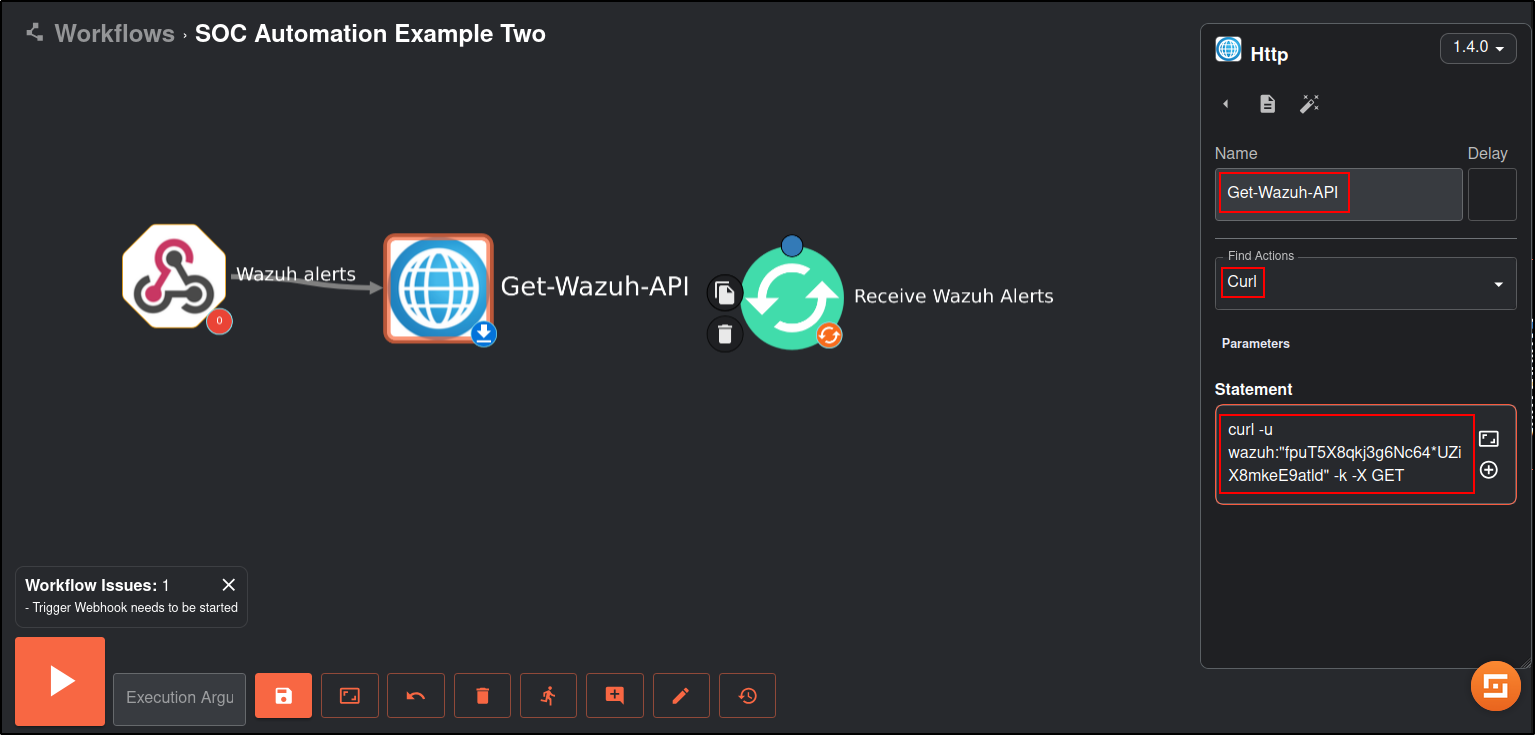
Drag and Drop HTTP app to the workflow.
Edit the app with the following details:
For Statement, use your wazuh API user’s credentials.
| Name | Get-Wazuh-API |
|---|---|
| Find Actions | Curl |
| Statement | curl --cacert <WAZUH_CA_FILE> -u '<WAZUH_API_USER>:<WAZUH_API_PASSWORD>' -X GET 'https://10.0.0.20:55000/security/user/authenticate?raw=true' |
Use a dedicated least-privilege lab account and keep the password outside the workflow documentation. If your isolated lab uses a temporary self-signed certificate, record any certificate-verification exception and remove it after the exercise.
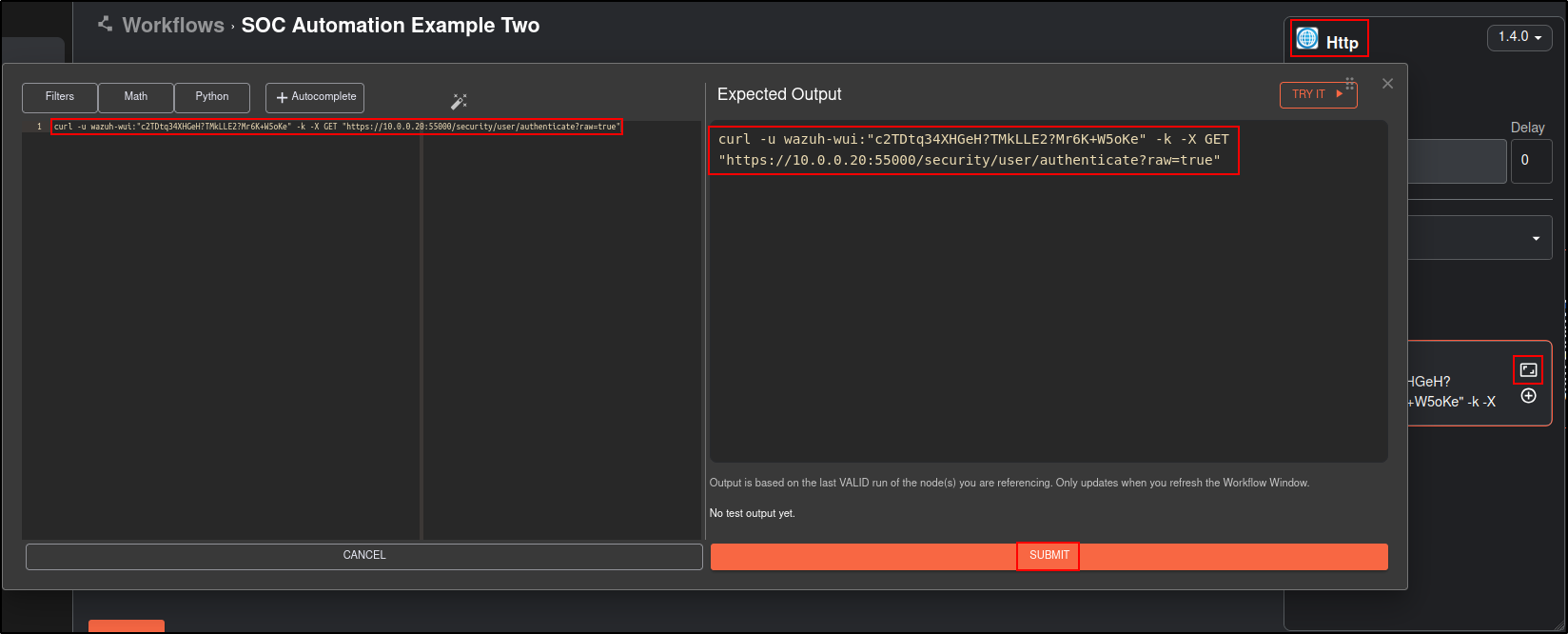
Drag and Drop Virustotal, Email and Wazuh apps to the workflow. Connect the apps in the order shown below:
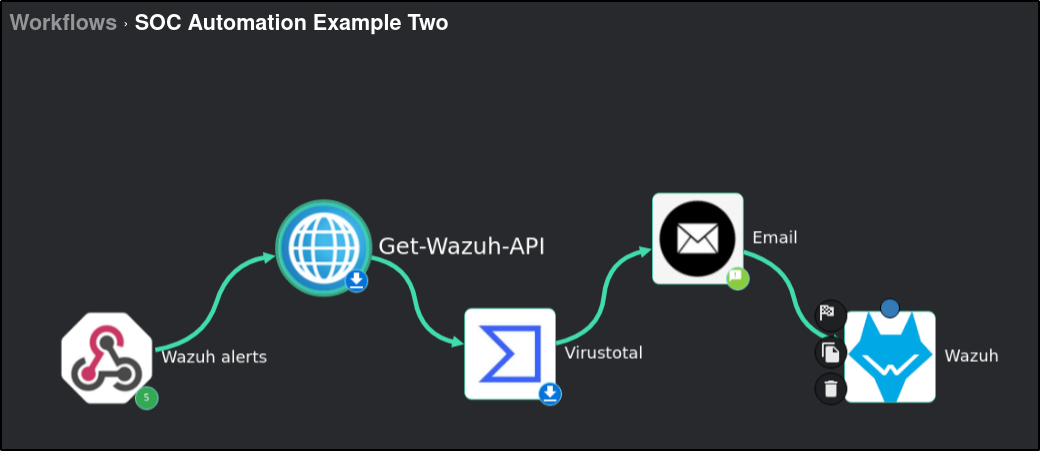
Edit the Wazuh app with following details:
Note: Arguments must be an array format ["value1"]
| Name | Wazuh |
|---|---|
| Find Actions | Run Command |
| Apikey | (Get-Wazuh-API) |
| Url | https://10.0.0.20:55000 |
| Agents list | (agent id) |
| Wait for complete | true |
| Arguments | ["(srcip)"] |
| Command | firewall-drop60 |
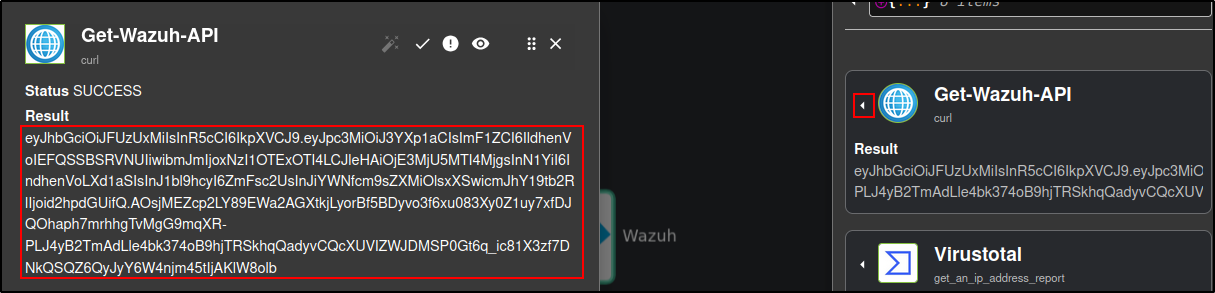
If you get an error with retrieving Wazuh API key, manually authenticate Wazuh App by providing Wazuh API key and Wazuh URL. Obtain API key from Get-Wazuh-API app (you will need to run your workflow to get the result):
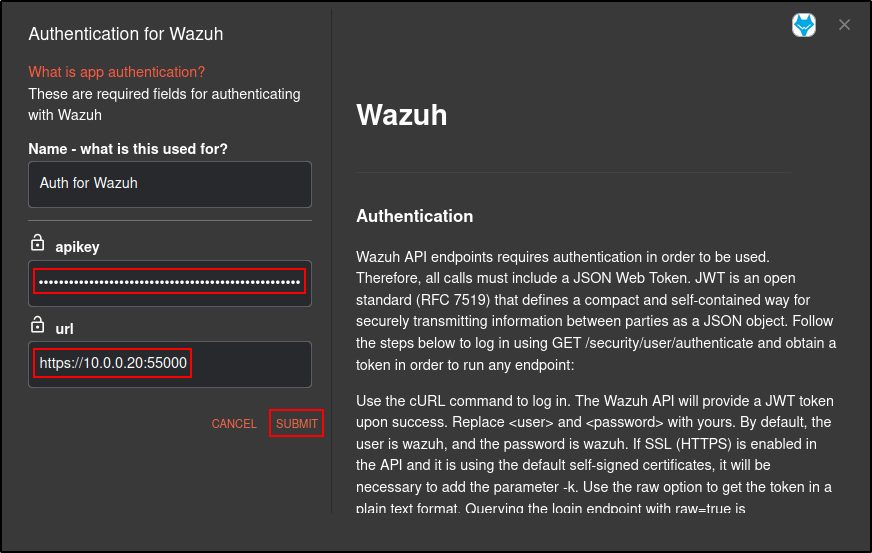
On Wazuh Manager, verify that active response is configured in ossec.conf
The firewall-drop command integrates with the Ubuntu local iptables firewall and drops incoming network connection from the attacker endpoint for 60 seconds:
<ossec_config>
  <active-response>
    <command>firewall-drop</command>
    <location>local</location>
    <rules_id>100100</rules_id>
    <timeout>60</timeout>
  </active-response>
</ossec_config>
When using the API, use the active-response command appended with timeout value. For example:
You can verify the command name to use with API by running agent-control -L located in /var/ossec/bin/
[root@Centos siem]# cd /var/ossec/bin
[root@Centos bin]# ./agent_control -L

Wazuh agent_control. Available active responses:

   Response name: firewall-drop60, command: firewall-drop
Edit the Virustotal app with following details:
Note: the values in brackets indicate the Execution Argument. Add the execution argument by clicking the + icon.
Authenticate with your VirusTotal API key (you will need to create an account).
| Name | Virustotal |
|---|---|
| Find Actions | Gen an IP address report |
| IP | (srcip) |
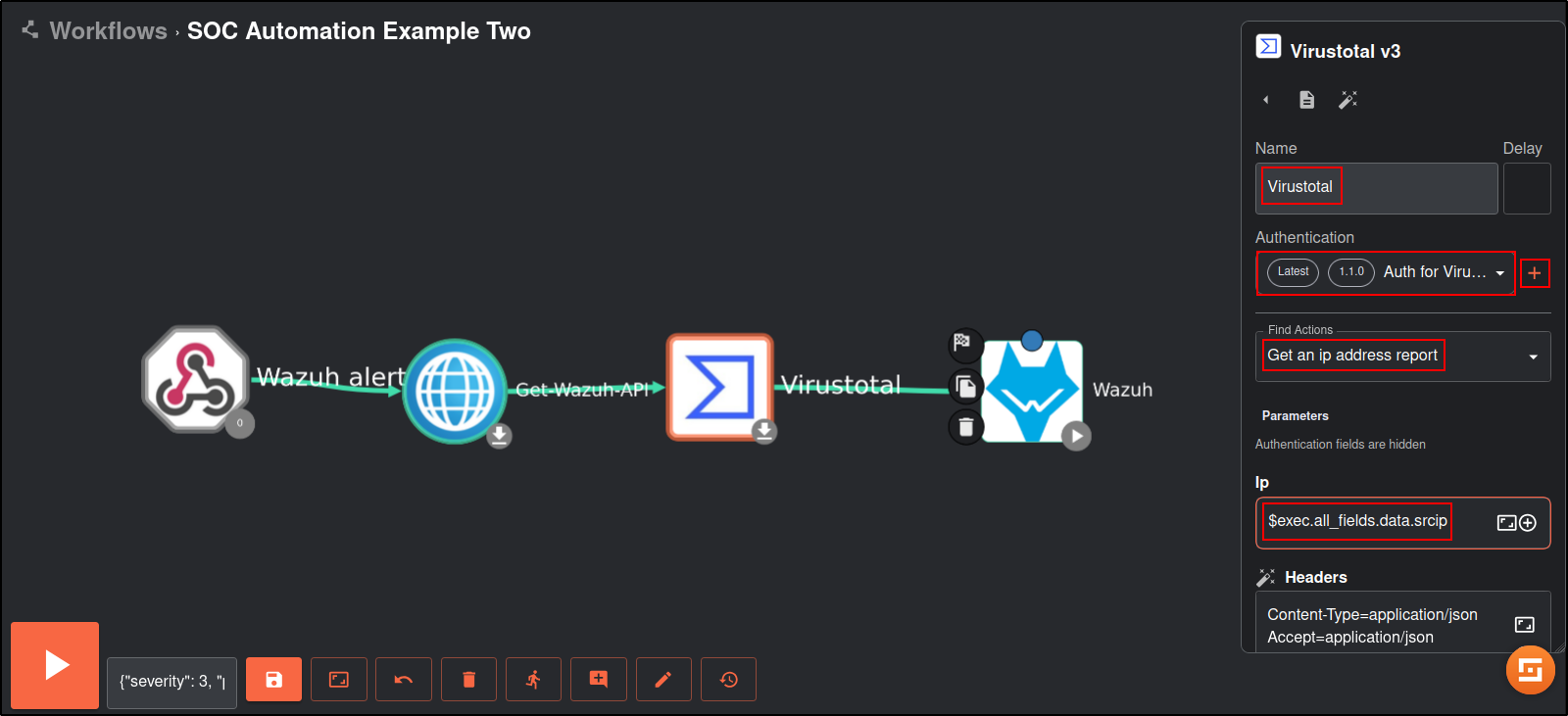
Save the workflow. Make sure webhook has been started.
Trigger alert by running curl command from Kali machine:
Note: for demonstration purposes, two network adapters have been assigned to both Ubuntu and Kali hosts. The network 192.168.1.0/24 belongs to Bridged network (Adapter #1) and 10.0.0.0/24 belongs to LAN segment (Adapter #2).
Edit the Email app with following details:
Note: the values in brackets indicate the Execution Argument. Add the execution argument by clicking the + icon.
| Name | |
|---|---|
| Find Actions | Send email shuffle |
| Apikey | (Create account on https://shuffler.io/ to obtain API key) |
| Recipients | (Email address receiving the alert) |
| Subject | Malicious activity detected |
| Body | Title: (title) |
| Timestamp: (timestamp) | |
| Source IP: (srcip) | |
| Malicious: (malicious)* | |
| VirusTotal Result: (result)* |
*These metadata are obtained from Virustotal instead of Execution Argument |
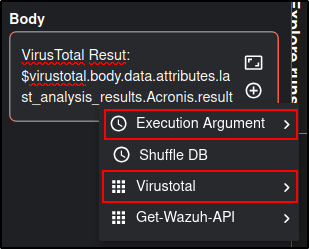
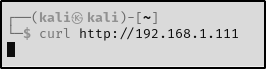
Save workflow. Trigger alert by accessing http://192.168.1.111 from Kali machine multiple times in a row.
Verify that workflow returns successful result. Verify status code 200 is returned by Virustotal and Wazuh.
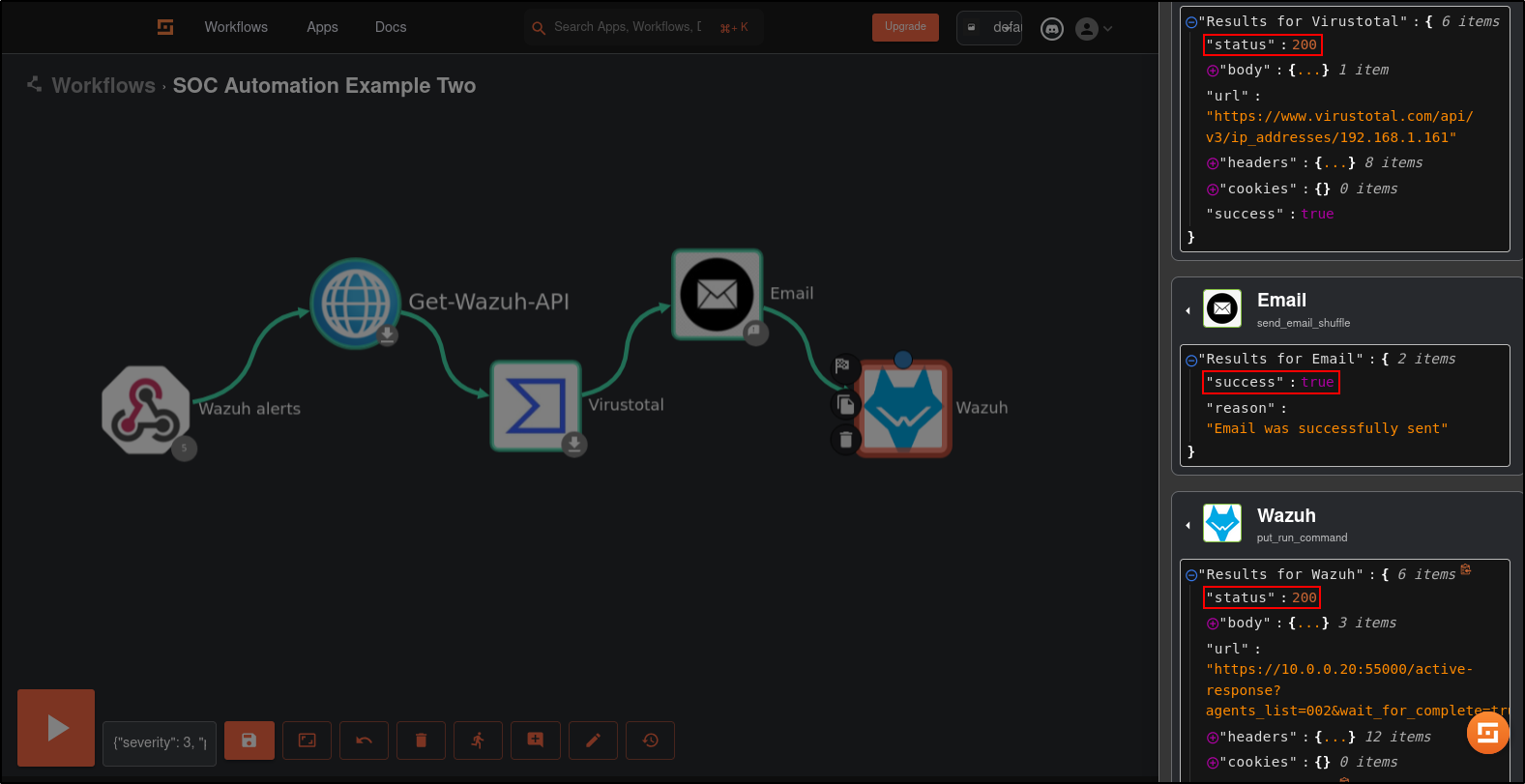
Verify that active response blocks Kali machine:
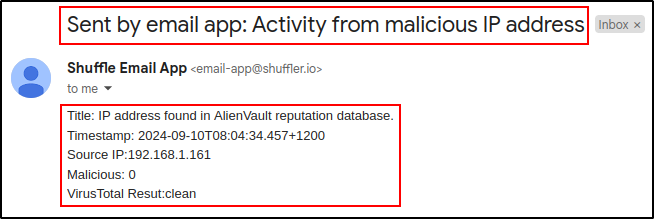
Verify that you received an email from Shuffle: