Update Security Onion
Apply a connected or air-gapped update and prove that platform health and ingestion are restored.
Before you begin
Record /etc/soversion, /etc/sohotfix when present, Grid health, free storage,
and ingestion status. Review the release notes and local configuration warnings,
then take a tested snapshot or backup. Use the local console or a persistent
terminal such as tmux; an interrupted SSH session can terminate soup.
Preserve the isolation boundary
For an air-gapped deployment, import the verified ISO and dependencies through the approved offline process. Do not temporarily connect the system to the internet as a troubleshooting shortcut.
Detailed update procedure
Updating Security Onion
The easiest way to check for Security Onion updates is by visiting the Security Onion Blog, which you can access from the Overview tab in the SOC interface.
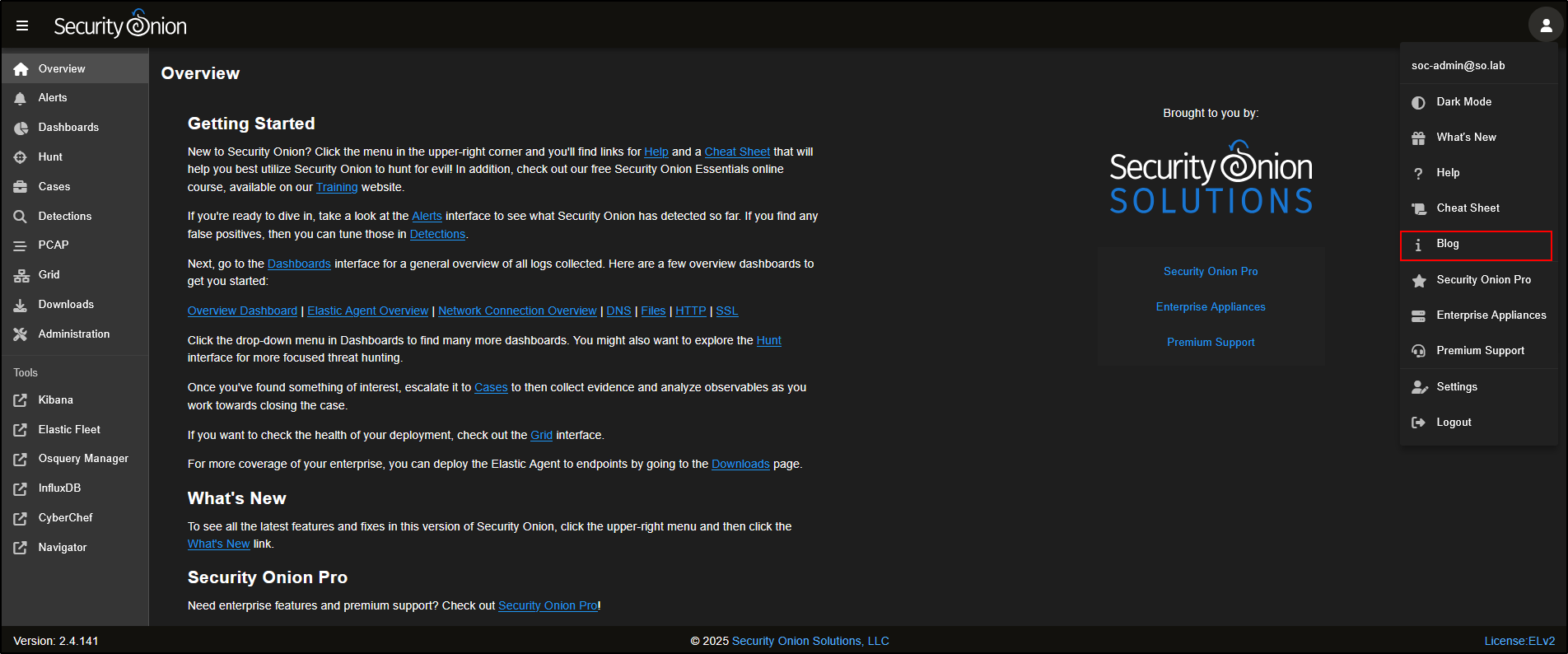
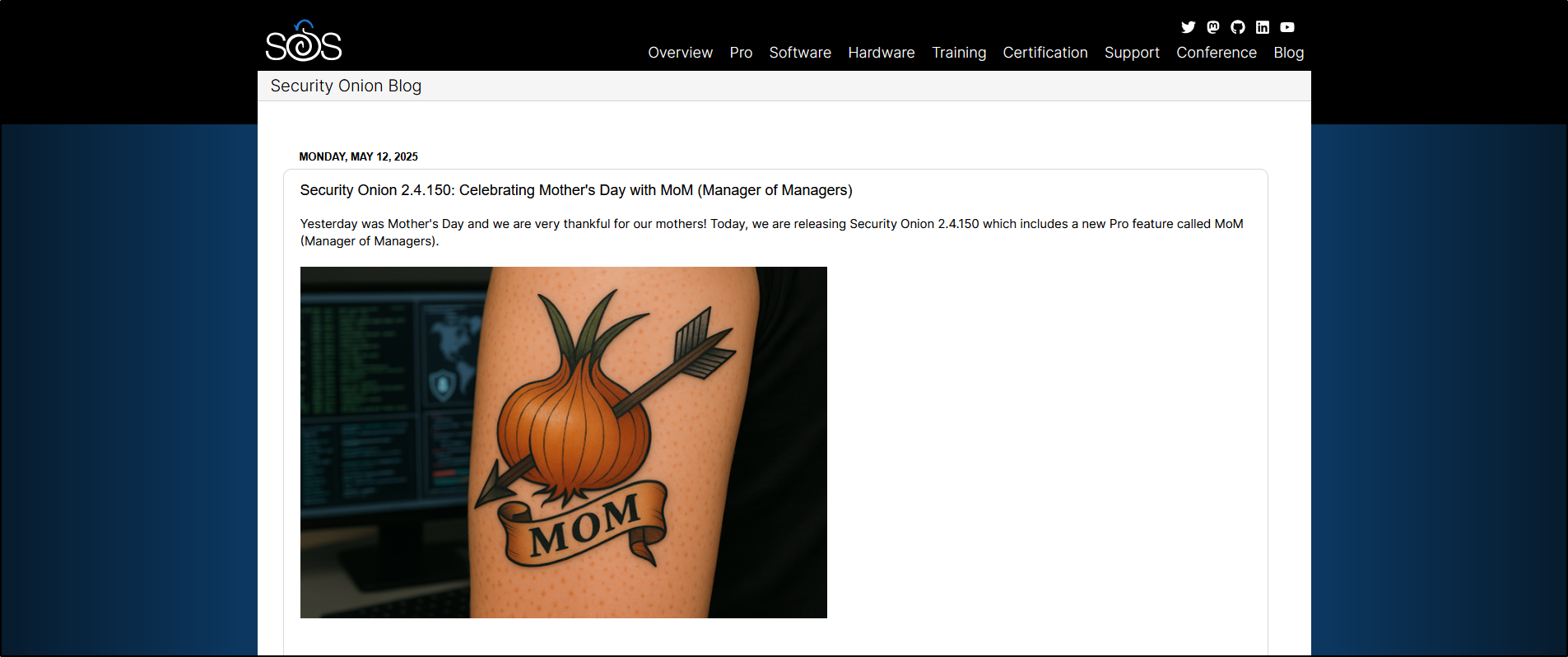
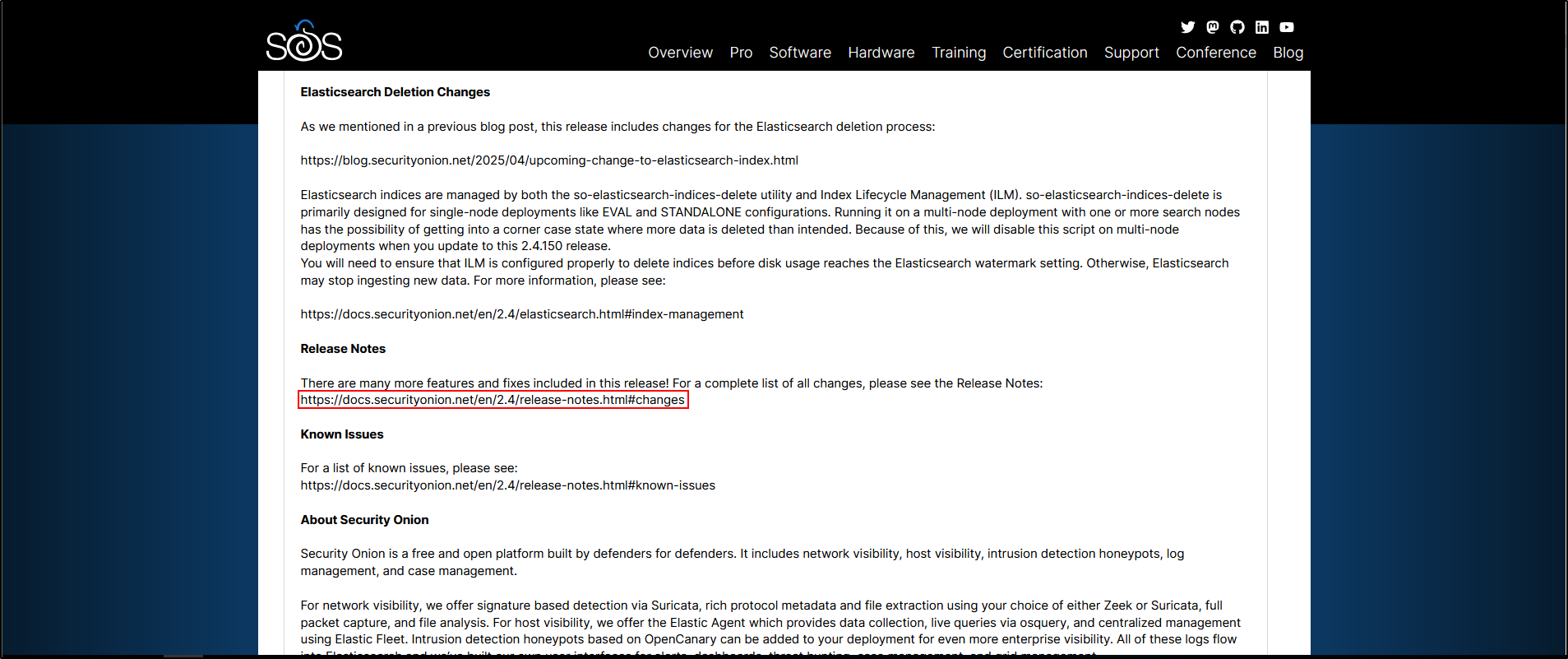
You can also keep an eye on Security Onion’s social media channels for update announcements. These usually include a direct link to the Release Notes.
To install updates, Security Onion provides a built-in tool called Security Onion Updater, or soup for short.
Updating Security Onion with Internet Access
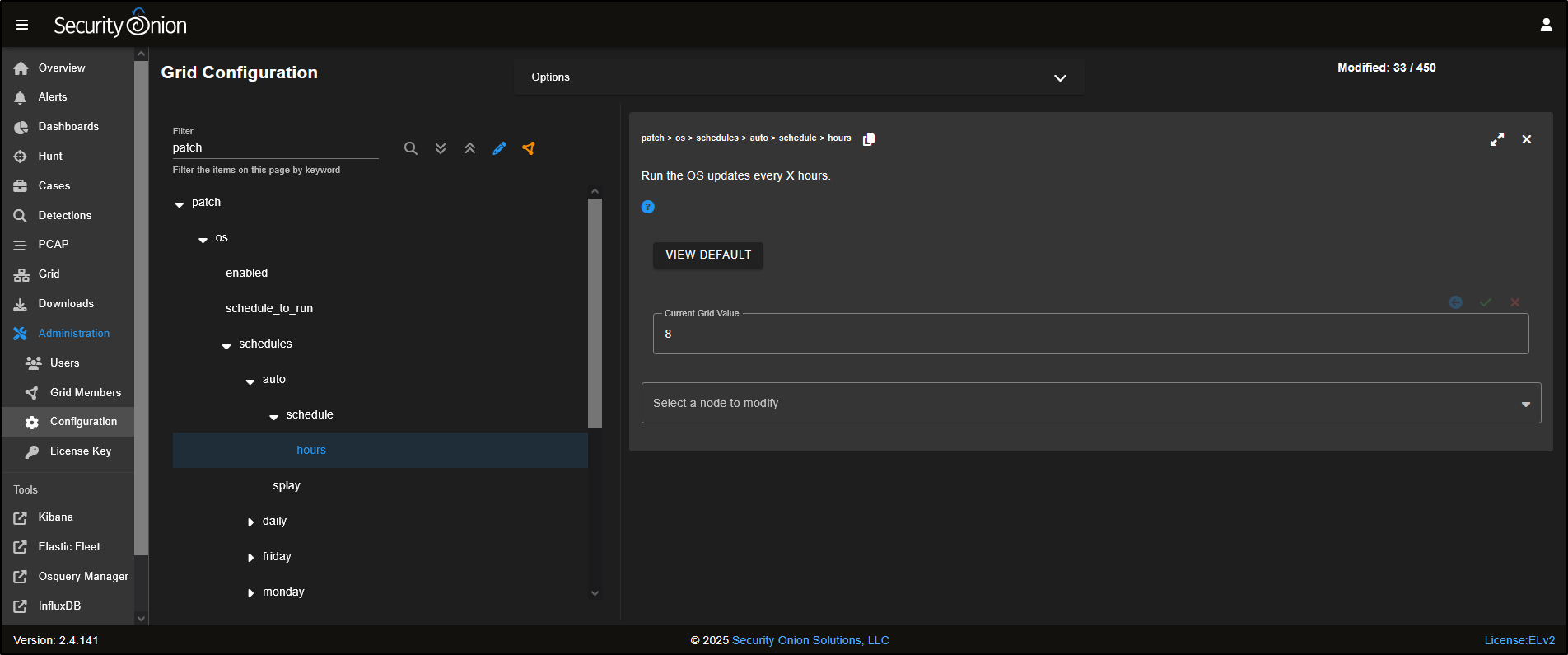
If you chose the standard install from the Security Onion ISO and your system has internet access, the underlying Oracle Linux OS will automatically check for and apply updates every eight hours by default.
If you would like to change this schedule, you can do so in the SOC interface by navigating to:
Administration → Configuration → patch → os → schedules → auto → schedule → hours.
Open the local console for your Standalone Security Onion VM and log in with your administrator credentials. To check the current status of the platform, run:
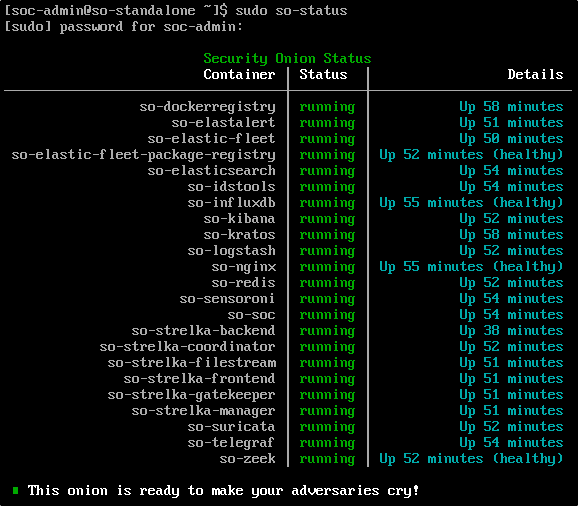
If any of the containers are showing as missing or failed, you will need to resolve those issues before continuing with the update.
To check the current version of Security Onion, run:

In the recorded PoC, the starting version was 2.4.141. This is historical example output, not a required starting release. Record your own installed version and follow every supported intermediate upgrade required by the current release notes.
To start the update process, run:
You will likely need to run soup twice:
- The first run updates the soup script itself.
- The second run executes the new script and downloads the updated Docker images and Salt files needed for the upgrade.

Updating Security Onion in an Air-Gapped Environment
If your Security Onion deployment is running in an air-gapped environment (i.e. no internet access), updates need to be applied using a local copy of the ISO.
First, use the current Security Onion download and verification instructions on another internet-connected machine. Record the ISO filename and checksum before transferring it through the approved offline import process.
In VMware Workstation, go to your VM’s settings and navigate to Shared Folders.
Select the folder where your new ISO is stored, tick Always enabled, and click OK to save.
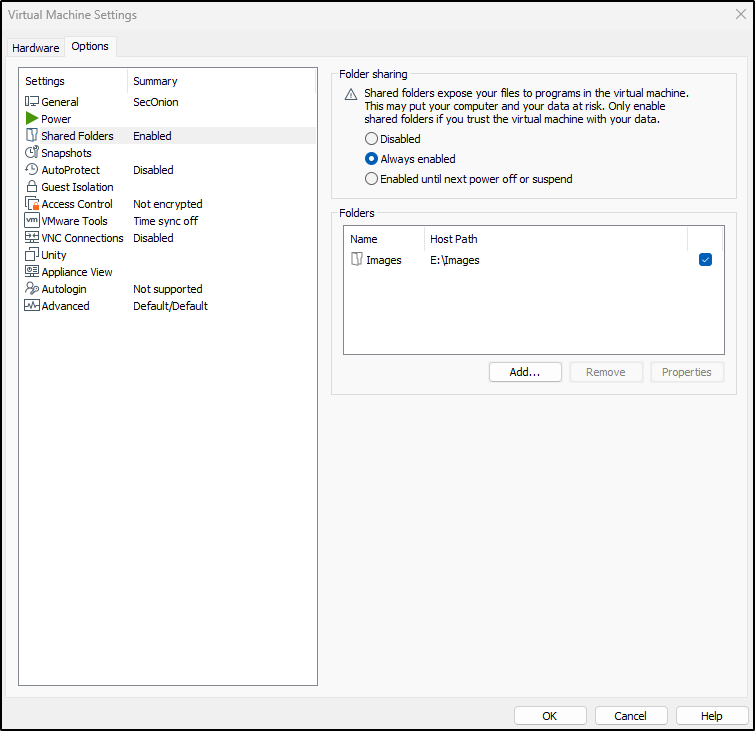
Next, open the local console for your Standalone Security Onion VM and log in with your administrator credentials.
To confirm that the shared folder and ISO are accessible, run:

The screenshot shows the historical PoC file
securityonion-2.4.150-20250512.iso. Substitute the exact filename of your
approved, checksum-verified target ISO in every command below.
If you cannot access the shared folder, try the following:
- Disable the shared folder in VMware settings.
- Re-enable it and try again.
Do not connect an air-gapped Security Onion system to the internet to resolve this issue. Transfer approved VMware Tools packages and dependencies through the organisation's offline software-import process and verify their checksums. The following connected command applies only to a system explicitly authorised to leave air-gap mode:
sudo dnf install open-vm-tools open-vm-tools-desktop -y
sudo systemctl enable --now vmtoolsd
sudo reboot
To check the system’s global configuration, run the following command:
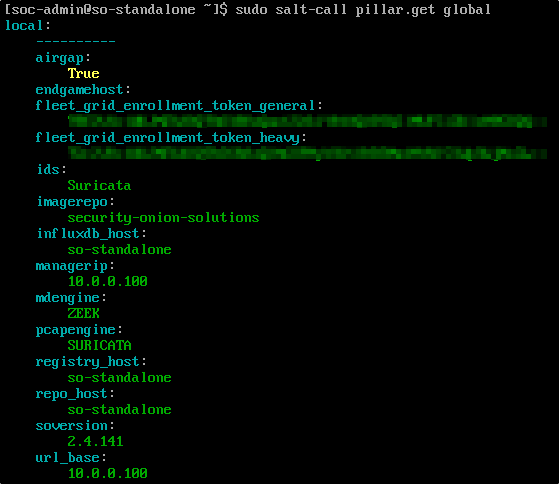
As shown in the output, the global configuration confirms that airgap: True, which means the system is set up for offline updates only.
To begin the update process, run sudo soup and this will request location for the new ISO file.
Press Enter and then enter the full path to the new Security Onion ISO.
The first run completes the update of the soup script.

Now run sudo soup again to begin the full update process:
Since this is an air-gapped installation, the updater will also include operating system patches bundled with the ISO.
When prompted, press U to confirm the OS updates. The system will now install both Oracle Linux updates and the latest Security Onion components. Note that this process can take a while.
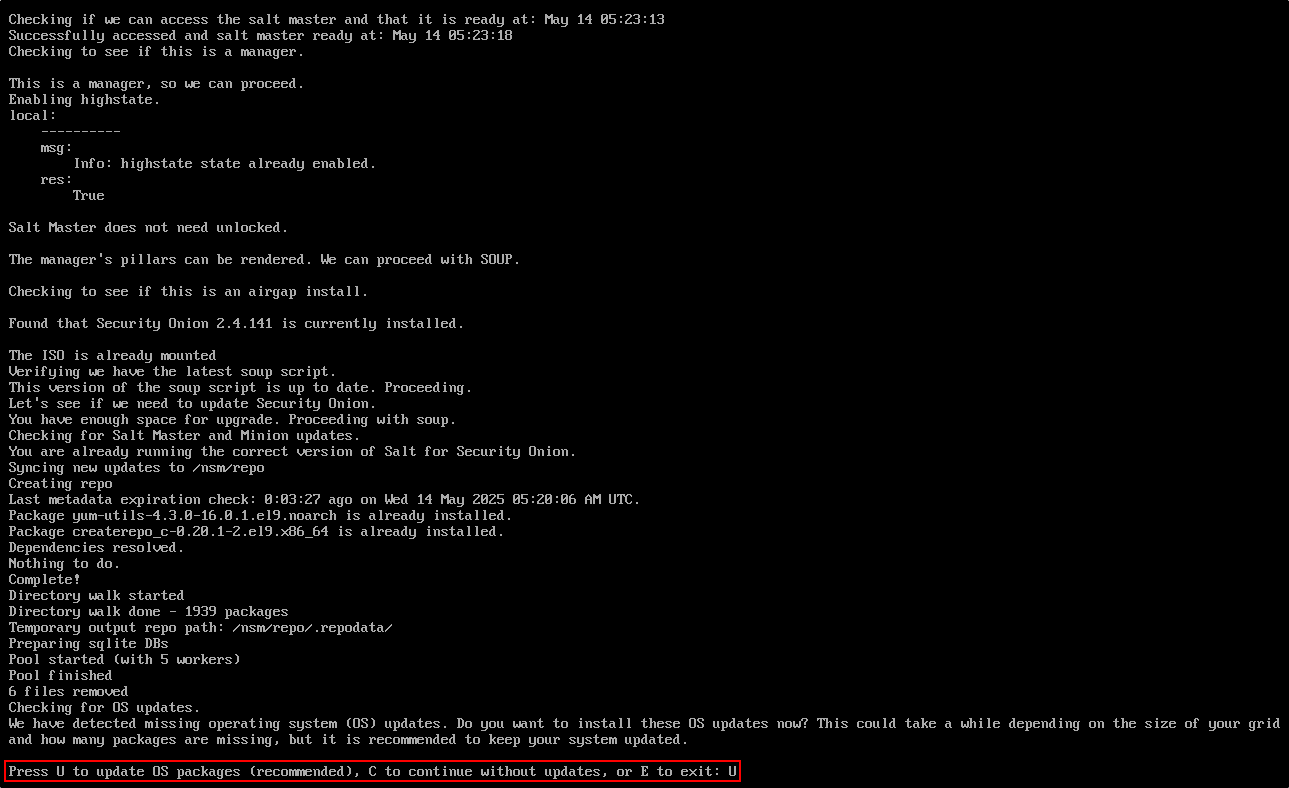
When the update is complete, we will see the message soup has been served.
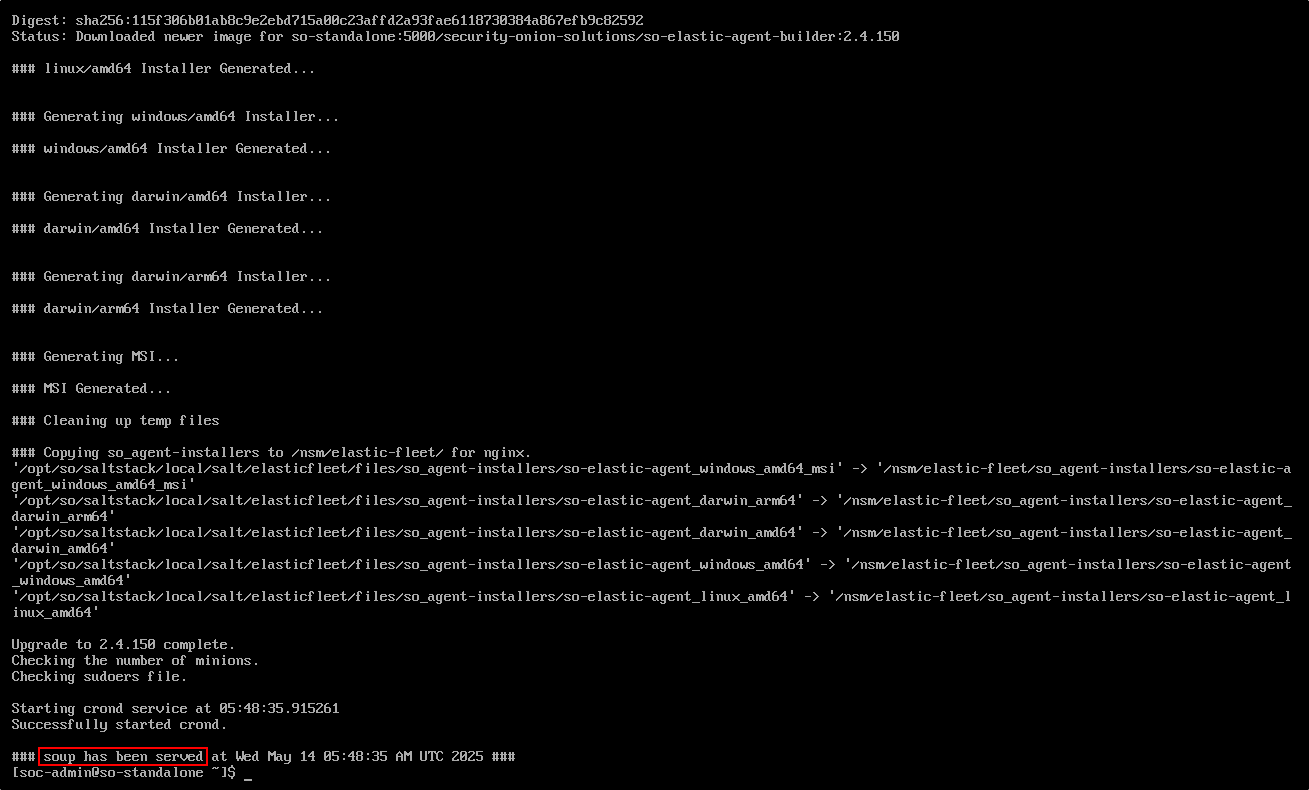
Verify the version by running:

The PoC output shows 2.4.150. Your result must instead match the approved target version and hotfix state recorded before the update.
Verify the node and container status by running:
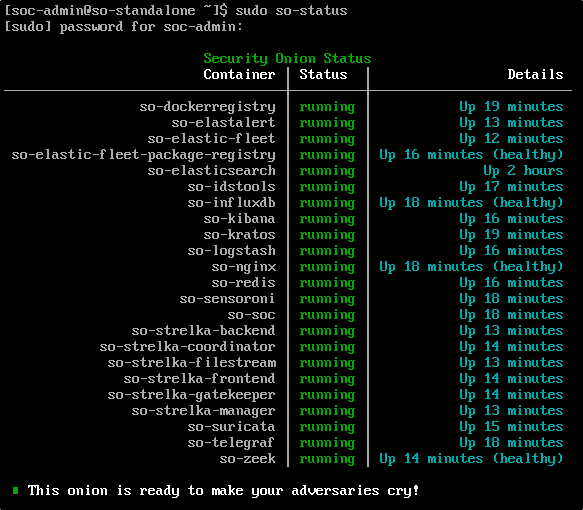
Typically after kernel update, the Security Onion VM needs to be rebooted.
Validate the update
Allow the post-update Salt highstate to settle, then confirm:
- the expected Security Onion version and hotfix state;
- healthy Grid services and
sudo so-statusoutput; - current endpoint and network ingestion;
- a known search and dashboard load successfully; and
- the alert or rule path used for the pre-update baseline still works.
If services remain unhealthy after the normal convergence period, inspect the update log and run the vendor-recommended health checks before attempting another upgrade.