Engineer a Detection
Create and validate a narrowly scoped detection while preserving rollback and test evidence.
Use a disposable endpoint
The guided scenario creates a temporary local administrator account. Define the account name, password handling, expected event, rollback, and recovery route before running it. Never use a production endpoint.
Detailed detection procedure
Detection Engineering
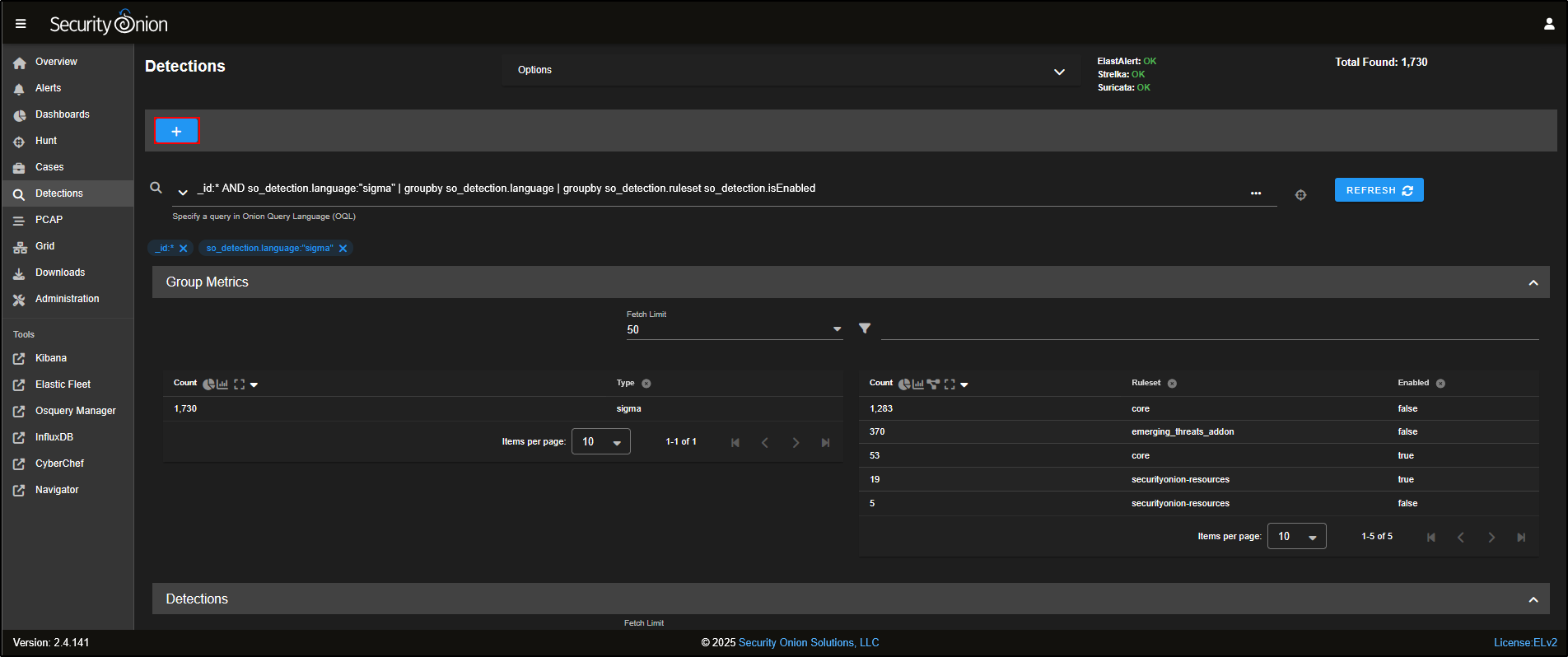
Go to the Detections section in the SOC web interface. By default, it displays all available rules, grouped by detection language.
Security Onion supports three types of detection rules, each tailored for a specific purpose:
- Suricata rules are used for network-based detection. These rules scan live network traffic captured on the monitoring interface, looking for patterns such as specific IPs, ports, or keywords. For example, if you wanted to be alerted whenever “PHP” appeared in traffic on port 80, a Suricata rule would suit that need.
- Yara rules are for file-based detection. Security Onion automatically extracts files from unencrypted network traffic such as
.exe,.docx, or.pdfand checks them using Yara rules via the strelka module. These rules are useful for spotting files with suspicious patterns, like those containing malware-related strings or known risky behaviours (e.g. Office macros). If you need to detect an executable signed with a specific certificate, Yara is the way to go. - Sigma rules are used for log-based detection. They work by creating Elastic Query Language (EQL) queries that regularly scan collected logs (like Windows event logs or Sysmon) for known Indicators of Compromise (IOCs). When a match is found, an alert is generated.
Each detection language targets a different layer: network traffic, file analysis, or system logs giving you a wide coverage across the attack surface.
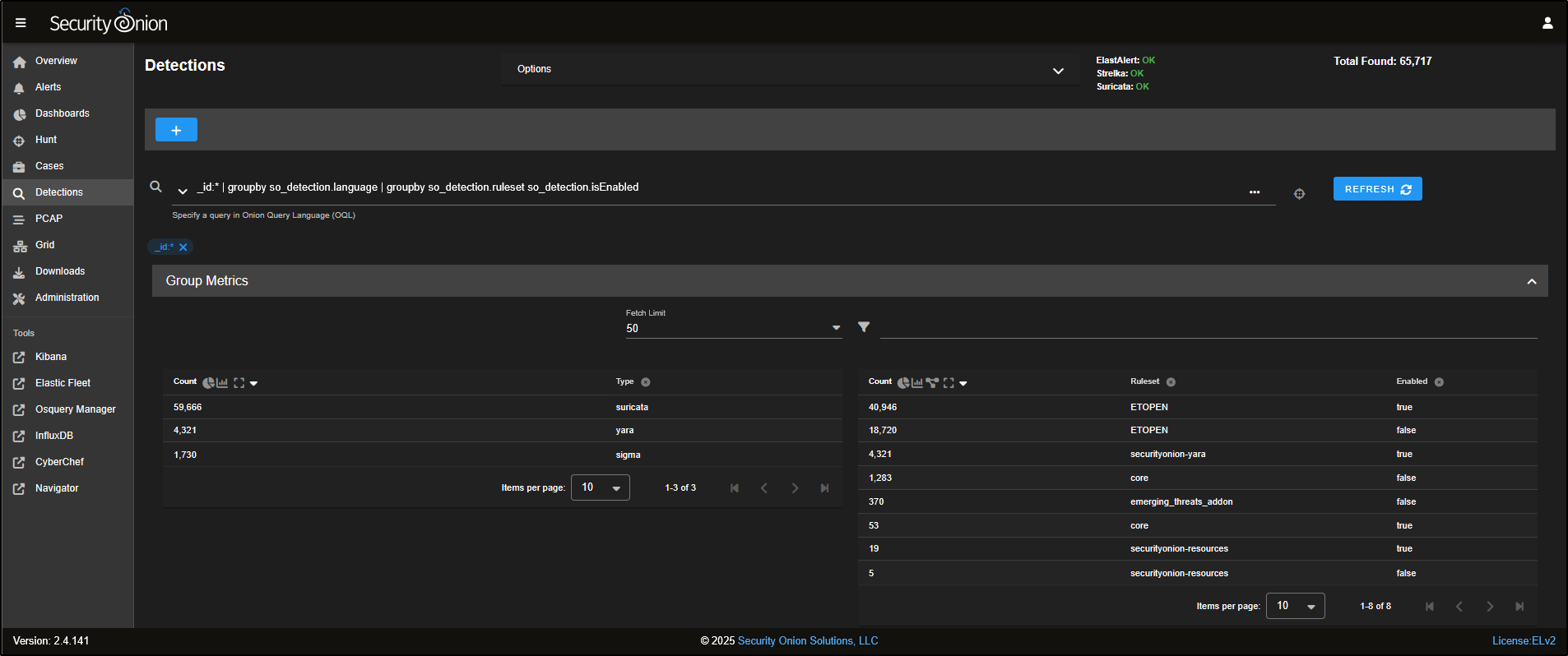
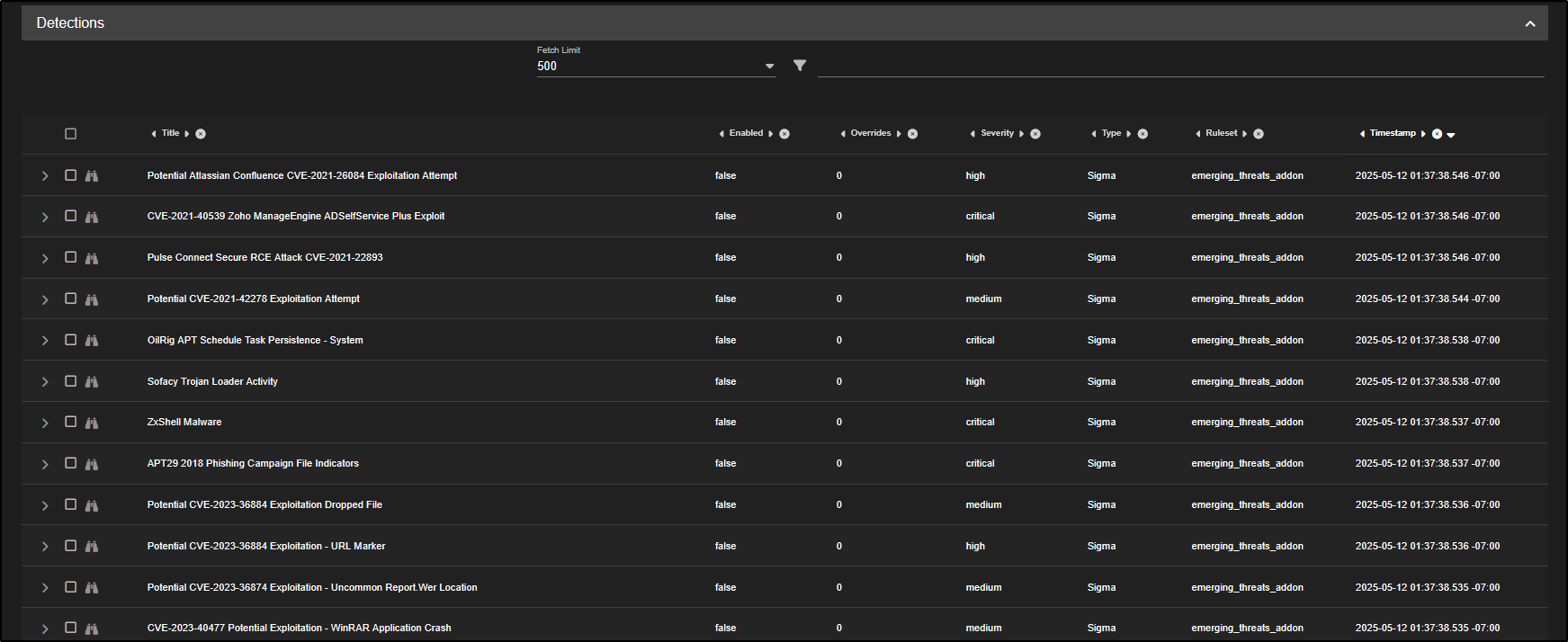
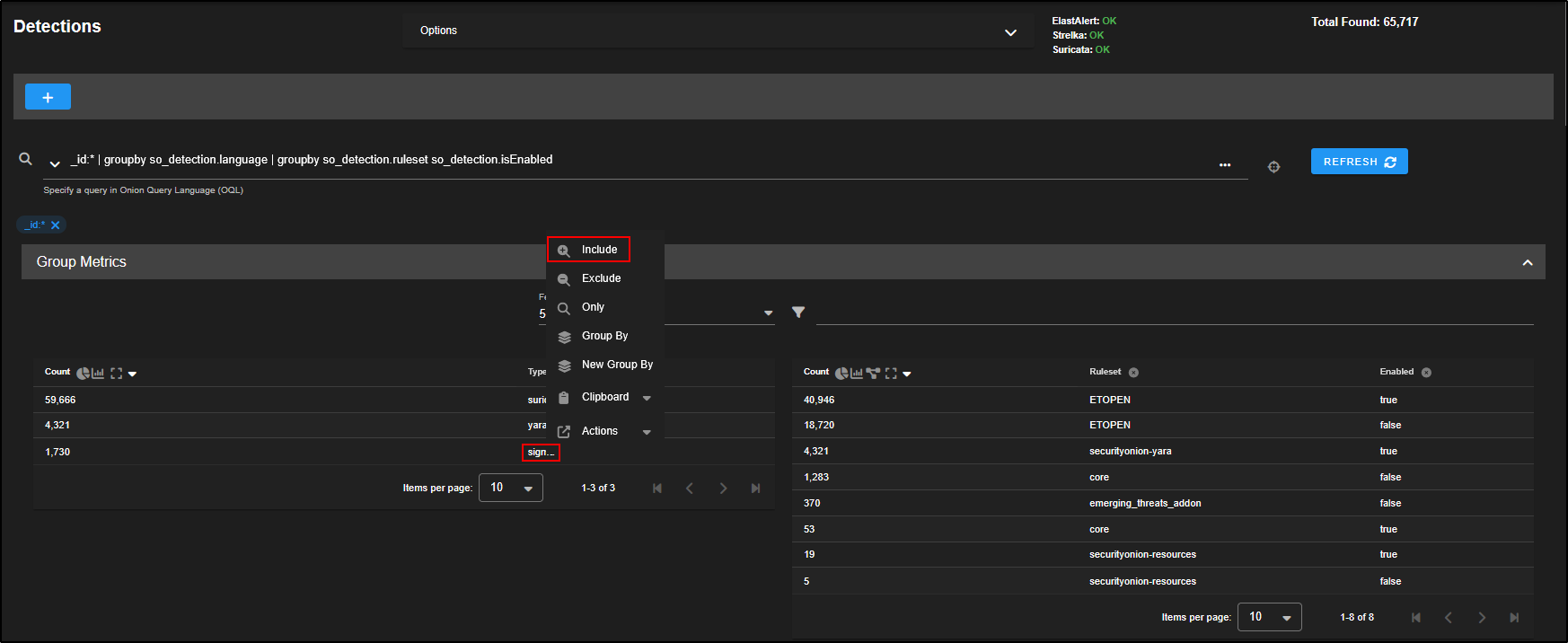
If you scroll down, you will see that the tables are fully interactive and can be used to adjust the query in the search bar.
For instance, if you only want to view Sigma rules, simply click on sigma and choose Include. You will notice that the detection results and the list of enabled rules update to reflect that filter.
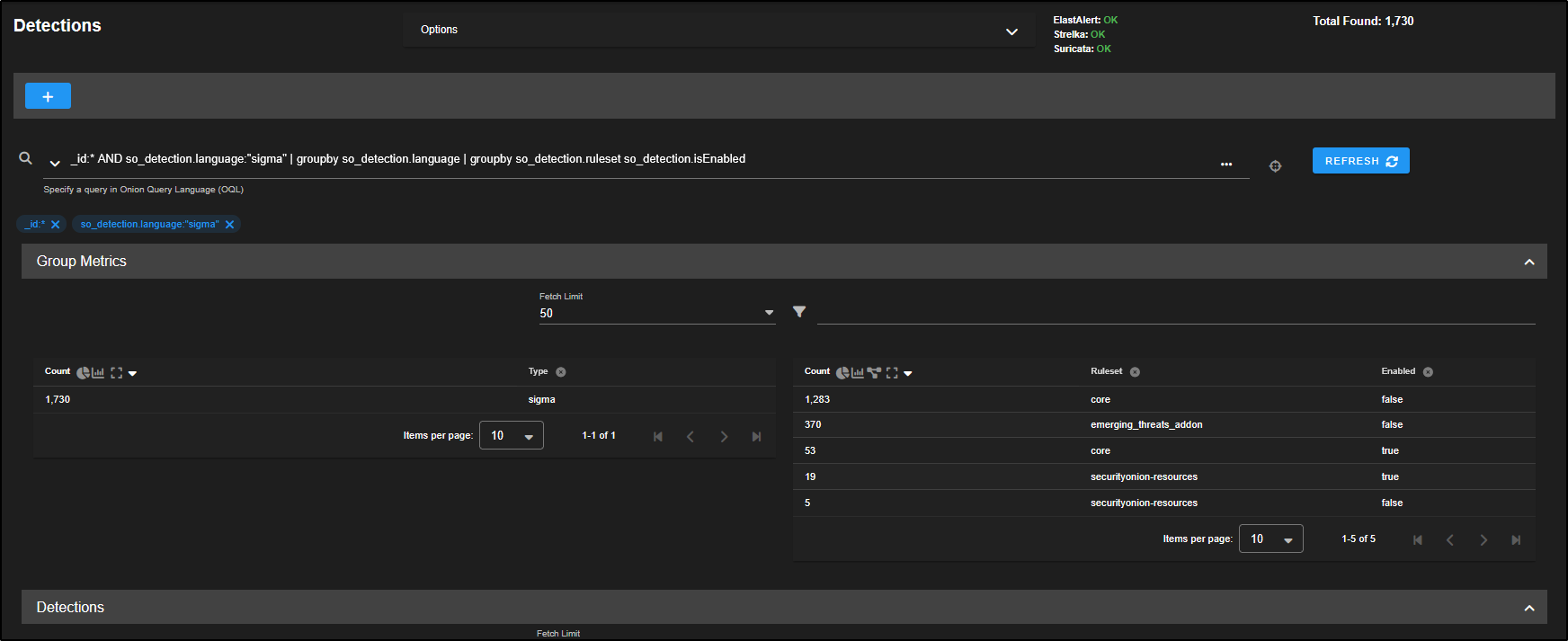
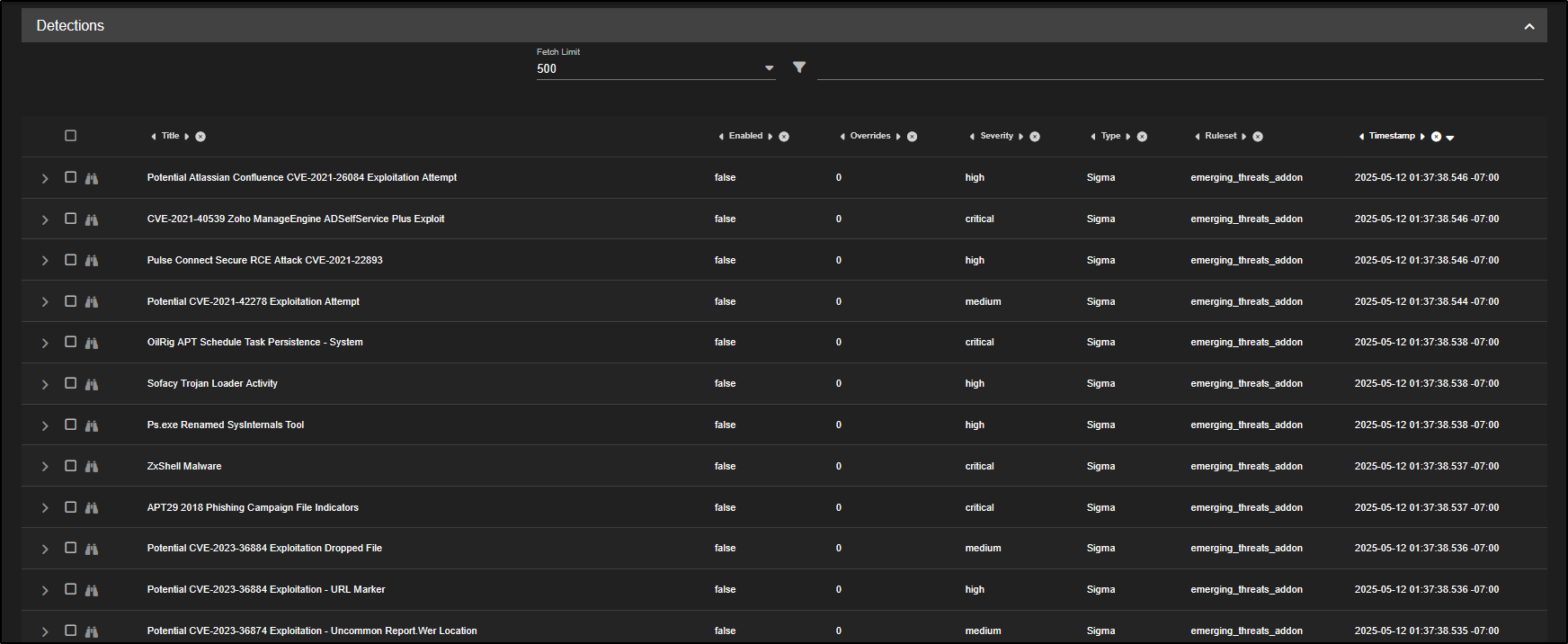
Most of the Sigma rules included with Security Onion are turned off by default. Each enabled rule runs an Elasticsearch query every few minutes, so enabling all of them could put heavy strain on the Grid and affect performance.
To inspect a rule more closely, click the binoculars icon next to its name.
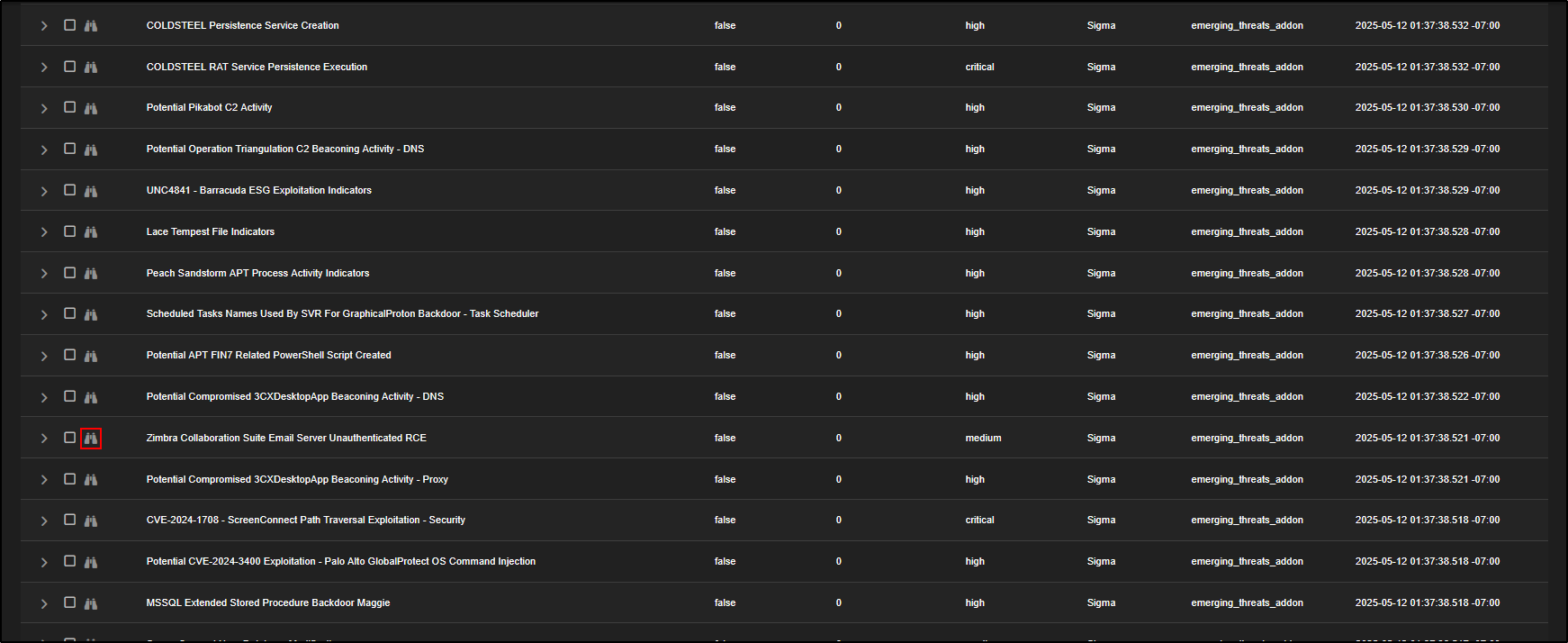
This opens the tuning interface for that specific rule. The Overview tab shows a summary of the rule, any related references, and the detection logic. In this example, the rule is set to trigger on POST requests to a web server that contain certain attributes. If those are detected, it may indicate an attempt to exploit an unauthenticated Remote Code Execution (RCE) vulnerability in the Zimbra Collaboration Suite and an alert will be generated.
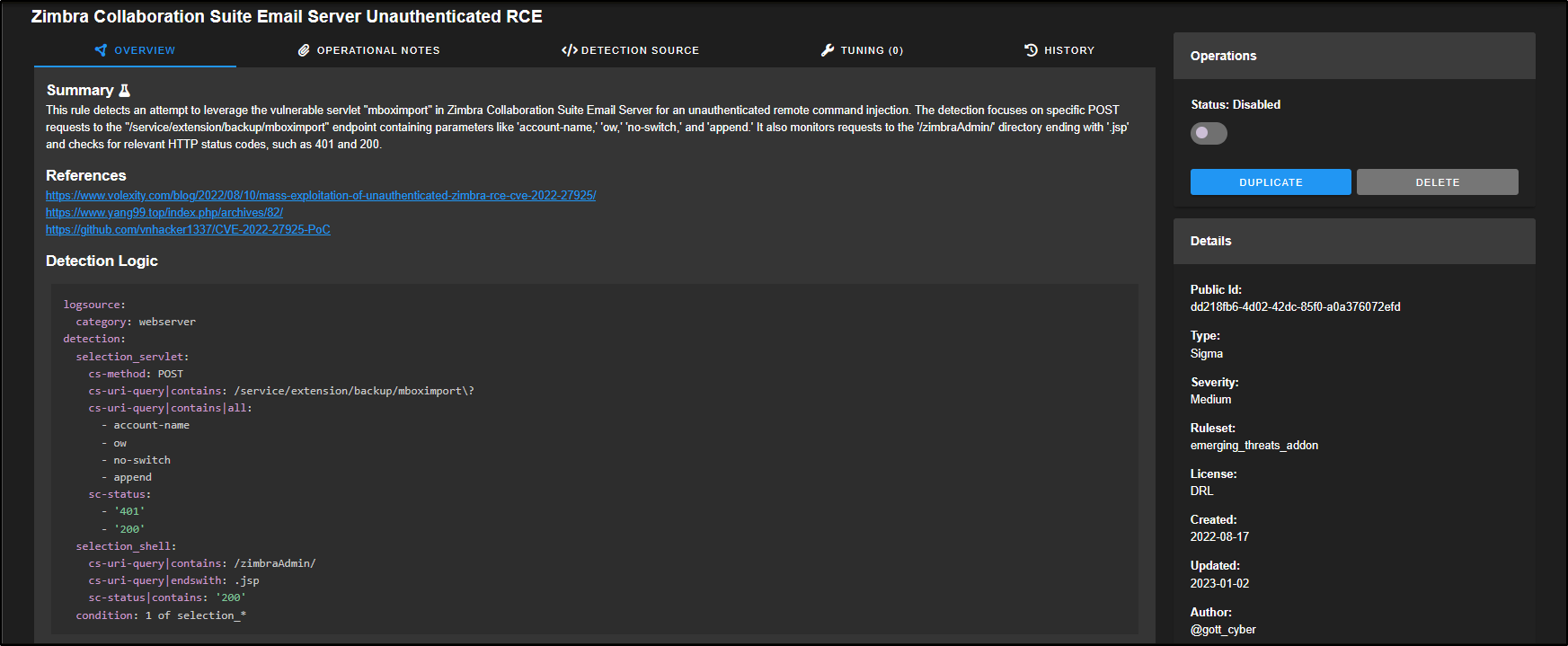
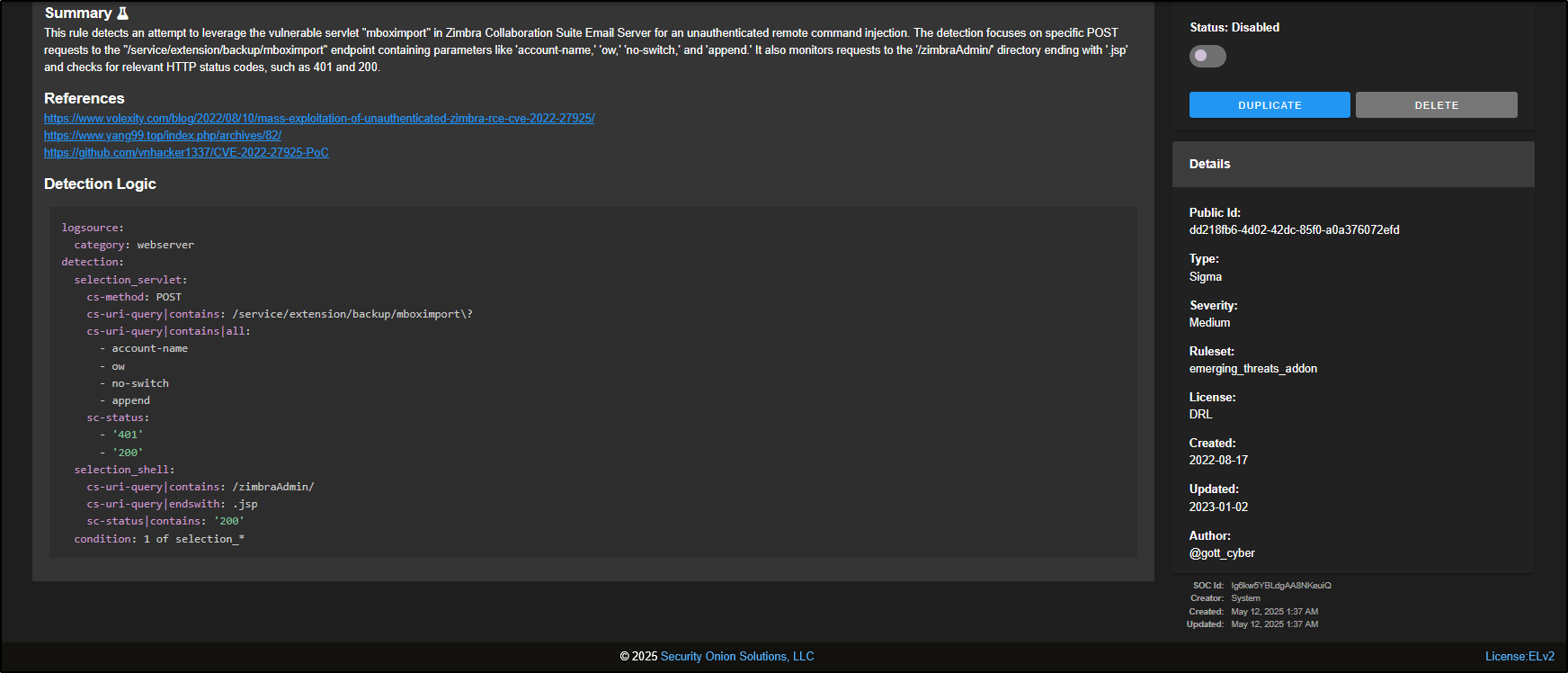
On the right-hand side of the window, you will find additional details about the rule. This includes its Public ID (a unique identifier used internally), the rule type, the ruleset it belongs to, its severity, the author, the license, and the dates it was created and last updated. At the top, there is a slider, which is currently set to Disabled. You can click the slider to enable the rule.
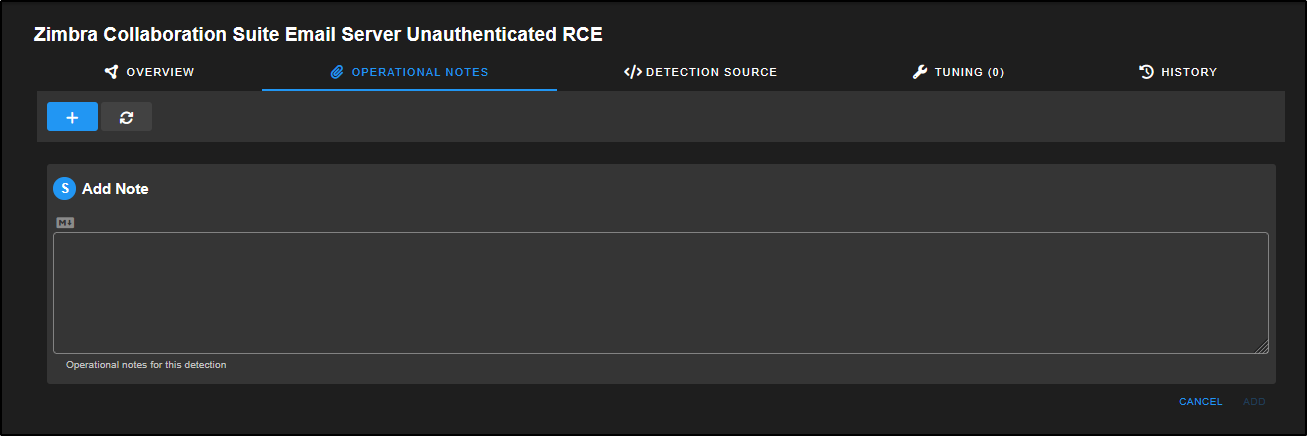
The Operational Notes tab gives analysts a place to record notes about the rule, including any tuning they have applied and how effective the rule has been in their environment.
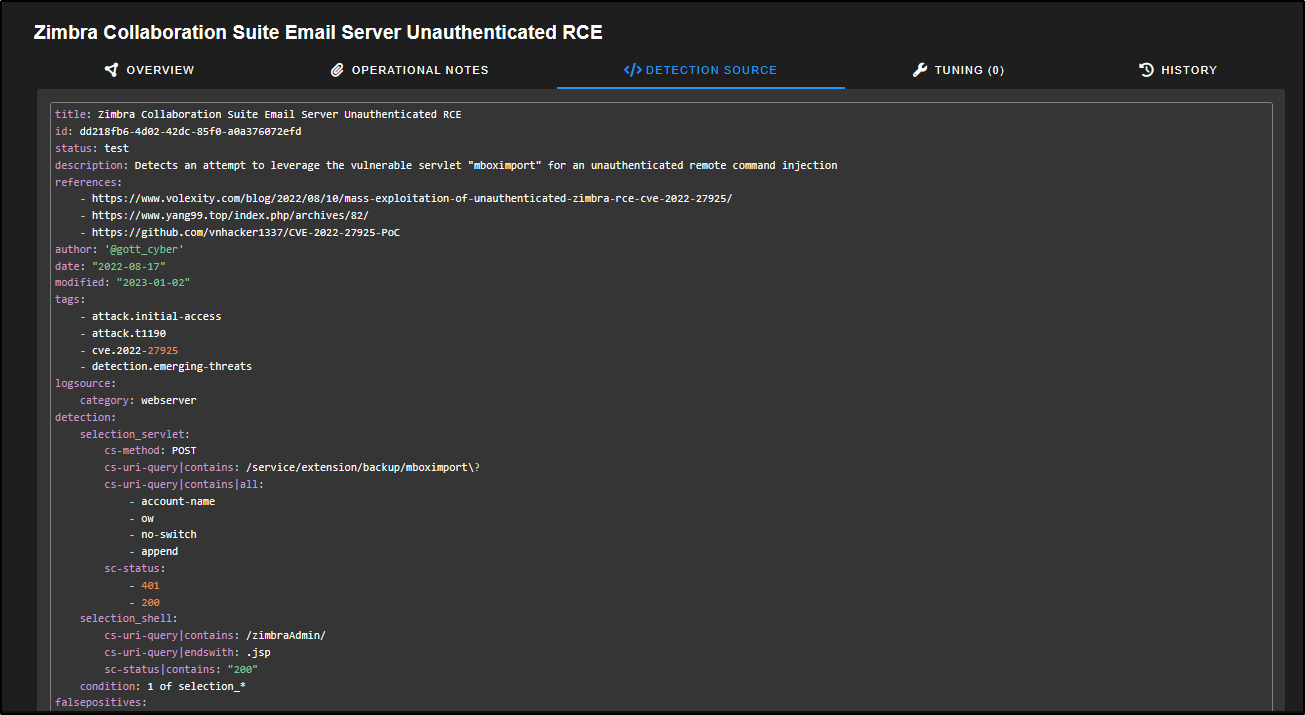
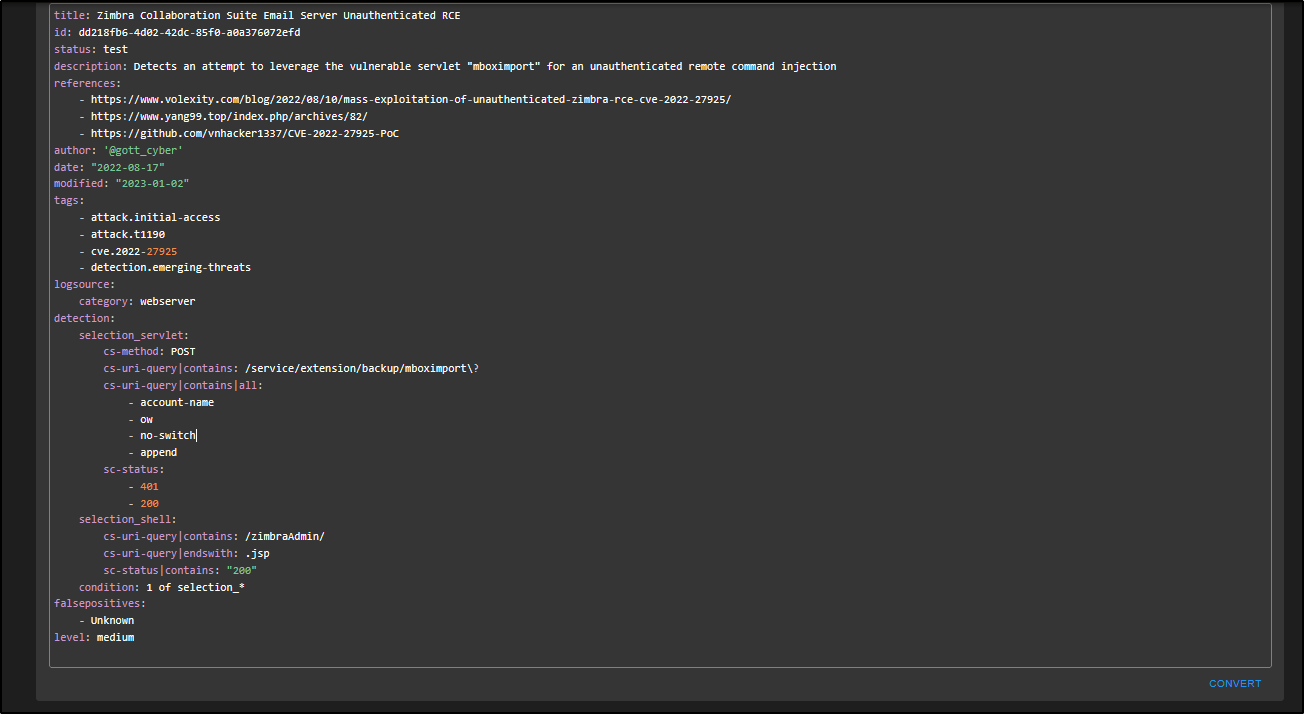
The Detection Source tab displays the complete Sigma rule text, including details not shown on the Overview page, such as possible false positives and the MITRE ATT&CK technique IDs that the rule maps to.
The Tuning tab gives you a tailored interface for adjusting each rule type to better suit your environment. For instance, Suricata rules can be suppressed or have thresholds set, while Sigma rules can be fine-tuned using Sigma filters.

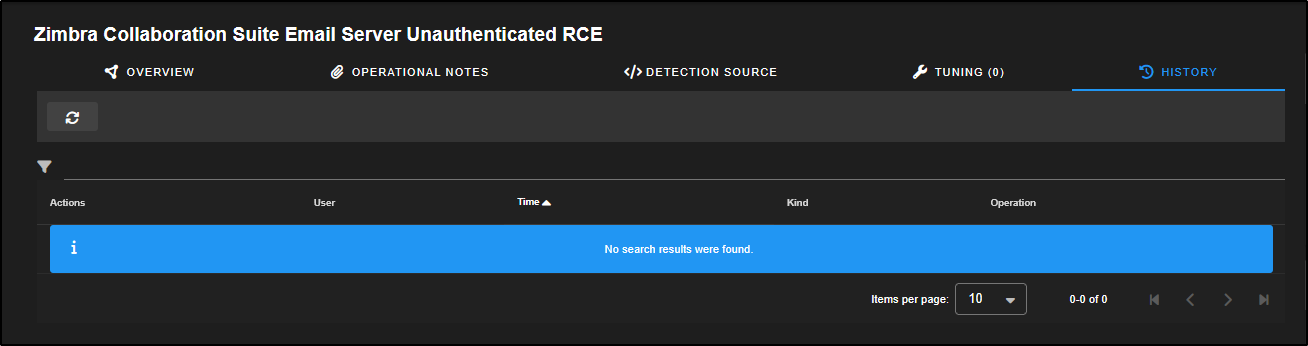
The History tab gives you a full audit trail of any changes made to the rule since it was first brought into your Security Onion setup.
Let’s walk through a Detection Engineering scenario. You have found a gap in your current detections and you want to be alerted whenever a local user account is created on a Windows machine.
Since your organisation uses Active Directory, the policy is that all accounts should be created through AD. So if a local account appears, it could mean:
- Someone is not following the policy,
- A misconfigured app has created it, or
- An attacker is trying to set up persistence.
Whatever the cause, you want to know about it.
The Windows Event ID 4720 is triggered when a new local account is created. That is the event you will use to detect this behaviour.
To simulate this, create a temporary local account on a disposable Windows Server VM. Use a unique lab-only password and record the cleanup command before continuing.
net user <TEMP_TEST_USER> <TEMP_STRONG_PASSWORD> /add
net localgroup administrators <TEMP_TEST_USER> /add

Go to the Detections page in the SOC web interface.
Click on the plus icon to create a new rule and add it to your detection setup.
This is where you will define the rule that alerts on the creation of local user accounts.
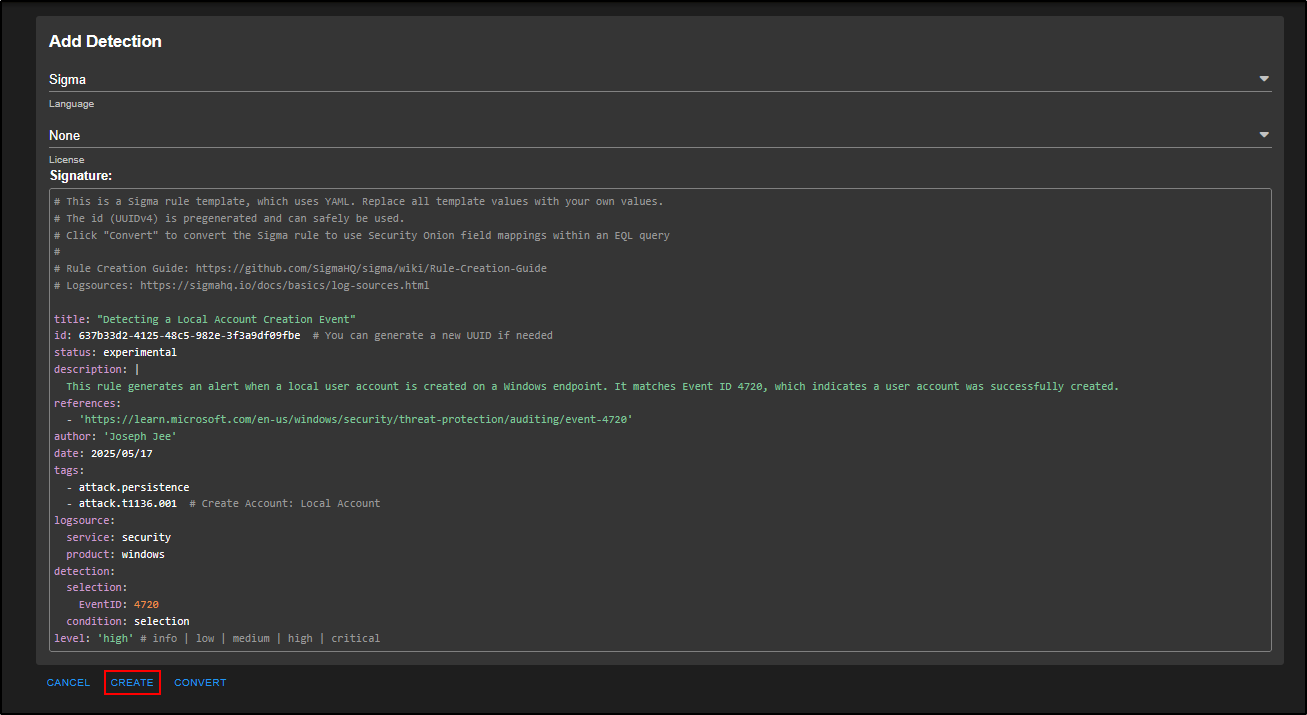
In the Add Detection window, choose Sigma from the drop-down menu. This is the best option since we’re creating a rule based on a log entry (Event ID 4720).
Set the License field to None.
You will see a pre-filled Sigma template which outlines all the key fields like title, ID, log source, detection condition, etc. The URLs at the top link to guides that help you write proper Sigma rules: Sigma Rule Creation Guide and Logsources Reference.
Replace the template with the following custom rule:
# This is a Sigma rule template, which uses YAML. Replace all template values with your own values.
# The id (UUIDv4) is pregenerated and can safely be used.
# Click "Convert" to convert the Sigma rule to use Security Onion field mappings within an EQL query
#
# Rule Creation Guide: https://github.com/SigmaHQ/sigma/wiki/Rule-Creation-Guide
# Logsources: https://sigmahq.io/docs/basics/log-sources.html

title: "Detecting a Local Account Creation Event"
id: 637b33d2-4125-48c5-982e-3f3a9df09fbe  # You can generate a new UUID if needed
status: experimental
description: |
  This rule generates an alert when a local user account is created on a Windows endpoint. It matches Event ID 4720, which indicates a user account was successfully created.
references:
  - 'https://learn.microsoft.com/en-us/windows/security/threat-protection/auditing/event-4720'
author: 'put your name here'
date: 2025/05/17
tags:
  - attack.persistence
  - attack.t1136.001  # Create Account: Local Account
logsource:
  service: security
  product: windows
detection:
  selection:
    EventID: 4720
  condition: selection
level: 'high' # info | low | medium | high | critical
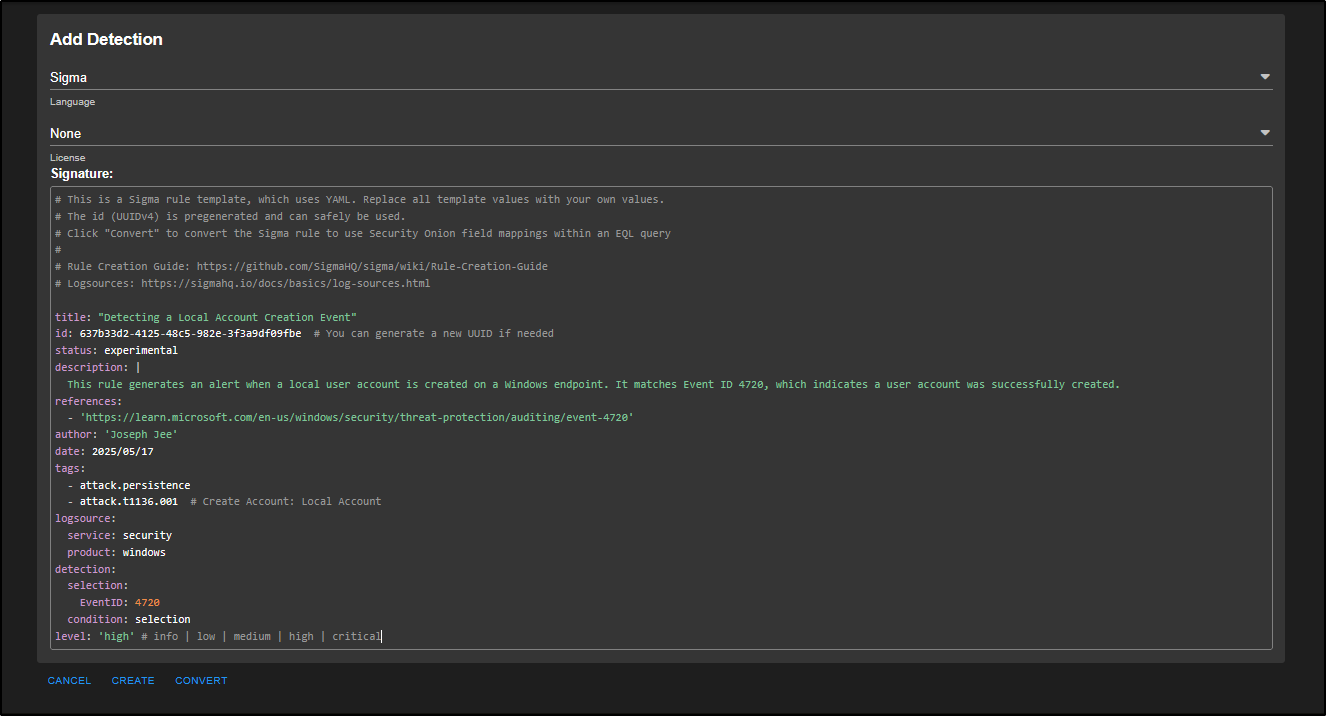
In a Sigma rule, the first section contains metadata such as the title, description, references, and tags. It is best to fill these out properly to help both yourself and other analysts who might investigate this alert later.
In this example:
- The reference is a link to the official Microsoft documentation about Event ID 4720.
- If you have an internal SOP or playbook related to handling this alert, you can include that too.
- The tags align with the MITRE ATT&CK framework. Creating a local account is a persistence tactic, and is listed under T1136.001.
The logsource tells Security Onion where to look. In this case, the Windows Security Event log. It’s important to get this right so the rule runs against the right type of log data.
The detection section says: if there is an event with Event ID 4720, trigger an alert.
The level defines how serious the alert is. It is set to high by default but you can adjust it to match your environment.
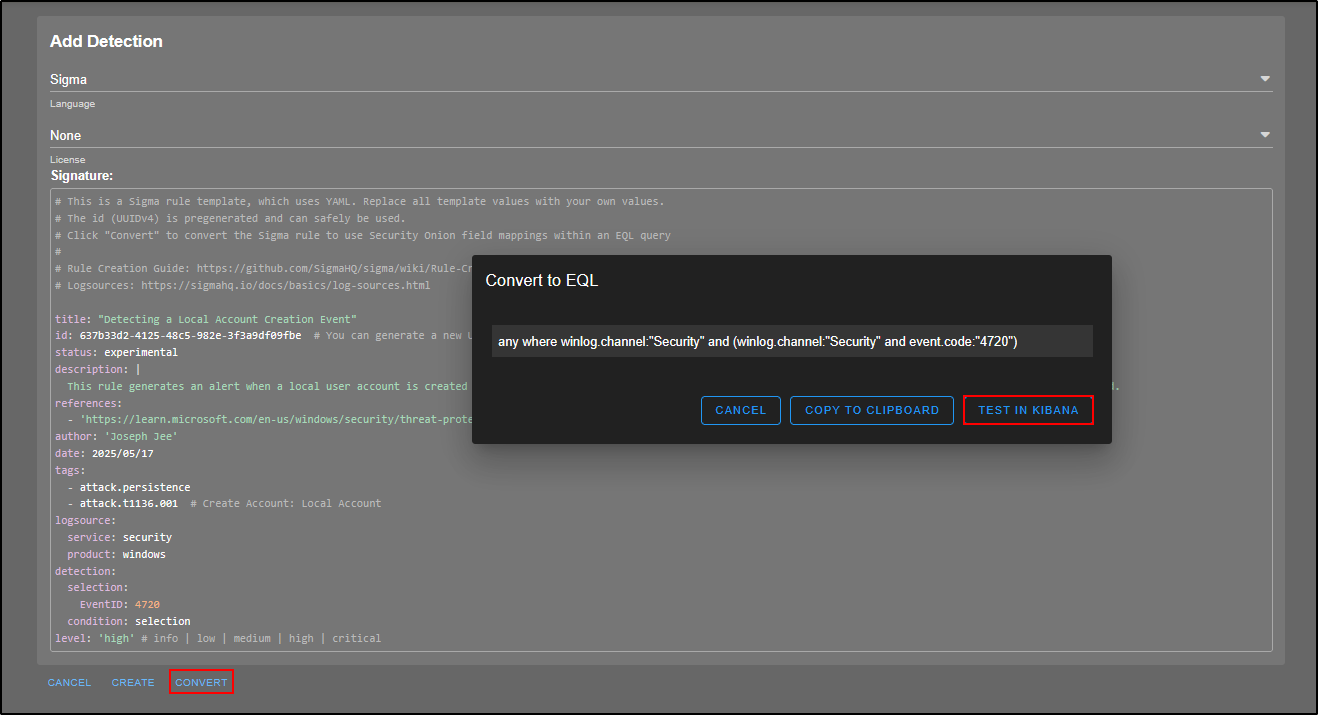
Note: the Sigma rule itself does not run directly. It gets converted into an EQL (Elasticsearch Query Language) query and that is what actually runs in the backend.
To see this:
- Click Convert to preview the EQL version.
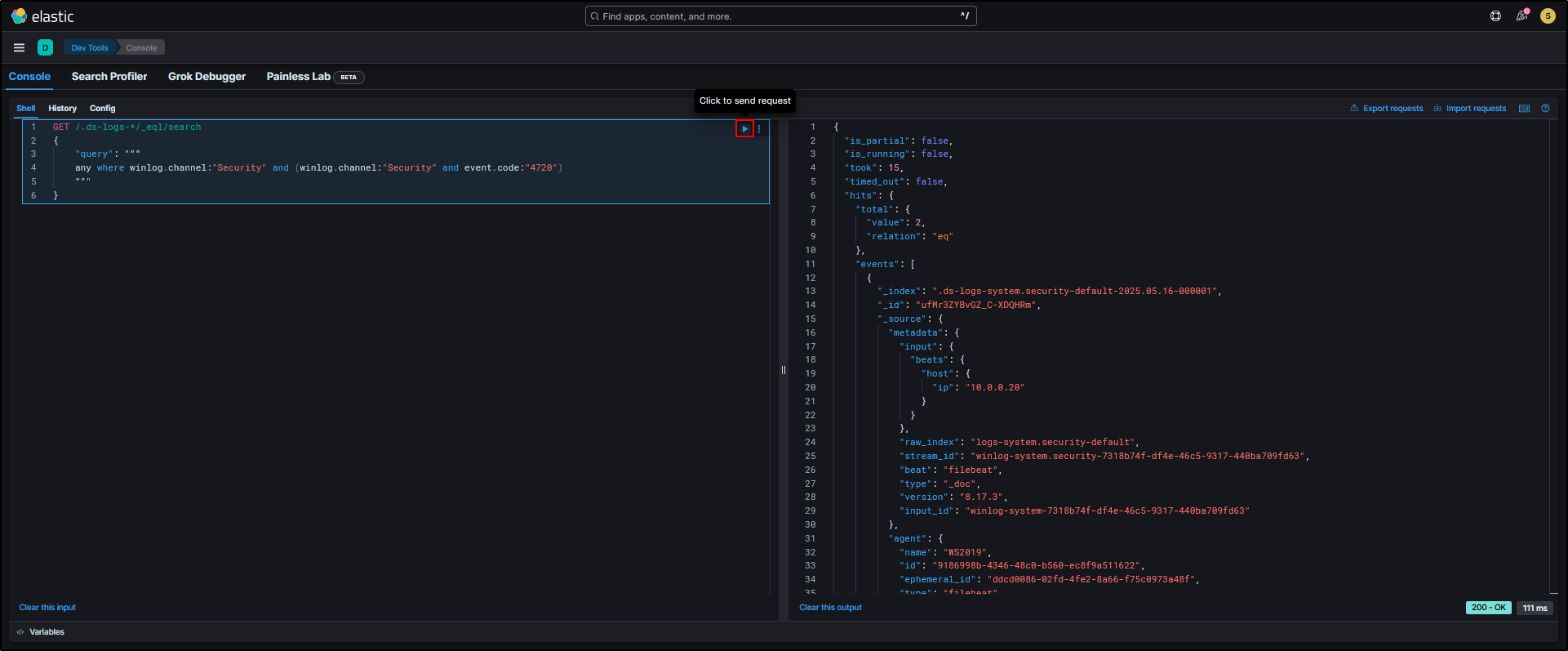
- To test it live, click Test in Kibana. This will open the query in Kibana Dev Tools and return any matching results.
The query appears on the left-hand side, and when you click the play button, any matching events will be displayed on the right.
Even if you are not planning to test the query straight away, it is still a good idea to do the conversion step to make sure everything looks correct, especially for more complex detection rules.
Everything looks fine here, so go ahead and click Create to add the Sigma rule to our list of detections.
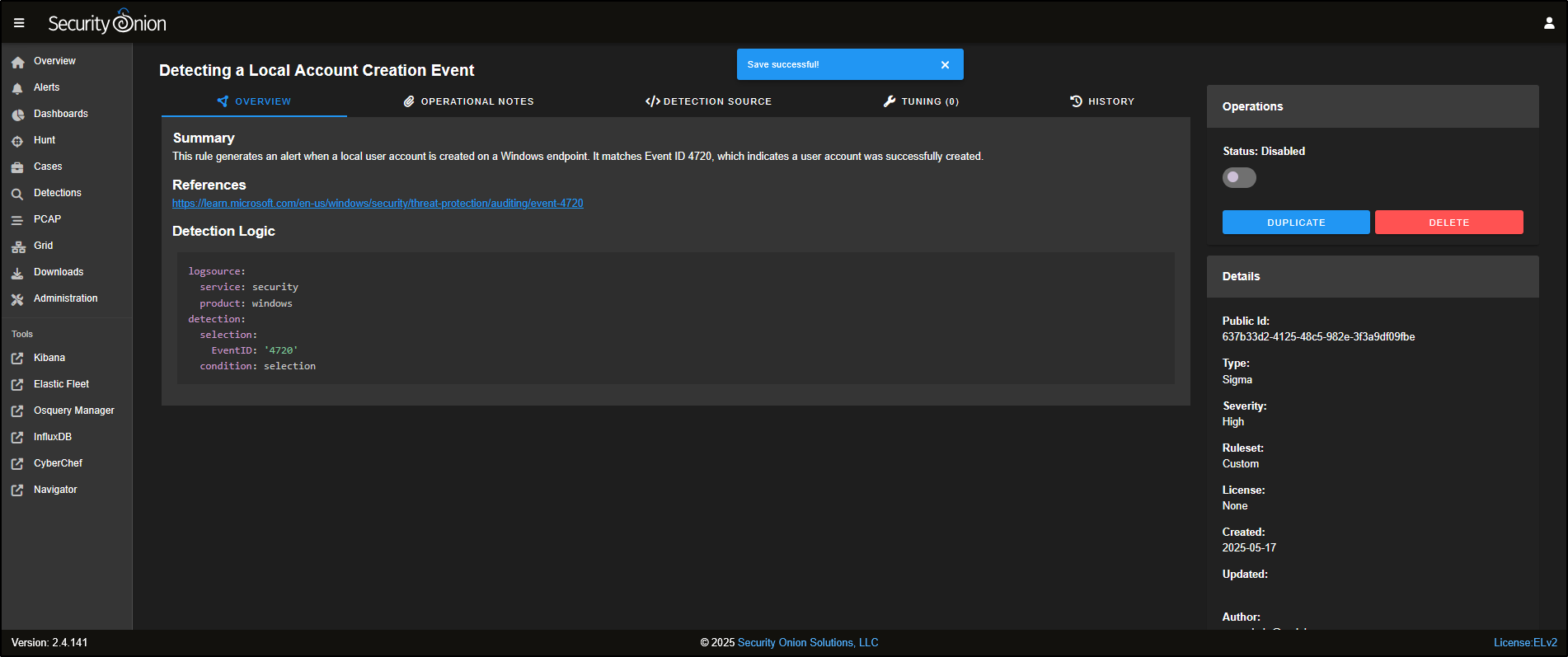
The rule is not enabled by default, but if you want to activate it, just click the slider to turn it on.
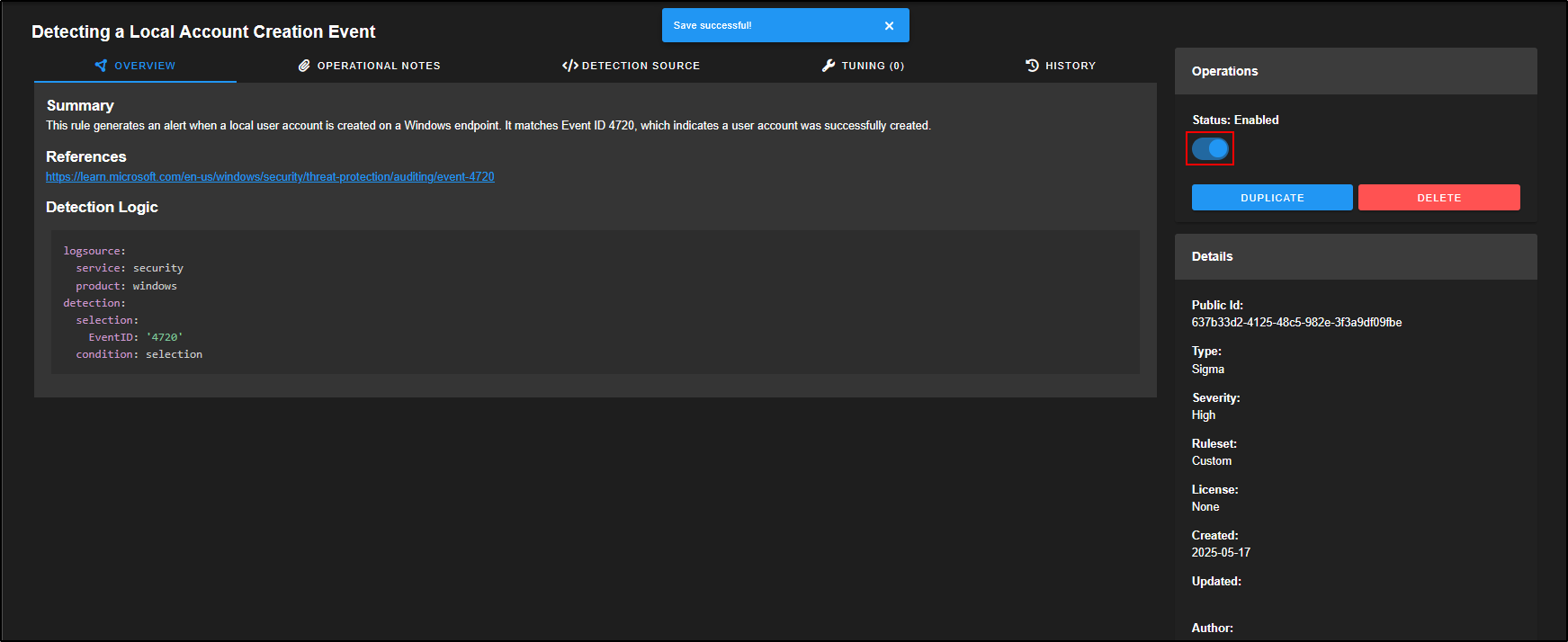
Now that the rule is active, any time a Windows Event ID 4720 is logged, which indicates a new local user account was created, we will receive an alert.
To test this, repeat the controlled action with the recorded temporary account:
net user <TEMP_TEST_USER> <TEMP_STRONG_PASSWORD> /add
net localgroup administrators <TEMP_TEST_USER> /add
Head to the Alerts page in the SOC web interface. You should see an alert confirming that the rule successfully triggered based on this activity.
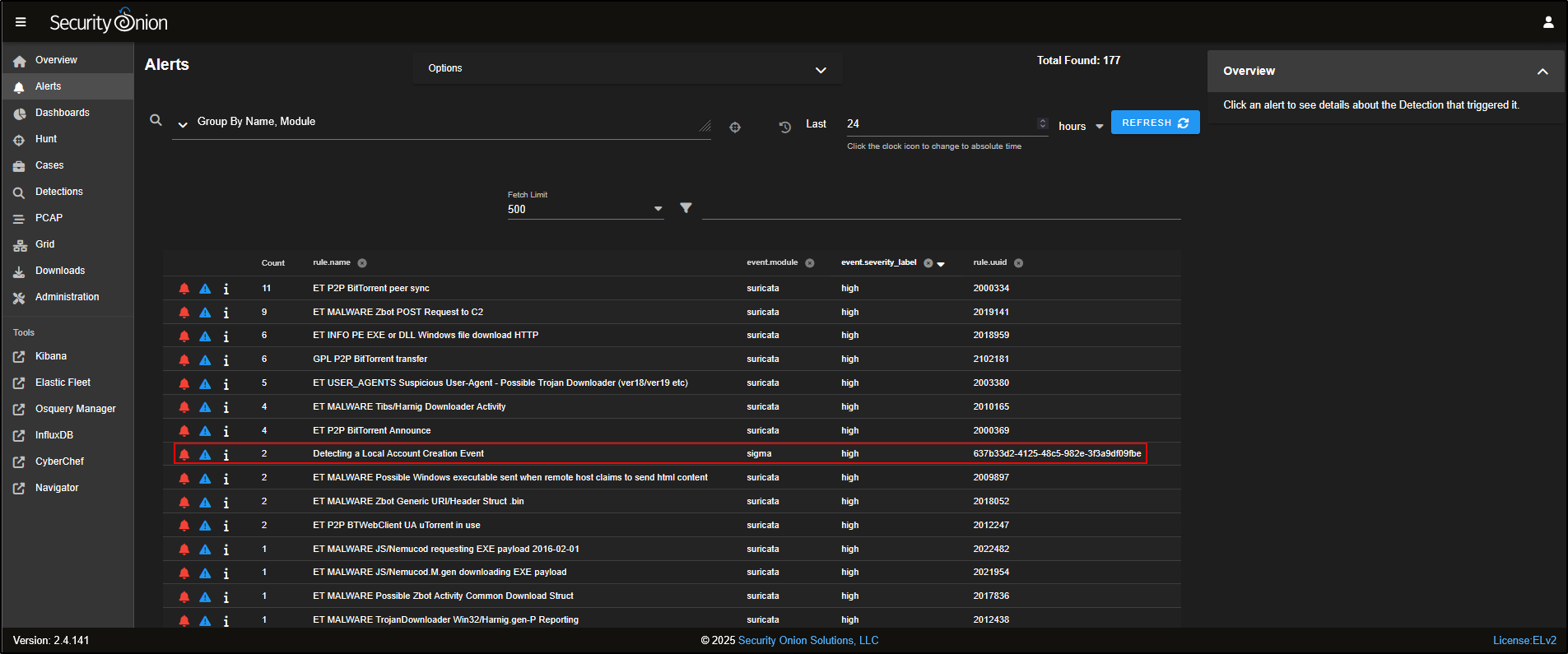
Run a benign comparison that should not match the rule, then remove the temporary administrator account and confirm that it no longer exists:
net localgroup administrators <TEMP_TEST_USER> /delete
net user <TEMP_TEST_USER> /delete
net user <TEMP_TEST_USER>
Disable the test rule or retain it with an owner, rationale, test evidence, and review date. Confirm the endpoint and Security Onion services have returned to the recorded baseline.
Start by identifying a detection gap (something your current setup is not alerting on but should be). Next, determine what logs or events you will need to collect to detect that activity. Once the necessary data is being ingested, write a detection rule using one of the supported rule languages (Suricata, YARA, or Sigma) in the Detections section of Security Onion. Finally, deploy the rule, test it to make sure it works as expected, and tune it to reduce false positives and ensure it fits your environment.
Validate and clean up
Confirm the rule matches the controlled suspicious action with the intended host, identity, fields, severity, and ATT&CK mapping. Run a similar benign action that should not match. Record both results, remove the temporary account, and either disable the test rule or retain it with an owner and review date.