Manage Event Storage
Enable event archives deliberately, expose them in the dashboard, and understand the resulting storage and retention impact.
Decide whether archives are required
Alerts contain events that matched rules; archives can retain events regardless of whether a rule fired. Enable archives only when the investigation, detection-engineering, or compliance value justifies the additional indexer and filesystem consumption.
Before changing configuration, document the expected daily volume, retention period, available storage, and owner responsible for monitoring growth.
Capture a baseline before enabling archives:
sudo du -sh /var/ossec/logs/archives
sudo du -sh /var/lib/wazuh-indexer
df -h /var/ossec /var/lib/wazuh-indexer
Repeat these checks after a representative collection window. Estimate retained
storage as observed daily growth × retention days, add operational headroom,
and define the warning threshold and owner. If growth is not sustainable,
disable archive indexing or reduce retention before continuing.
Detailed event-storage procedure
The original explanation, configuration blocks, service commands, dashboard workflow, screenshots, and retention warning are retained below.
Understand log compression and rotation
Log files can quickly accumulate and consume significant disk space in a system. To prevent this, the Wazuh manager compresses logs during its rotation process, helping to manage disk usage efficiently and maintain system performance. The Wazuh manager compresses log files daily or when they reach a certain threshold (file size, age, time, and more) and archives them. In the log rotation process, Wazuh creates a new log file with the original name to continuously write new events.
Log files are compressed daily and digitally signed using MD5, SHA1, and SHA256 hashing algorithms. The compressed log files are stored in the /var/ossec/logs/ directory
Archive event logs
Events are logs generated by applications, endpoints, and network devices. The Wazuh server stores all events it receives, whether or not they trigger a rule. These events are stored in the Wazuh archives located at /var/ossec/logs/archives/archives.log and /var/ossec/logs/archives/archives.json. Security teams use archived logs to review historical data of security incidents, analyze trends, and generate reports to hunt threats.
By default, the Wazuh archives are disabled because it stores logs indefinitely on the Wazuh server. When enabled, the Wazuh manager creates archived files to store and retain security data for compliance and forensic purposes.
Note: The Wazuh archives retain logs collected from all monitored endpoints, therefore consuming significant storage resources on the Wazuh server over time. So, it is important to consider the impact on disk space and performance before enabling them.
Enable archiving
Edit the Wazuh manager configuration file /var/ossec/etc/ossec.conf and set the value of the highlighted fields below to yes:
<ossec_config>
  <global>
    <jsonout_output>yes</jsonout_output>
    <alerts_log>yes</alerts_log>
    <logall>yes</logall>
    <logall_json>yes</logall_json>
</ossec_config>
<logall> enables or disables archiving of all log messages. When enabled, the Wazuh server stores the logs in a syslog format. The allowed values are yes and no.<logall_json> enables or disables logging of events. When enabled, the Wazuh server stores the events in a JSON format. The allowed values are yes and no.
Depending on the format you desire, you can set one or both values of the highlighted fields to yes. However, only the <logall_json>yes</logall_json> option allows you to create an index that can be used to visualize the events on the Wazuh dashboard.
Restart the Wazuh manager to apply the configuration changes:
Depending on your chosen format, the file archives.log, archives.json, or both will be created in the /var/ossec/logs/archives/ directory on the Wazuh server. Wazuh uses a default log rotation policy. It ensures that available disk space is conserved by rotating and compressing logs on a daily, monthly, and yearly basis.
Visualise events on the dashboard
Edit the Filebeat configuration file /etc/filebeat/filebeat.yml and change the value of archives: enabled from false to true:
Restart Filebeat to apply the configuration changes:
Configure the Wazuh dashboard
Click the upper-left menu icon and navigate to Dashboard management > Index patterns > Create index pattern. Use wazuh-archives-* as the index pattern name, and set timestamp in the Time field drop-down list.
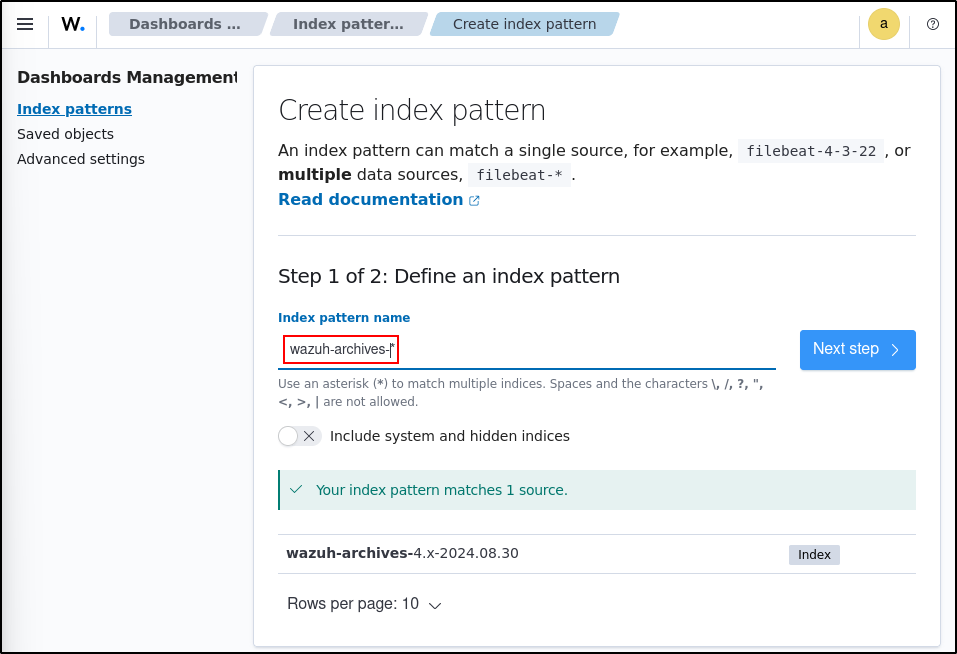
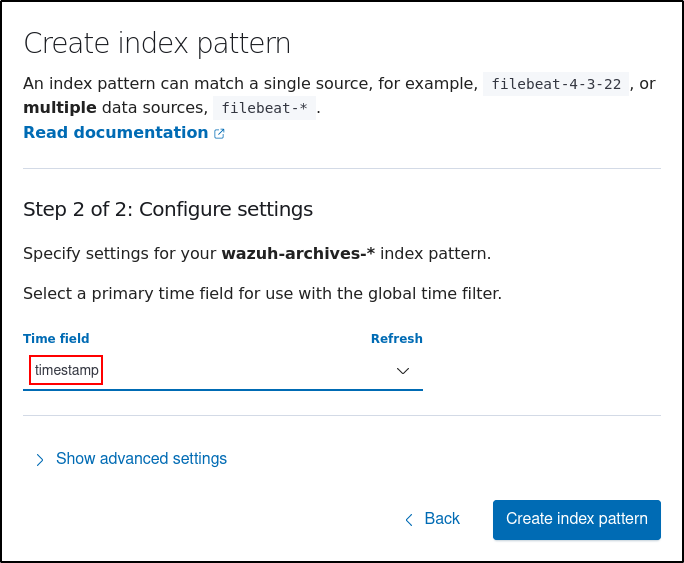
To view the events on the dashboard, click the upper-left menu icon and navigate to Discover. Change the index pattern to wazuh-archives-*.
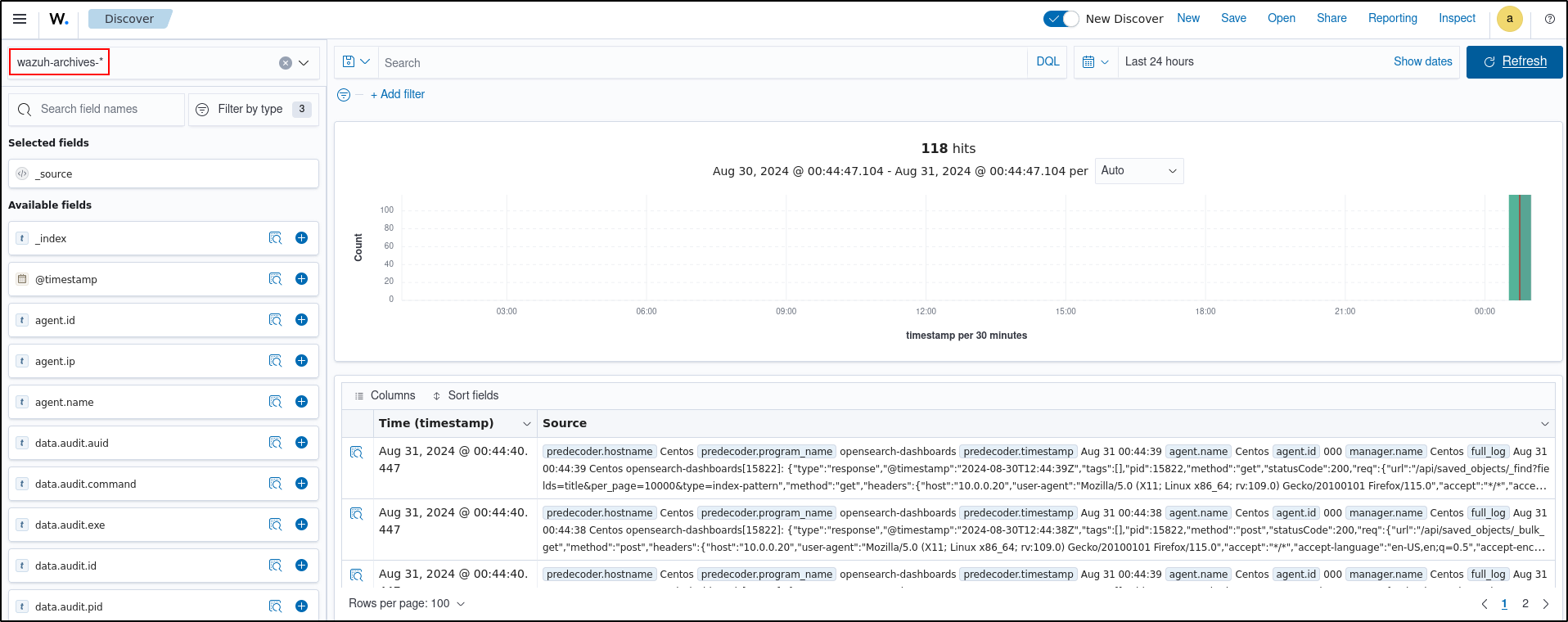
Checkpoint: find an event that did not alert
Search wazuh-archives-* for a recent source event, confirm its timestamp and source identity, and determine whether a corresponding alert exists. Then check filesystem and index growth to establish an initial storage baseline.
Document the rollback: set archives.enabled back to false, restore the prior
logall and logall_json values, restart only the affected services, and verify
that new archive documents stop arriving. Treat deletion of existing indices as
a separate, explicitly approved retention action.