Analyse PCAPs and Export Objects
Investigate the supplied Unit 42 captures, recover supported HTTP, SMB, SMTP, and FTP objects, and validate them without executing malicious content.
Prepare the supplied PCAPs
Handle exported objects as live malware
Complete this section only in an isolated, authorised, disposable analysis VM. Take a snapshot first; disable shared folders, clipboard integration, and unnecessary network access; and never execute an exported object. Do not open exported HTML in a network-enabled browser. Prefer looking up a known SHA-256 hash instead of uploading a file to a public service, and never upload confidential or proprietary samples without permission.
The PCAPs used in this adapted exercise are provided by Palo Alto Networks Unit 42 in a password-protected ZIP archive in the Unit 42 Wireshark tutorials repository. Download Wireshark-tutorial-extracting-objects-5-pcaps.zip inside the isolated analysis VM. Use infected as the password and extract the five PCAPs, as shown below. The samples and original exercise belong to Unit 42; this page adds CDK lab structure, safety guidance, and verification checkpoints.
The object-export sequence is adapted from Unit 42's Using Wireshark: Exporting Objects from a PCAP. An accompanying object-export video walkthrough is also available.
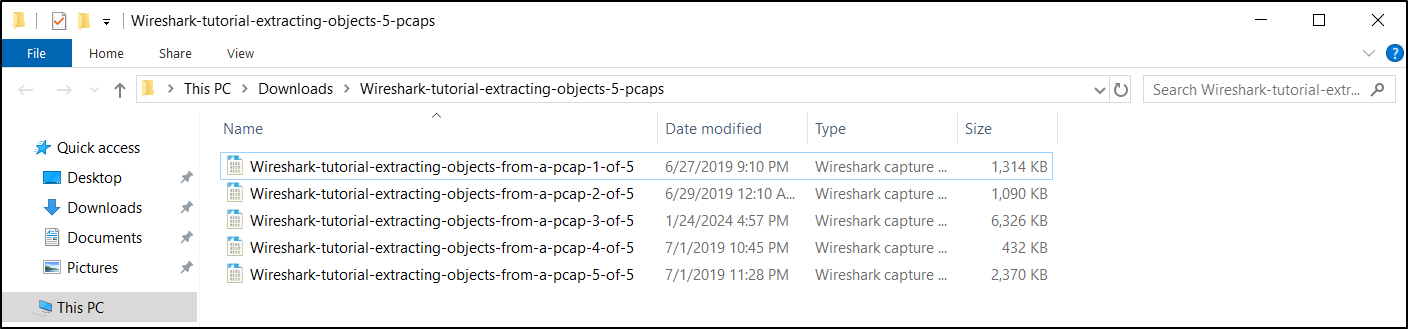
The five extracted pcaps are:
- Wireshark-tutorial-extracting-objects-from-a-pcap-1-of-5.pcap
- Wireshark-tutorial-extracting-objects-from-a-pcap-2-of-5.pcap
- Wireshark-tutorial-extracting-objects-from-a-pcap-3-of-5.pcap
- Wireshark-tutorial-extracting-objects-from-a-pcap-4-of-5.pcap
- Wireshark-tutorial-extracting-objects-from-a-pcap-5-of-5.pcap
Wireshark can reassemble applicable protocol streams from TCP segments carried in IP packets and expose supported objects contained in a PCAP. Successful export depends on the relevant payload being present, unencrypted, sufficiently complete, and supported by the protocol dissector.
Exporting Files From HTTP Traffic
Some Windows-based infections involve malware binaries or malicious code sent over unencrypted HTTP traffic. We can extract these objects from the PCAP. An example is provided in the first Unit 42 PCAP, Wireshark-tutorial-extracting-objects-from-a-pcap-1-of-5.pcap. Open this PCAP in Wireshark and apply the display filter http.request, as shown below.

After filtering on http.request, find the two GET requests to smart-fax[.]com. The first request ends with .doc, indicating the first request may have returned a Microsoft Word document. The second request ends with .exe, indicating the second request may have returned a Windows executable file. The HTTP GET requests are listed below.
- smart-fax[.]com - GET /Documents/Invoice&MSO-Request.doc
- smart-fax[.]com - GET /knr.exe
We can export these objects from the HTTP object list by using the menu path:
- File → Export Objects → HTTP...
This menu path results in a window titled “Wireshark Export HTTP object list” as shown below. Select the first line with Invoice&MSO-Request.doc as the filename and save it. Select the second line with knr.exe as the filename and save it.
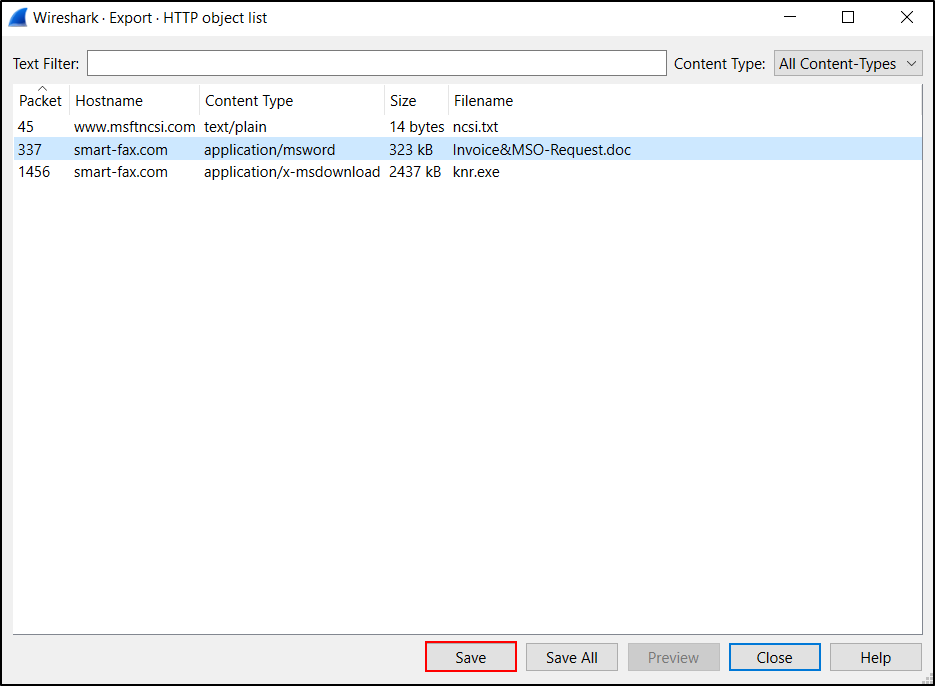
Note, the Content Type column from the HTTP object list shows what the server identified the file as in its HTTP response headers. In some cases, a server hosting malware will intentionally label Windows executables as a different type of file in an effort to avoid detection. Fortunately, the first pcap in this tutorial is a very straight-forward example.
After extracting these files from the pcap, we should confirm the file types.
In Windows, use PowerShell or Command Prompt to calculate a SHA-256 hash:
- PowerShell:
Get-FileHash <filename> -Algorithm SHA256 - Command Prompt:
certutil -hashfile <filename> SHA256
In Linux, we can use a terminal window or command line interface (CLI) for the following commands:
file <filename>shasum -a 256 <filename>
The file command identifies the type of file. The shasum command returns the file hash, in this case a SHA-256 hash.
└─$ file 'Invoice&MSO-Request.doc'
Invoice&MSO-Request.doc: Composite Document File V2 Document, Little Endian, Os: Windows, Version 6.3, Code page: 1252, Template: Normal.dotm, Last Saved By: Administrator, Revision Number: 2, Name of Creating Application: Microsoft Office Word, Create Time/Date: Thu Jun 27 19:24:00 2019, Last Saved Time/Date: Thu Jun 27 19:24:00 2019, Number of Pages: 1, Number of Words: 0, Number of Characters: 1, Security: 0

└─$ shasum -a 256 'Invoice&MSO-Request.doc'
f808229aa516ba134889f81cd699b8d246d46d796b55e13bee87435889a054fb  Invoice&MSO-Request.doc

└─$ file knr.exe
knr.exe: PE32 executable (GUI) Intel 80386, for MS Windows, 5 sections

└─$ shasum -a 256 knr.exe
749e161661290e8a2d190b1a66469744127bc25bf46e5d0c6f2e835f4b92db18  knr.exe
The information above confirms that the suspected Word document is a Microsoft Word document and that the suspected executable is a Windows executable. A hash lookup in a malware-analysis service can provide supporting evidence about a known sample, but a detection count alone does not prove that a file is malicious. Results also change over time. Prefer searching for the SHA-256 value; do not upload the file unless you are authorised to share it.
HTTP export checkpoint
Confirm that the two exported files match the expected types and SHA-256 values shown above. Do not open the document or execute the executable.
In addition to these Windows executables or other malware files, we can also extract webpages from unencrypted HTTP traffic.
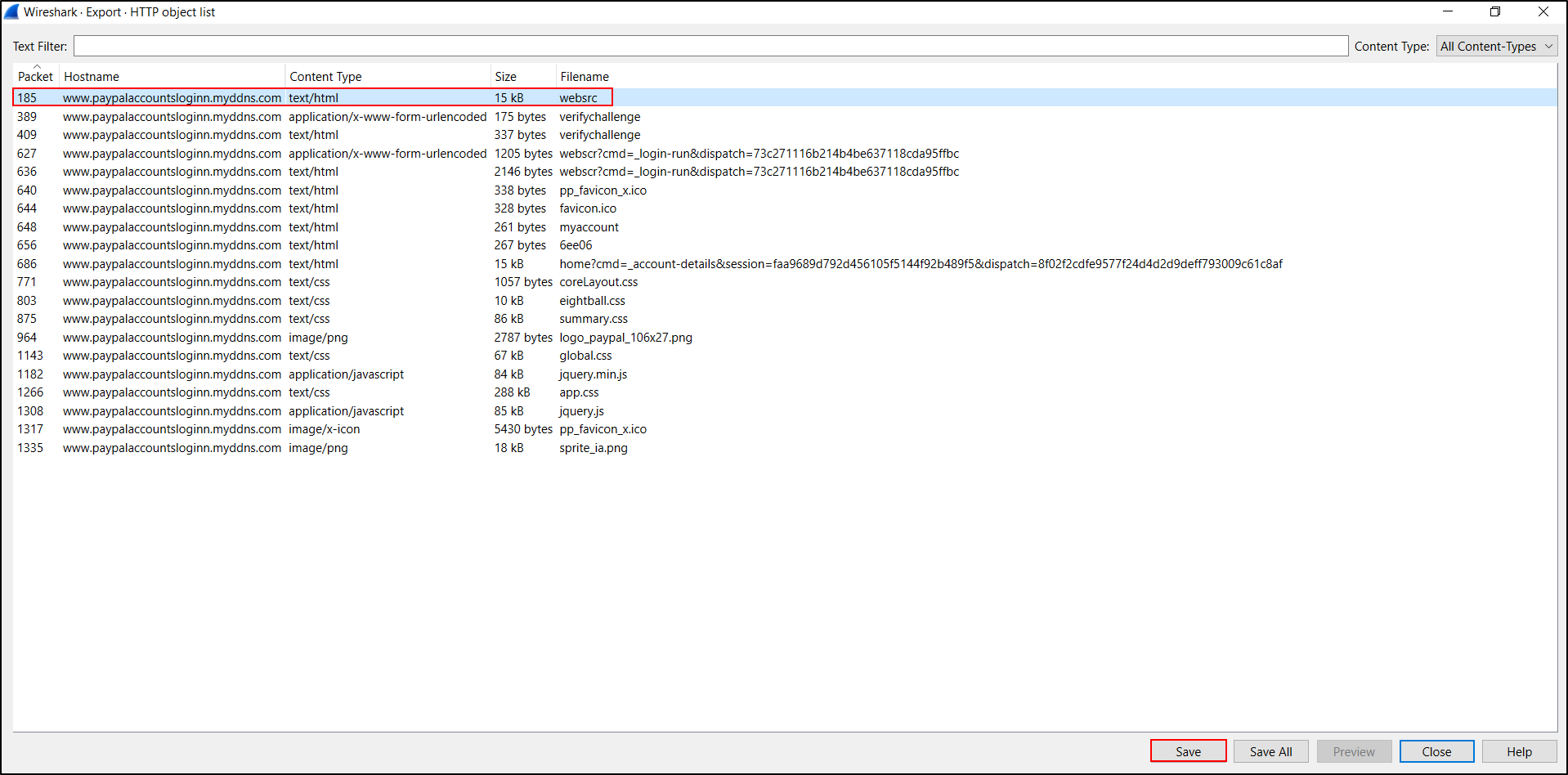
Use Wireshark to open the second Unit 42 PCAP, Wireshark-tutorial-extracting-objects-from-a-pcap-2-of-5.pcap. This PCAP contains traffic generated when someone entered login credentials on a fake PayPal login page.
When reviewing network traffic from a phishing site, we might want to know what the phishing webpage actually looks like. We can extract the HTML pages, images and other web content using the Export HTTP object menu. In this case, we can extract and view just the initial HTML page. After extracting that initial HTML page, viewing it in a web browser should reveal the page shown below.
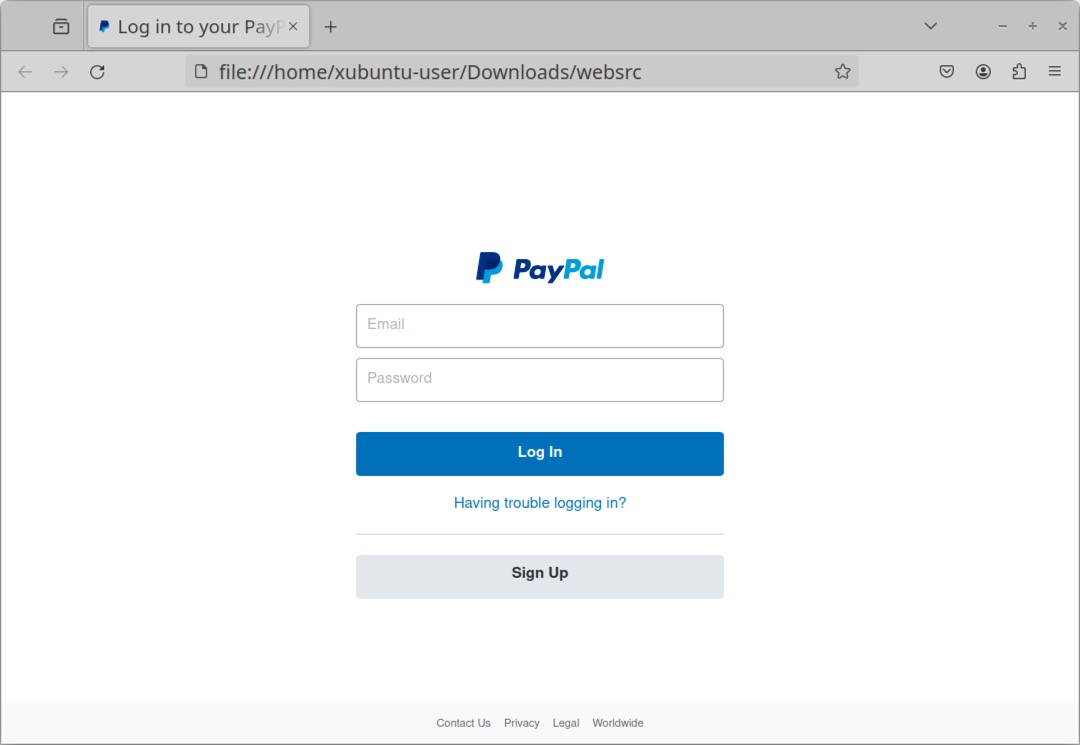
Depending on the browser and local settings, the rendered HTML might instead look like the example below.
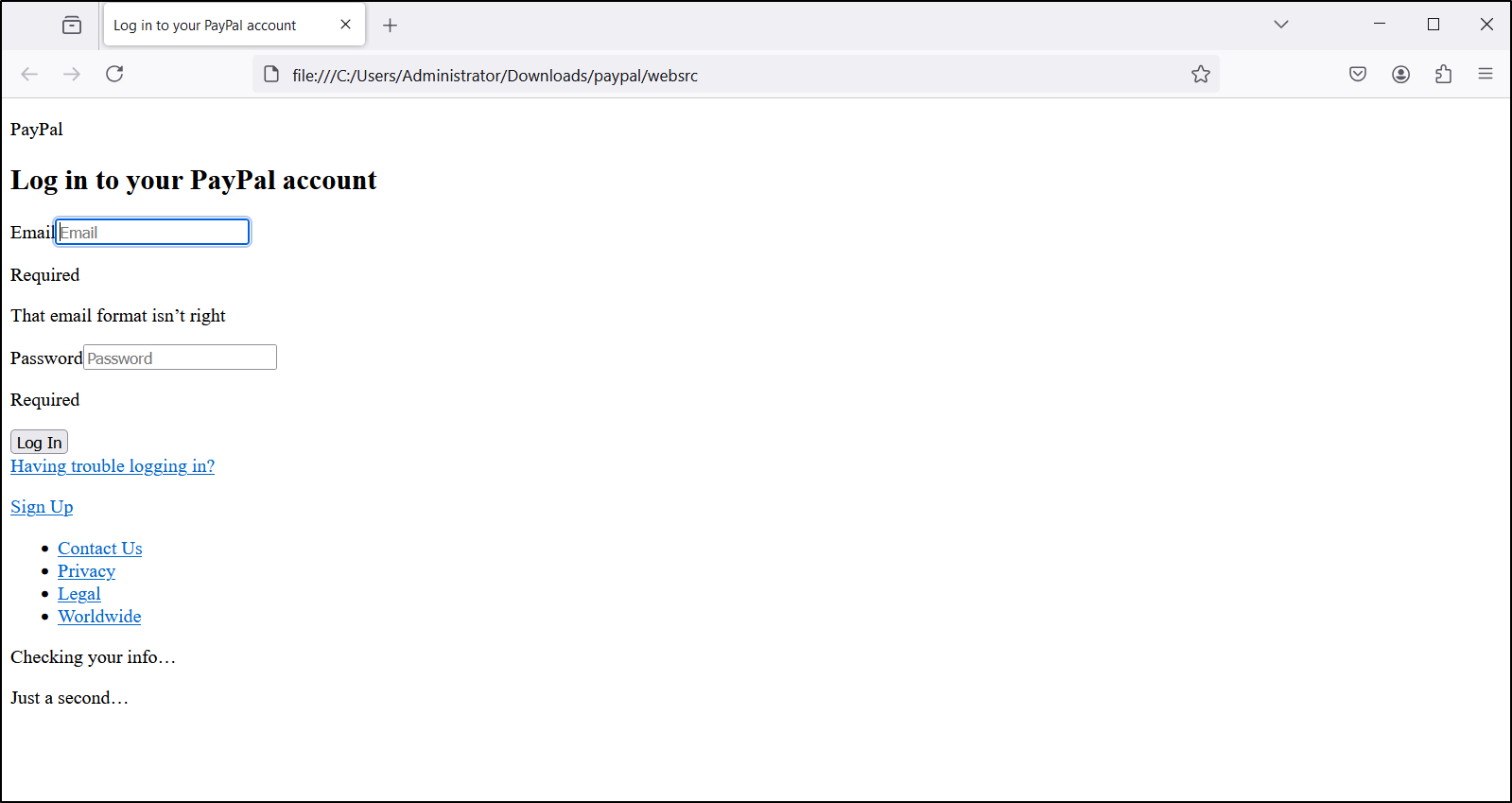
Use this method with caution. Exported malicious HTML can attempt to contact external domains when opened. Inspect it as text, or render it only in an isolated VM with networking disabled.
Exporting Files from SMB Traffic
Some malware uses Microsoft's Server Message Block (SMB) protocol to spread across an Active Directory (AD)-based network. A banking Trojan known as Trickbot added a worm module as early as July 2017 that uses an exploit based on EternalBlue to spread across a network over SMB. Trickbot is no longer an active malware family, but this section contains a June 2019 Trickbot infection that is ideal for this tutorial.
Use Wireshark to open the third Unit 42 PCAP, Wireshark-tutorial-extracting-objects-from-a-pcap-3-of-5.pcap. This PCAP contains a June 2019 Trickbot infection in which malware is sent over SMB from an infected client to the domain controller.
This pcap takes place in the following AD environment:
- Domain: cliffstone[.]net
- Network segment: 10.6.26[.]0 through 10.6.26[.]255 (10.6.26[.]0/24)
- Domain controller IP: 10.6.26[.]6
- Domain controller hostname: CLIFFSTONE-DC
- Segment gateway: 10.6.26[.]1
- Broadcast address: 10.6.26[.]255
- Windows client: QUINN-OFFICE-PC at 10.6.26[.]110
In this pcap, a Trickbot infection uses SMB to spread from an infected client at 10.6.26[.]110 to its domain controller at 10.6.26[.]6. To see the associated malware, use the following menu path shown below:
- File → Export Objects → SMB...
This brings up an Export SMB object list, listing the SMB objects we can export from the pcap as shown below.
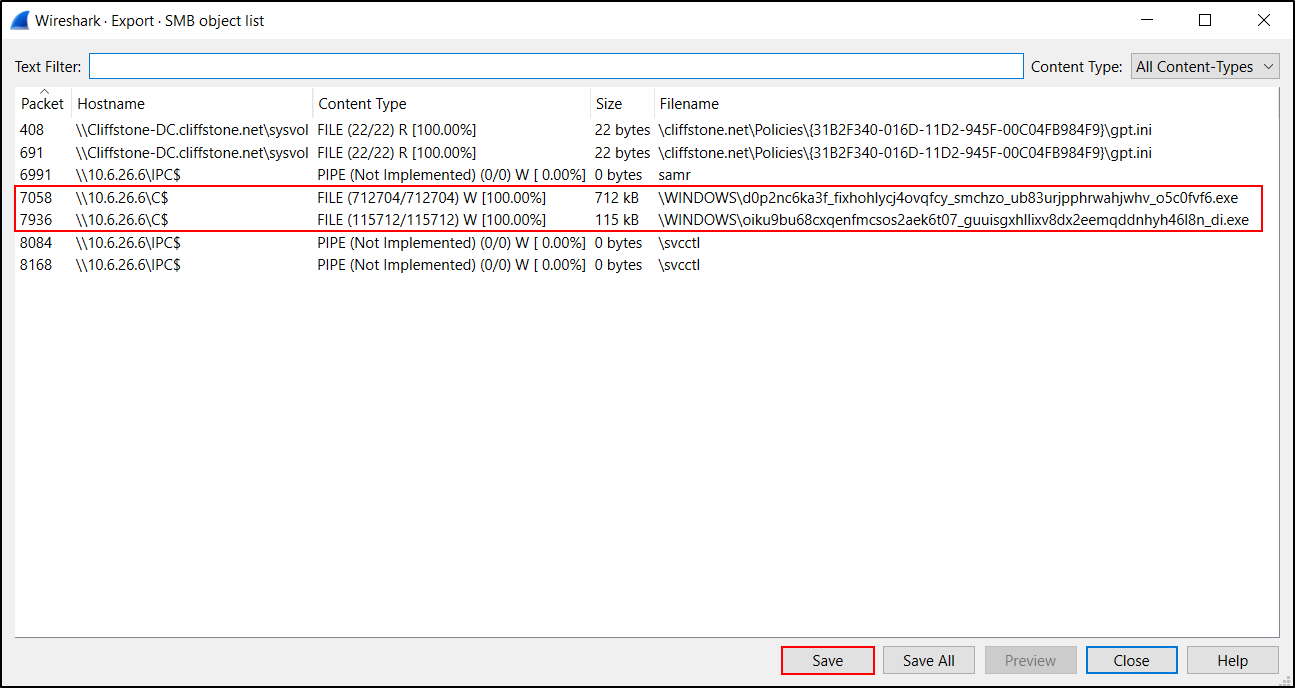
Two entries near the middle of the list have \10.6.26[.]6\C$ as the hostname. A closer examination of their respective filename fields indicates these are two Windows executable files. See Table below for details.
| Packet Number | Hostname | Content Type | Size | Filename |
|---|---|---|---|---|
| 7058 | \10.6.26[.]6\C$ | FILE (712704/712704) W [100.0%] | 712 kB | \WINDOWS\d0p2nc6ka3f_fixhohlycj4ovqfcy_smchzo_ub83urjpphrwahjwhv_o5c0fvf6.exe |
| 7936 | \10.6.26[.]6\C$ | FILE (115712/115712) W [100.0%] | 115 kB | \WINDOWS\oiku9bu68cxqenfmcsos2aek6t07_guuisgxhllixv8dx2eemqddnhyh46l8n_di.exe |
The Content Type column should show 100% before you treat an exported object as complete. A lower percentage indicates that the capture does not contain all of the object's data, so the exported copy will be incomplete or corrupt. The expected SHA-256 hashes for these Trickbot-related files are shown below.
PS C:\Users\Administrator\Downloads> Get-FileHash sample1.exe -Algorithm SHA256

Algorithm       Hash                                                                   Path
---------       ----                                                                   ----
SHA256          59896AE5F3EDCB999243C7BFDC0B17EB7FE28F3A66259D797386EA470C010040       C:\Users\Administrator\Downlo...

PS C:\Users\Administrator\Downloads> Get-FileHash sample2.exe -Algorithm SHA256

Algorithm       Hash                                                                   Path
---------       ----                                                                   ----
SHA256          CF99990BEE6C378CBF56239B3CC88276EEC348D82740F84E9D5C343751F82560       C:\Users\Administrator\Downlo...
| SHA256 hash | File size |
|---|---|
| 59896ae5f3edcb999243c7bfdc0b17eb7fe28f3a66259d797386ea470c010040 | 712 kB |
| cf99990bee6c378cbf56239b3cc88276eec348d82740f84e9d5c343751f82560 | 115 kB |
SMB export checkpoint
Confirm that both objects show 100% completeness and that their calculated SHA-256 values match the table. A mismatch means the wrong object was saved or the exported data is incomplete.
Exporting Emails from SMTP Traffic
Certain types of malware are designed to turn an infected Windows host into a spambot. These spambot hosts send hundreds of spam messages or malicious emails every minute. If any of these messages are sent using unencrypted SMTP, we can export these messages from a pcap of the traffic.
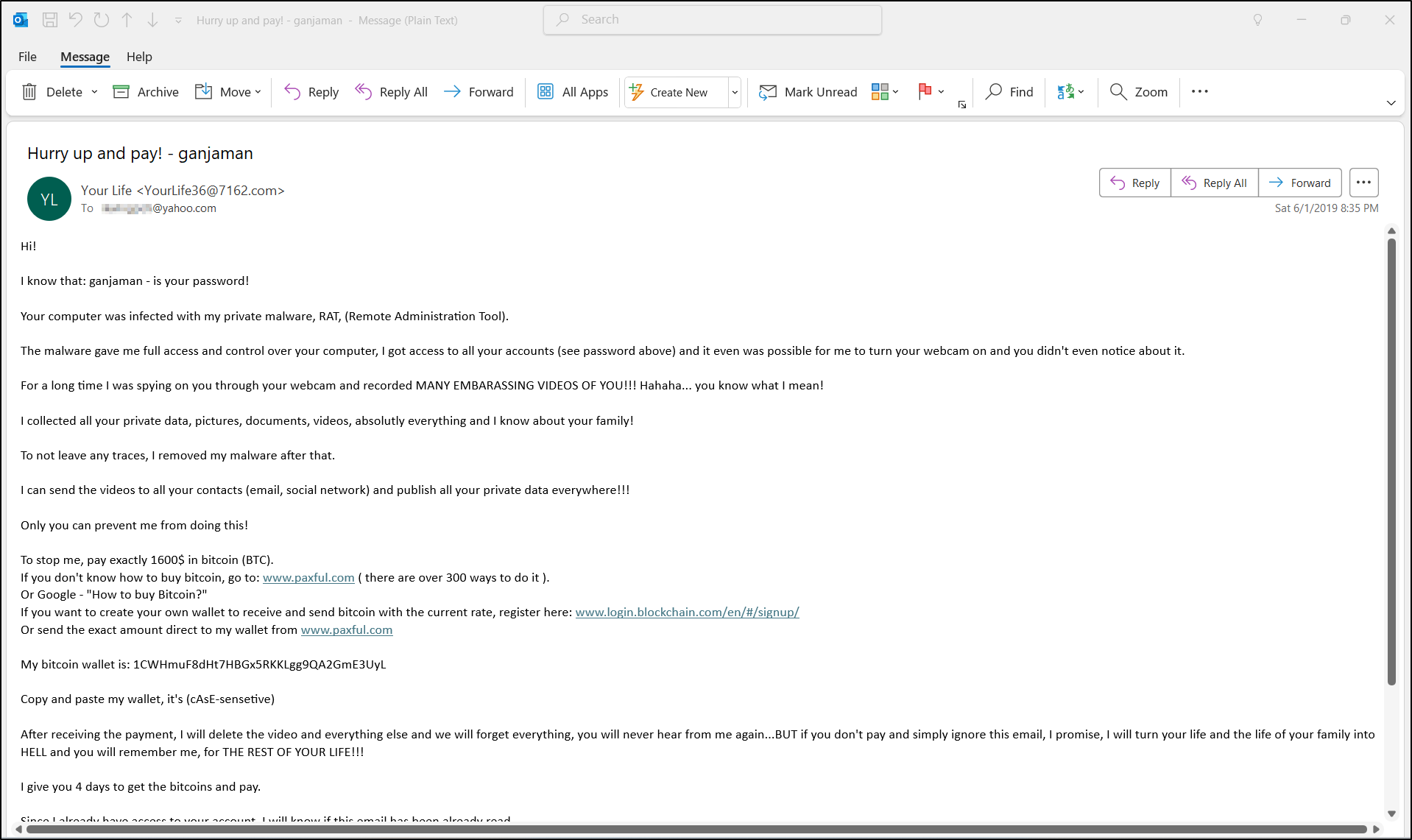
One such example is the fourth Unit 42 PCAP, Wireshark-tutorial-extracting-objects-from-a-pcap-4-of-5.pcap. In this PCAP, an infected Windows client sends sextortion spam. It contains five seconds of spambot traffic from a single infected Windows host.
Open the pcap in Wireshark and filter on smtp.data.fragment as shown below. This should reveal 50 examples of subject lines in the Info column on our Wireshark column display.
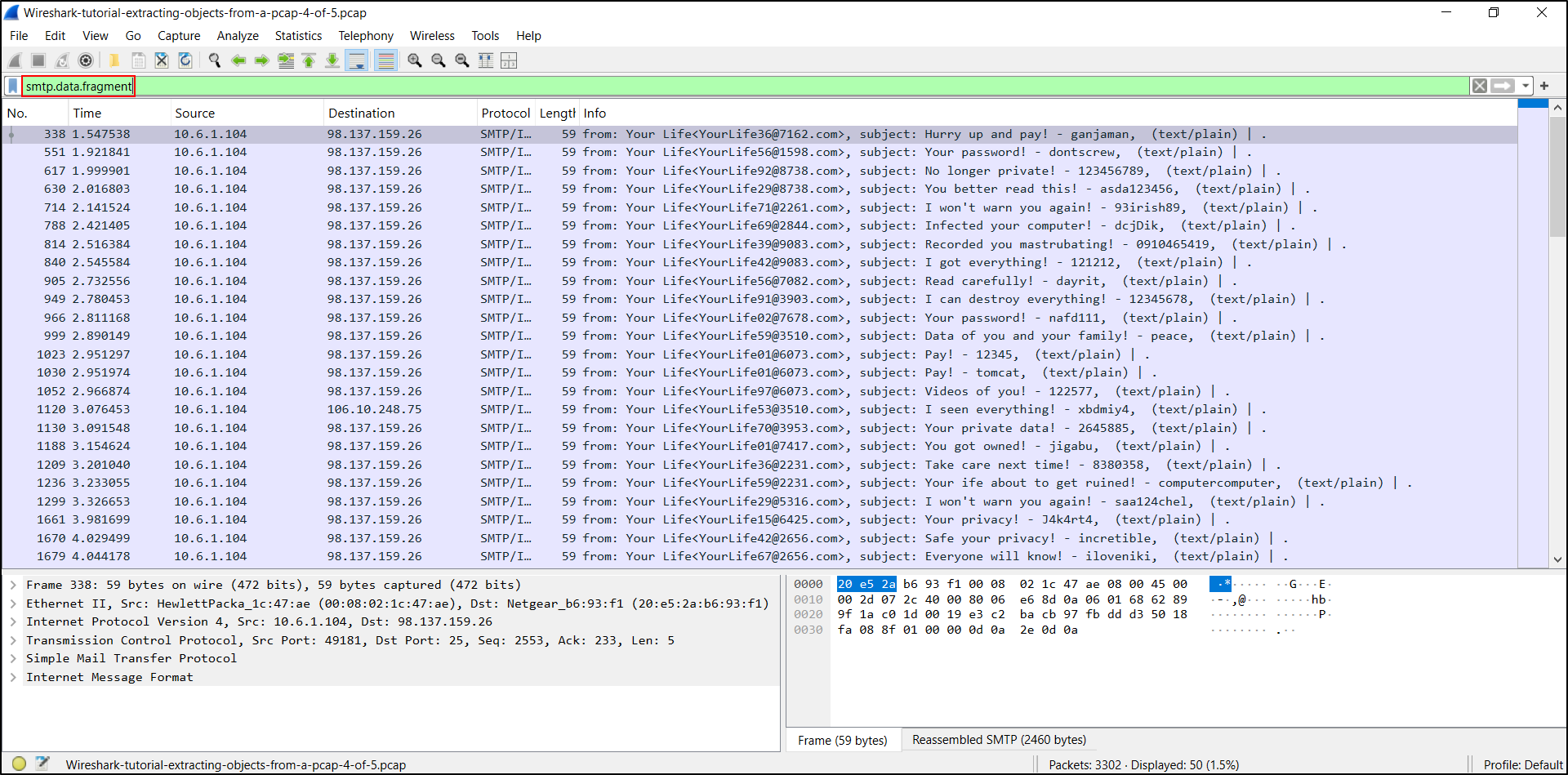
We can export these messages using the following menu path as shown in Figure 12:
- File → Export Objects → IMF...
IMF stands for Internet Message Format, which is saved as a name with an .eml file extension.
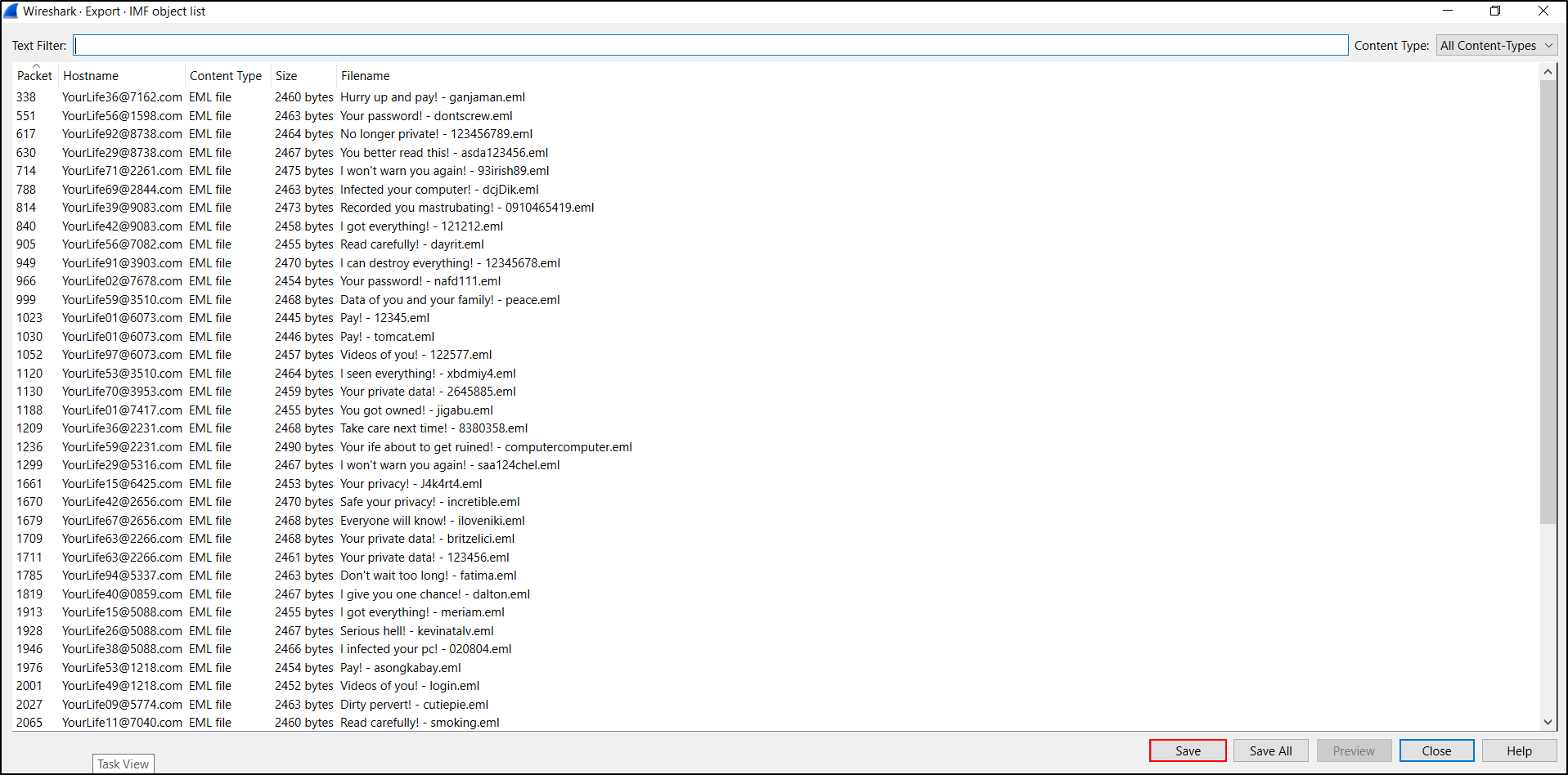
Review the exported .eml files as text. Opening untrusted messages in a full email client can load remote content or invoke unsafe handlers, so do so only in an isolated environment with external content disabled.
Exporting Files from FTP Traffic
Some malware families use FTP during malware infections. Our next pcap contains malware executables retrieved from an FTP server. It also contains stolen information sent from the infected Windows host back to the same FTP server.
The final Unit 42 PCAP is Wireshark-tutorial-extracting-objects-from-a-pcap-5-of-5.pcap. Open it in Wireshark and use the following display filter:
The results are shown below. We should see USER for the username and PASS for the password. This is followed by RETR statements, which are requests to retrieve files. The filtered results show RETR statements for the following files:
- RETR q.exe
- RETR w.exe
- RETR e.exe
- RETR r.exe
- RETR t.exe
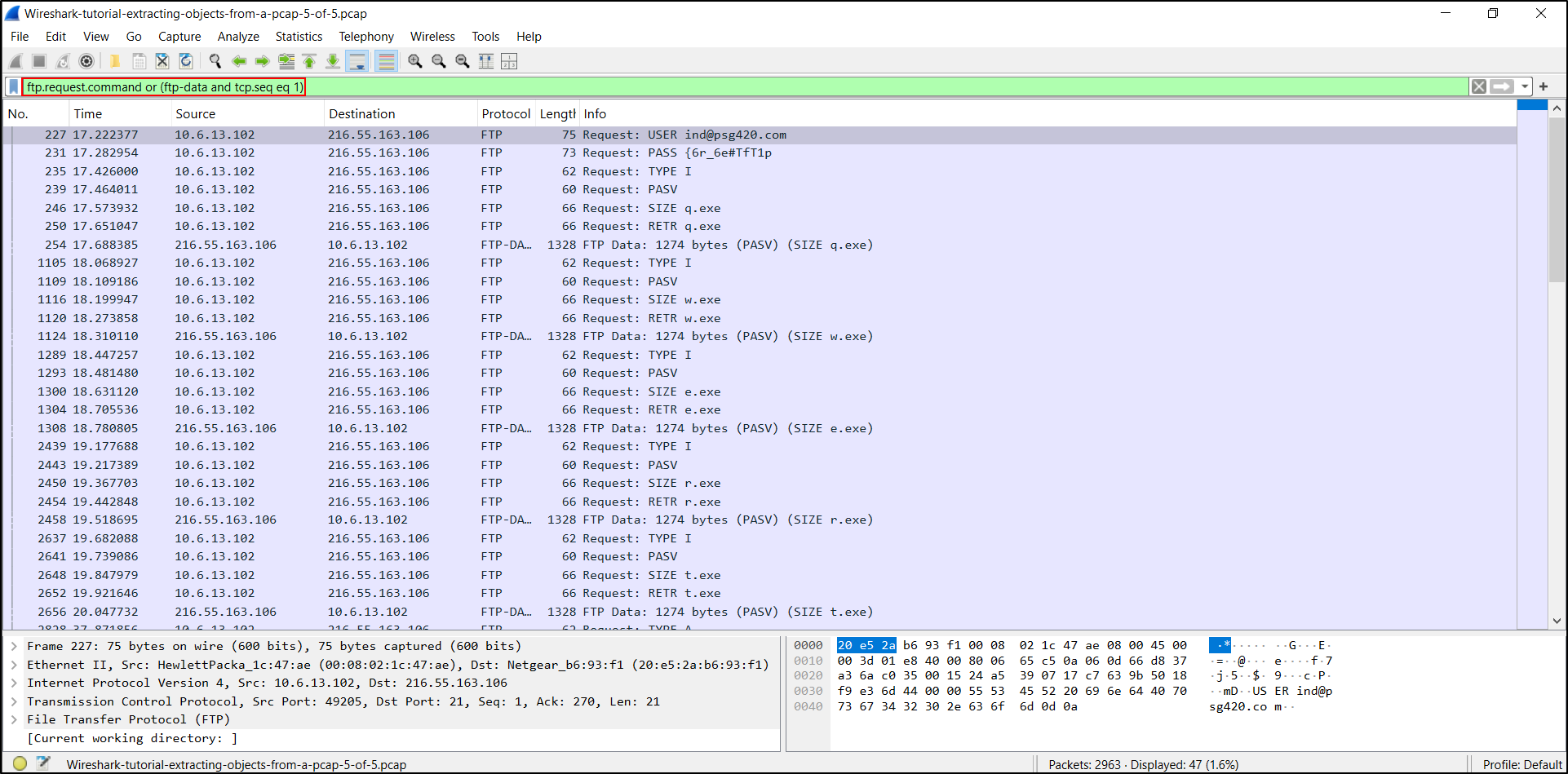
This Wireshark filter also shows the start of files sent over the FTP data channel. After the RETR statements for the .exe files, our column display should reveal STOR statements representing store requests to send HTML-based log files back to the same FTP server approximately every 18 seconds.
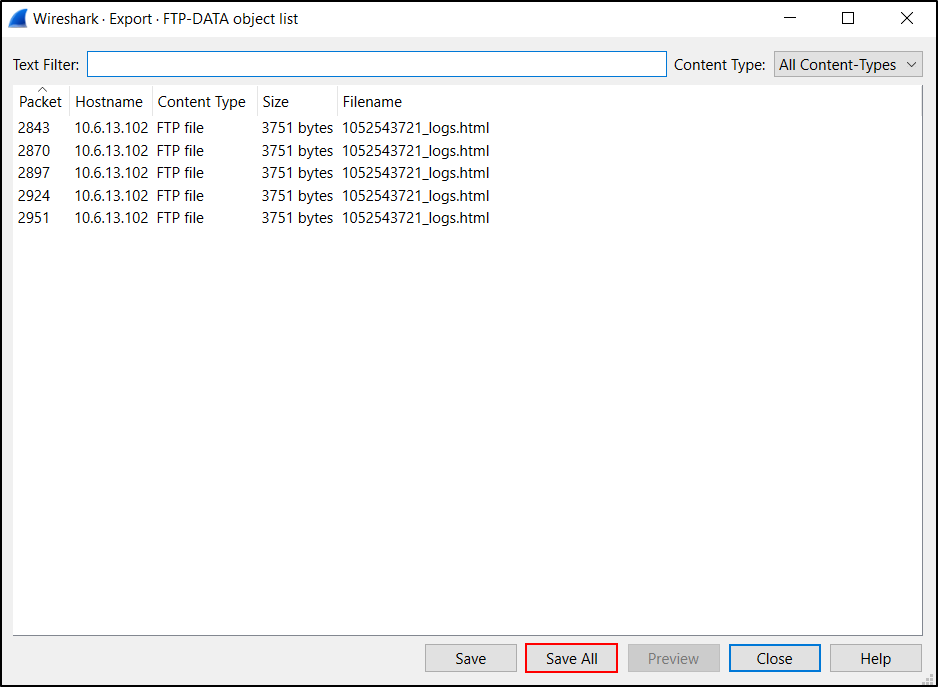
In Wireshark version 4.0.0 or newer, we can export files from the FTP data channel using the following menu path as shown in Figure 16:
- File → Export Objects → FTP-DATA...
This brings up a Window listing the FTP data objects we can export as shown below. This lists all of the HTML files sent to the FTP server containing information stolen from the infected Windows host.
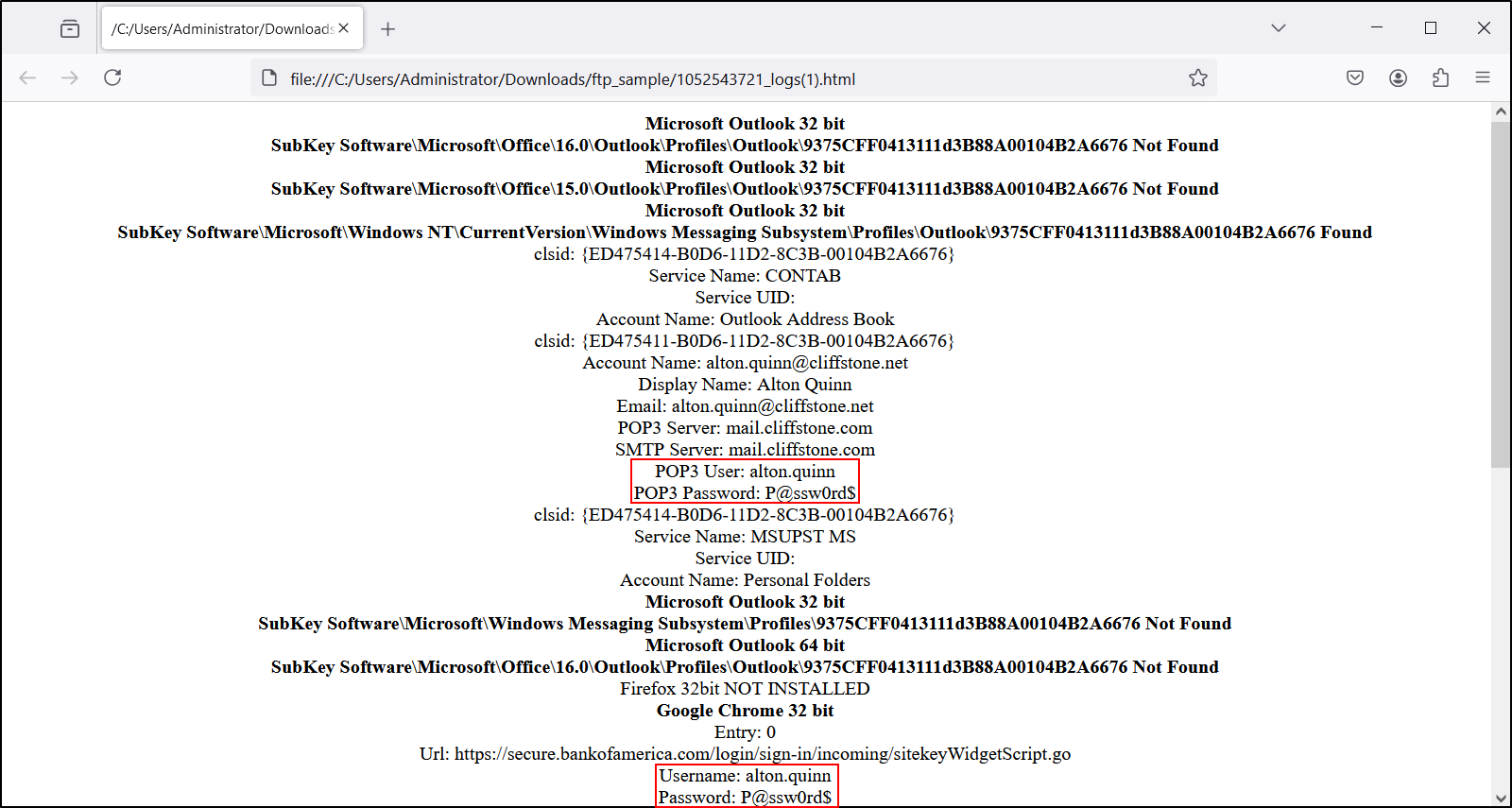
We can view the exported files in a text editor or a browser as shown below. These files contain login credentials from the infected host’s email client and web browser.
While this export FTP-DATA function works for the .html files, it did not present us with any of the .exe files retrieved from the FTP server. We must export these using another method.
This method involves finding the start of FTP data streams for each of the .exe files returned from the FTP server. To find these TCP frames, use the following Wireshark filter:
The results are shown below, revealing an FTP data stream for each of the .exe files.
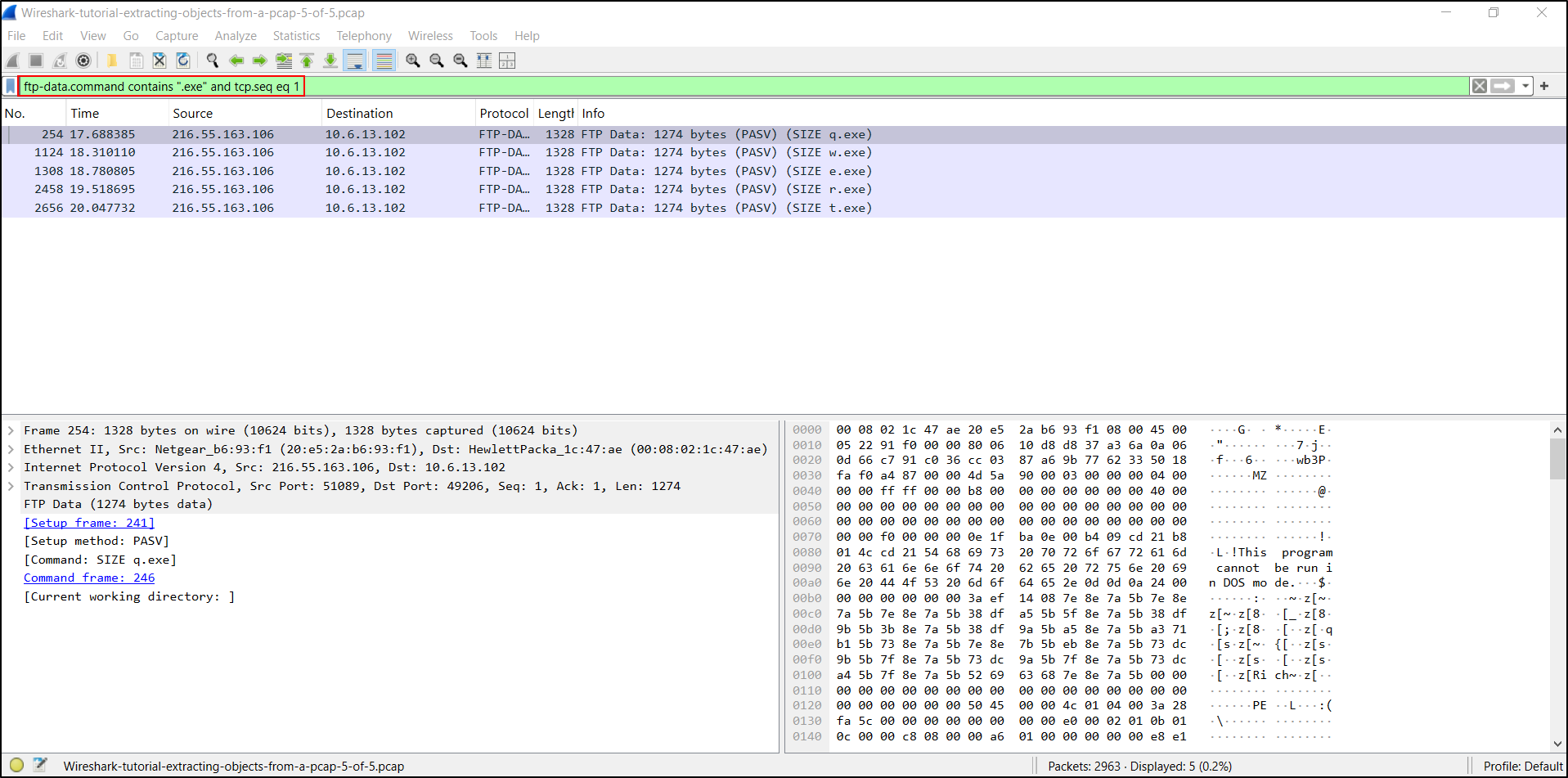
We can follow the TCP stream for each of the frames, and we can export these files from the TCP stream window. First, follow the TCP stream for the first result that shows (SIZE q.exe) in the Info column as shown below (right-click → Follow → TCP Stream)
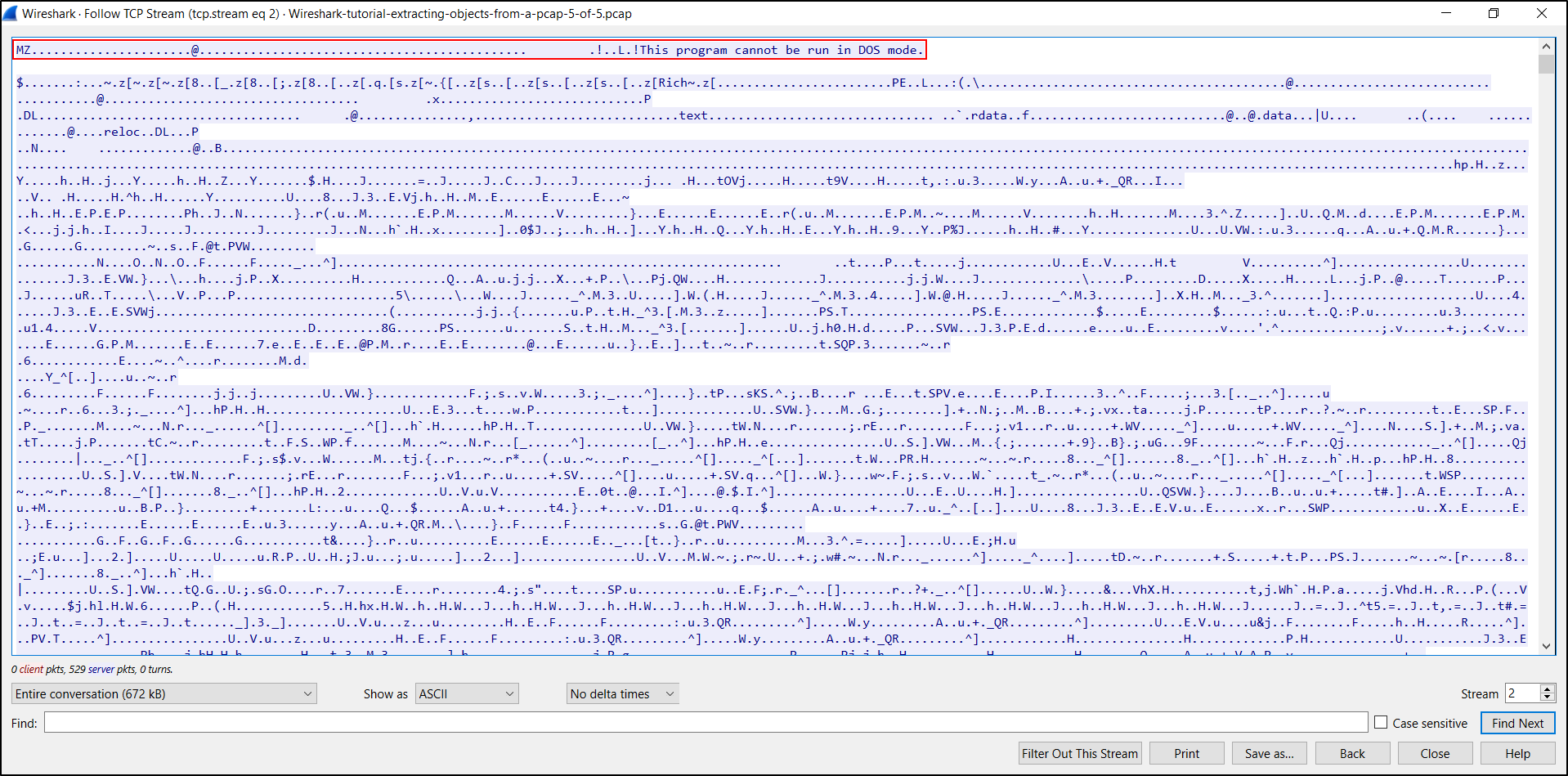
The TCP stream window shows hints that this is a Windows executable or DLL file. The first two bytes are the ASCII characters MZ. The TCP stream also reveals the string This program cannot be run in DOS mode.
But to confirm this is a Windows executable or DLL file, we must export it from the TCP stream. To do this, select “Raw” in the "Show data as" menu.
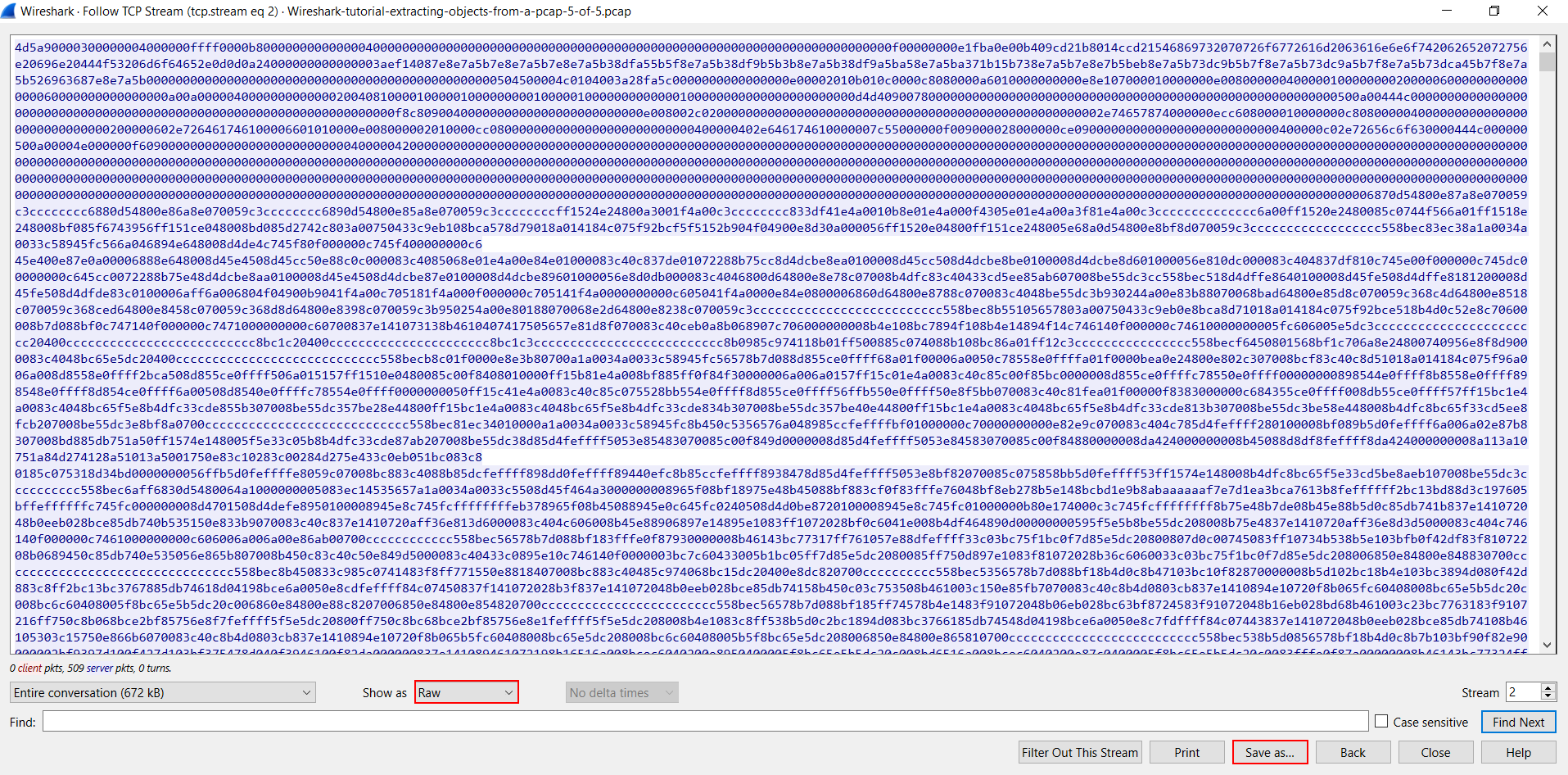
The TCP stream now shows the information in hexadecimal text, and we can export this raw data as a file using the "Save as..." button as shown above. This is an FTP data stream for a file named q.exe, and we have to manually type that when saving the file.
When saving the file as q.exe in a Linux or similar CLI environment, we can confirm this is a Windows executable file and get the SHA256 hash using the commands shown below.
└─$ file q.exe
q.exe: PE32 executable (GUI) Intel 80386, for MS Windows, 4 sections

└─$ shasum -a 256 q.exe
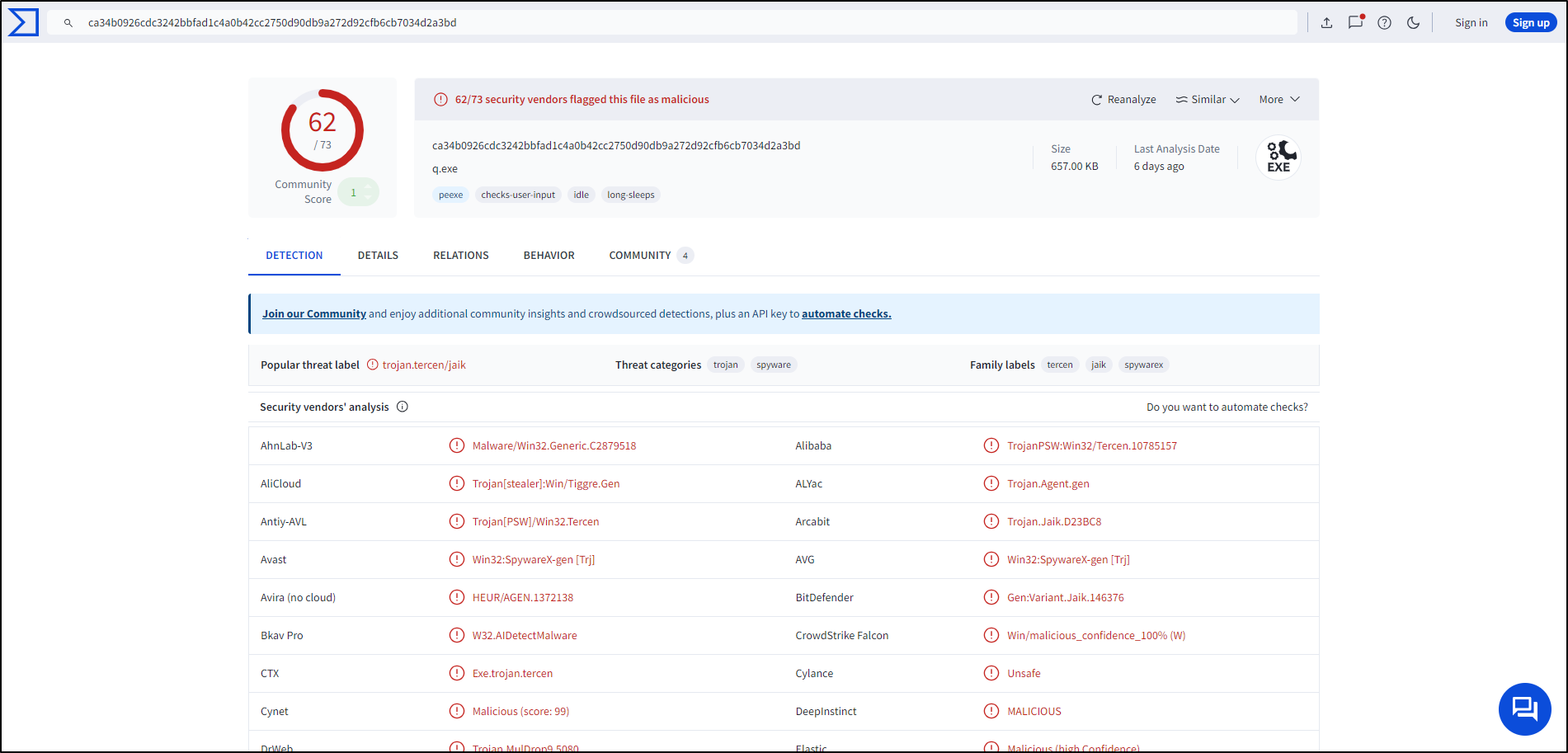
ca34b0926cdc3242bbfad1c4a0b42cc2750d90db9a272d92cfb6cb7034d2a3bd  q.exe
At the time of the original Unit 42 exercise, this SHA-256 value had a high detection count in VirusTotal. Detection results are time-dependent and should be treated as one source of evidence rather than proof by themselves.
Follow the same process to export the other .exe files in the pcap.
└─$ file w.exe
w.exe: PE32 executable (GUI) Intel 80386, for MS Windows, 5 sections

└─$ file e.exe
e.exe: PE32+ executable (GUI) x86-64, for MS Windows, 6 sections

└─$ file r.exe
r.exe: PE32+ executable (GUI) x86-64, for MS Windows, 6 sections

└─$ file t.exe
t.exe: PE32 executable (GUI) Intel 80386, for MS Windows, 4 sections

└─$ shasum -a 256 w.exe
08eb941447078ef2c6ad8d91bb2f52256c09657ecd3d5344023edccf7291e9fc  w.exe

└─$ shasum -a 256 e.exe
32e1b3732cd779af1bf7730d0ec8a7a87a084319f6a0870dc7362a15ddbd3199  e.exe

└─$ shasum -a 256 r.exe
4ebd58007ee933a0a8348aee2922904a7110b7fb6a316b1c7fb2c6677e613884  r.exe

└─$ shasum -a 256 t.exe
10ce4b79180a2ddd924fdc95951d968191af2ee3b7dfc96dd6a5714dbeae613a  t.exe
This should give you the following files as shown below in Table
| SHA256 hash | Filename |
|---|---|
| ca34b0926cdc3242bbfad1c4a0b42cc2750d90db9a272d92cfb6cb7034d2a3bd | q.exe |
| 08eb941447078ef2c6ad8d91bb2f52256c09657ecd3d5344023edccf7291e9fc | w.exe |
| 32e1b3732cd779af1bf7730d0ec8a7a87a084319f6a0870dc7362a15ddbd3199 | e.exe |
| 4ebd58007ee933a0a8348aee2922904a7110b7fb6a316b1c7fb2c6677e613884 | r.exe |
| 10ce4b79180a2ddd924fdc95951d968191af2ee3b7dfc96dd6a5714dbeae613a | t.exe |
These five .exe files are Windows executables. At the time of the original exercise, their hashes had high malware-detection counts in VirusTotal.
Wireshark can reassemble supported protocol streams and expose objects sent over unencrypted network traffic. The methods in this exercise allow an analyst to extract and validate those objects during an investigation of suspicious activity.
Malware-analysis checkpoint
You have completed this journey when you can identify the relevant HTTP, SMB, SMTP, and FTP activity; export the expected objects; calculate their SHA-256 hashes; and explain why the objects must remain isolated.